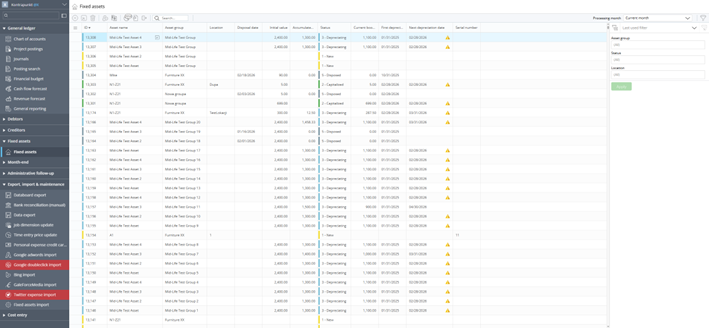
Fixed Assets Management
Use the Fixed Assets page to create assets and perform asset operations such as capitalization, depreciation, revaluation, and disposal.
This section and subsections covers the fixed assets list, the asset card, and the available operations, including creating assets, capitalizing them from suspense account transactions, running depreciation, revaluing assets, disposing of assets, and exporting fixed asset data.
Asset Lifecycle
Every fixed asset in WorkBook moves through a defined lifecycle:
- New: Asset is created but has no financial value yet.
- Capitalized: Asset receives a cost through capitalization from suspense account transactions.
- Depreciating: Asset is being depreciated over its useful life.
- Disposed: Asset has reached the end of its useful life or has been sold.
Available Operations
| Operation | What it Does | Toolbar Icon |
|---|---|---|
| Create asset | Creates a new asset in "New" status | Create asset |
| Show asset card | Opens the detail card for the selected asset | Show asset card |
| Delete asset | Removes an asset that has no journal postings | Delete asset |
| Capitalize assets | Assigns cost from suspense account transactions to one or more assets | Capitalize assets |
| Undo last capitalization | Reverses the most recent capitalization (only if not yet depreciated) | Undo last capitalization |
| Depreciate assets | Runs depreciation up to a target date for selected assets | Depreciate assets |
| Revalue assets | Adjusts the book value of capitalized assets up or down | Revalue assets |
| Dispose assets | Dispose assets in the register, either directly or via sales invoice | Dispose assets |
Important: All fixed asset operations, including capitalization, depreciation, revaluation, and disposal, are performed in
company currency only. Multi-currency transactions are converted to company currency before being applied to assets.
Prerequisites
- Module setup complete: The Fixed Assets module must be fully configured before use. See Overview and Setup for the step-by-step configuration process.
- Role: You must have Finance access to view and manage fixed assets.
- Asset groups: At least one fixed asset group must exist with the required GL accounts configured (see Fixed Asset Groups).
How to Access Fixed Assets
- In the top navigation bar, click the Finance & Administration module icon.
- In the left sidebar, expand the Fixed assets section.
- Click Fixed assets.