Capitalizing Assets
Capitalization assigns a financial cost to an asset by linking it to transactions from the suspense account. This is how an asset moves from "New" to having a recorded value.
How Costs Get Into the Suspense Account
Running the Capitalization Wizard
- Select one or more assets in the grid.
- Click the Capitalize assets toolbar icon.
Step 1: Select Assets to Capitalize
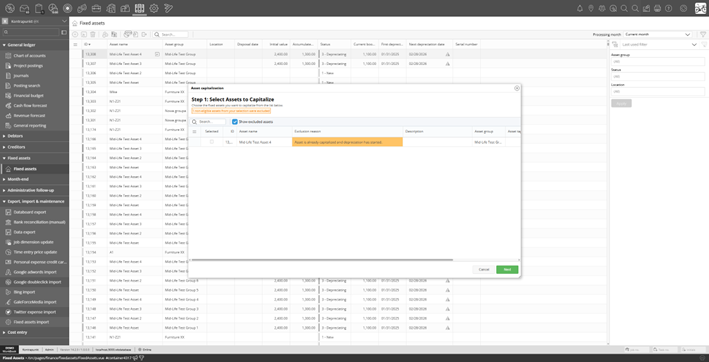
Capitalization wizard Step 1 - asset selection with exclusion reasons
- “Asset is already capitalized and depreciation has started”: the asset has already been depreciated
- “Asset has been disposed”: disposed assets cannot be capitalized
Step 2: Assign Transactions
Select transactions from the suspense account to allocate to the asset(s).
- Allocate a single transaction to one asset
- Split one transaction across multiple assets (divided equally)
- Allocate multiple transactions to a single asset
Set the Capitalization date and First depreciation month. The first depreciation month must be in the same month as the capitalization date or exactly one month later, and must be the last day of the month.
Step 3: Review and Confirm
Review the allocation summary and confirm.
- A Capitalization operation on each asset
- Journal entries: Debit asset account, Credit suspense account
Multiple Capitalizations
An asset can be capitalized more than once, for example, if additional costs need to be added later. However, once depreciation has started (the asset has been depreciated at least once), no further capitalizations are allowed. You can only add more cost while the asset is in “Capitalized” status (FirstDepreciationDate equals NextDepreciationDate).
Undo Capitalization
- Select the asset.
- Click the Undo last capitalization toolbar icon.
This is only allowed when:
- The asset has not yet been depreciated (no depreciation periods have passed)
- The last operation on the asset is a Capitalization
The undo creates reverse journal entries and decreases the asset’s initial value. If the initial value drops to zero, the asset returns to "New" status.