Depreciating Assets
Depreciation systematically reduces an asset's book value over its useful life. WorkBook supports four depreciation methods (defined on the asset group):
| Method | How it Works |
|---|---|
| Straight Line | Equal monthly charge: Initial Value / Useful Life Months |
| Reducing Balance | Fixed percentage of remaining book value each period |
| Double Declining Balance | Double the straight-line rate applied to the declining balance |
| Sum of Years' Digits | Decreasing fractions weighted by remaining useful life |
Running Depreciation
Click the Depreciate assets toolbar icon.
Step 1: Select Assets to Depreciate
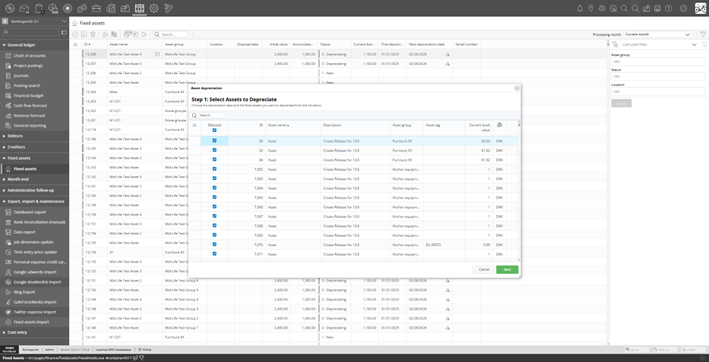
Depreciation wizard Step 1: selecting assets and depreciation date
The wizard shows all eligible assets (capitalized, not disposed, with remaining depreciation periods). All are pre-selected by default. You can deselect any assets you do not want to depreciate yet.
The depreciation runs up to the processing month selected in the top-right corner of the main page.
Step 2: Review and Confirm
Review the depreciation amounts and confirm.
- Calculates the depreciation charge for each missing period from the asset’s next depreciation date up to the target date
- Creates a Depreciation operation for each period
- Posts journal entries: Debit depreciation expense account, Credit accumulated depreciation account
- Updates the asset’s accumulated depreciation, book value, and next depreciation date
Depreciation stops automatically when the asset reaches the end of its useful life (depreciations left reaches 0) or current book value of the asset reaches 0.
Depreciation Rules and Restrictions
For assets that use the Reducing Balance method, if the calculated depreciation expense truncates to 0.00, or if the calculated amount is greater than the asset's current book value, WorkBook depreciates the entire current book value instead so that the asset is fully depreciated.