Revaluing Assets
Revaluation adjusts an asset's book value up or down to reflect its current fair value.
- Select one or more capitalized assets.
- Click the Revalue assets toolbar icon.
Step 1: Assign Revaluation Values
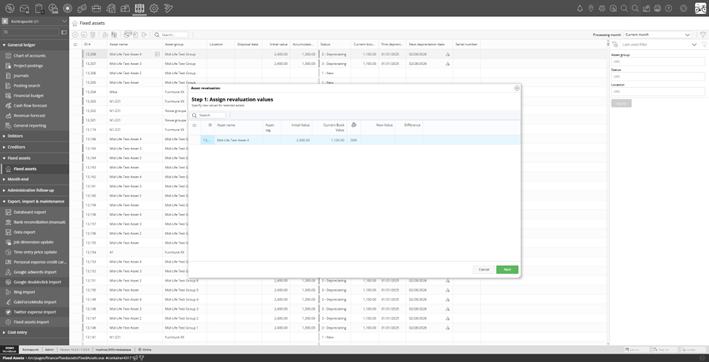
Revaluation wizard Step 1 - entering new values
For each asset, enter the New Value. The Difference column shows the gain or loss that will be recorded. The new value must be ≥ 0.
Step 2: Review and Confirm
Set the Revaluation date and confirm.
WorkBook:
- Creates a Revaluation operation
- Posts journal entries: Debit/Credit asset account with the difference, Credit/Debit revaluation gain/loss account with the opposite
- Updates the asset’s current book value
After revaluation, future depreciation charges are recalculated based on the new book value and the remaining useful life.
Important: Revaluation is only available for capitalized assets that have not been disposed. An asset can be revalued multiple times.