Fixed Asset Groups
Use fixed asset groups to define how categories of assets are depreciated and which general ledger accounts are used for fixed asset postings.
Overview
Use a fixed asset group as a template that defines the depreciation policy and GL account mapping for a category of assets. When you create or import a fixed asset, you assign it to a group.
What Are Fixed Asset Groups
- how the asset depreciates, including the depreciation method, useful life, and percentage rate, where applicable
- where financial transactions are posted, including the accounts used for asset cost, accumulated depreciation, depreciation expense, revaluation gains or losses, and disposal gains or losses
Why Are Groups Needed
Without groups, you would need to configure depreciation parameters and five GL accounts separately for every asset.
Groups solve this by letting you define the settings once and reuse them across all assets of the same type.
Groups also help keep the setup consistent. All assets in the same group use the same depreciation method and the same GL accounts. This helps prevent similar assets from being depreciated differently or posted to different accounts.
Groups are also a control point. After assets are assigned to a group, the depreciation parameters become locked. You cannot change the depreciation method or useful life without first removing the assets. This helps prevent changes that would make depreciation history inconsistent.
Key Concepts
- every fixed asset must belong to exactly one group
- a group's depreciation parameters, such as method, percentage, and useful life, are locked after assets are assigned to it
- a group's GL accounts can be changed only if no financial transactions have been posted against those accounts for assets in that group
- groups can be created manually in Settings or automatically during a Fixed Assets Import
- a group cannot be deleted if it has assets assigned to it
Prerequisites
- Role: You must have both Finance access and Settings access to manage fixed asset groups.
- Fixed Assets module: The Fixed Assets module must be enabled for the company.
- GL Accounts: The GL accounts you want to assign to a group must already exist in the chart of accounts, must not be blocked, and must be of the correct type (see GL Account Requirements).
Access Fixed Asset Groups
- In the top navigation bar, click the Settings module icon.
- In the left sidebar, scroll down to the Finance section and expand it.
- Click
Fixed asset groups.
The Fixed Asset Groups grid opens, showing all groups for the current company.
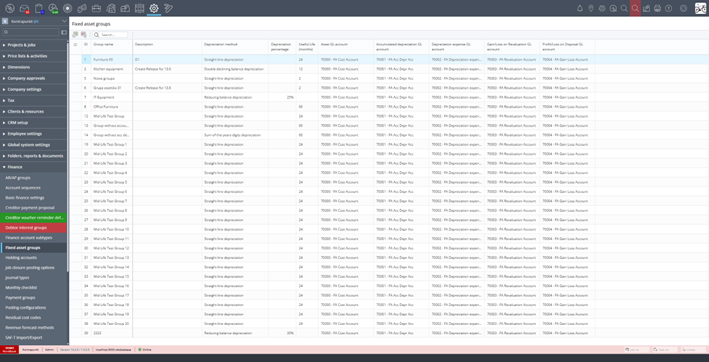
Fixed Asset Groups grid showing all groups with their depreciation settings and GL accounts.
Grid Columns
| Column | Description |
|---|---|
| ID | Auto-generated unique identifier (read-only) |
| Group name | Name of the group (editable) |
| Description | Optional description (editable) |
| Depreciation method | The depreciation method used for all assets in this group |
| Depreciation percentage | The depreciation rate - only shown for Reducing Balance method |
| Useful Life (months) | The useful life in months - shown for all methods except Reducing Balance |
| Asset GL account | Balance sheet account for the asset cost |
| Accumulated depreciation GL account | Balance sheet account for accumulated depreciation |
| Depreciation expense GL account | Operating account for periodic depreciation charges |
| Gain/Loss on Revaluation GL account | Operating account for revaluation adjustments |
| Profit/Loss on Disposal GL account | Operating account for disposal gains or losses |
Create a New Group
- Click the Create asset group toolbar icon (the first icon in the toolbar above the grid).
The Add new fixed asset group dialog opens.
- Fill in the fields:
- Group name (required): a descriptive name, for example. “IT Equipment”, “Office Furniture”, “Vehicles”.
- Description (optional): additional context about what this group is for.
- Depreciation method (required): select one of the four available methods (see Depreciation Methods).
- Depending on the method selected, provide the depreciation percentage and/or Useful Life (months).
- Select the five GL accounts from the dropdowns. Each dropdown shows only accounts of the correct type.
- Click
OK to create the group, or
Cancel to discard.
Important: The group name must be unique within the company. If you enter a name that already exists, validation will reject it.
Edit a Group
GL accounts can be changed as long as no financial transactions have been posted to the current account for assets in this group. If transactions exist, the account is locked.
Delete a Group
- Select the group row in the grid.
- Click the Delete asset group toolbar icon.
Warning: You cannot delete a group that has assets assigned to it. You must first delete the assets that belong to the group before the group can be deleted.