Elements Panel (New Workspace)
Use this panel to manage the core elements of your project, which include families, sections, and product types. As an administrator or author, you can add and remove these elements to build out your project's content structure.
The Elements panel contains all project elements within the MasterSpec® content library in an element tree that follows the hierarchical structure of the master guide specification system. Use this panel to browse through the library elements and add elements that fit your project requirements. This panel supports both UniFormat (Assemblies view) and MasterFormat (Divisions view). To effectively work on your project outline, you can switch between these formats as needed as well as filter elements by work results or added to project.
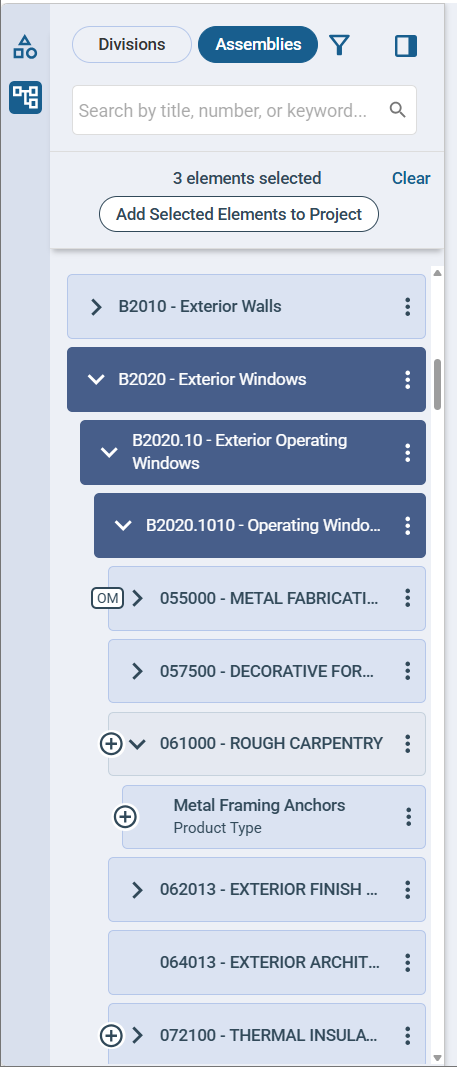
To accommodate more specialized project requirements, this panel also includes project elements from the SpecText content library, imported families/sections at the project-level, and office master families/sections. The availability of these contents depend on the your firm's subscription as well as custom content that you upload in both the project level and the firm level.
Element Nodes
Each project element displays as an element node. You can select each element node to add it to the project, remove it from the project, and/or load its contents on to the new workspace editor. Once selected, you can also use the various features within the new workspace further work on your element. These include modifying its content items, viewing its supporting documents, and setting its project management properties.
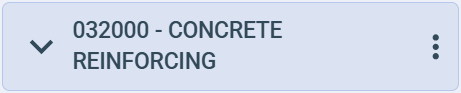
- Color: This indicates whether an element is added to a project, and whether you selected the element.
- Options: These options enable you to perform actions, such as select an element for quick add, set it as a best practice, or select office master version.
- Indicator Icons: This indicates unique characteristics about the element, such as availability of project-level imported versions and office master versions, availability of manufacturer options, and selection for quick add.
Pane Behavior
The Elements panel takes into account the actions that you perform within and outside this panel. The following table shows the nuances and behaviors of this panel to enable you to correctly select elements for your A/E firm's project:
| Behavior | Description |
|---|---|
| Format Selection | To accommodate your workflow requirements and preferences, you can shift between the following formats:
|
| Filtering by Added to Project or Work Results | You can
filter the project elements in this panel based on whether the project elements are currently in the project. Display only added to elements to quickly find and continue working on specific project elements.
You can also display only project elements that are currently in the project and under the Work Results category. |
| Filtering by Category | This panel lists project elements based on the selected category in the Categories panel. When you select a new category, Specpoint updates the list of available product listings in this window. This is available only in Assemblies view. |
| Search Results | When you search for project elements, this panel displays the resulting project elements in their respective colors. This panel also displays the related project elements, such as parent assemblies or child families of an element in the search results, in a dimmed color. |
| Pane Visibility | You can show or hide this panel to make your element selections or maximize the size of the element form. Specpoint retains the element additions, removals, activations, and inactivations that you perform in this panel when you exit from and return to the new workspace or when you hide and show the Elements panel. |
Automated Changes to Project Elements
When you perform actions on a project element, Specpoint automatically makes adjustments to maintain the hierarchical structure of the contents. For example, in UniFormat, when you add a project element, Specpoint automatically adds the assemblies and/or family above the project element. Likewise, when you remove a project element, the platform automatically removes the element's child assemblies, families, and/or product types, if applicable. This ensures that projects do not have an unparented project element.
For more information, see Design Automation for Project Elements.
When you select a family or product type element in this panel, Specpoint filters the product listings in the Product Listings window (project level) based on your selection. This enables you to view only product listings that are appropriate for the selected family or product type.