Contents of the Elements Panel (New Workspace)
Use the contents of this panel to select project elements, such as assemblies, families, and product types, to add to or remove from your project.
Panel Options
In this panel, the following options are available:
| Option | Description |
|---|---|
 Category
|
Click this option to show the Categories panel. |
 Elements Panel
|
Click this option to show the Project Elements panel. |
| Divisions | Click this option to switch to Divisions view (MasterFormat). |
| Assemblies | Click this option to switch to Assemblies view (UniFormat). |
 Filter Elements
|
Click this option to display the filter options for project elements in this panel in your selected view.. The following options are available:
|
 Collapse Panel
|
Click this option to hide this panel. |
| Project Element Search | Enter the terms to search for in the project element numbers or project element names of the
assemblies,
families, sections, and
product types. The following actions are available:
|
| Add Selected Elements to Project | This option is available only if you selected elements for quick add.
Click this button to add all selected elements to the project. |
| Clear | This option is available only if you selected elements for quick add.
Click this button to cancel adding elements through quick add. |
 .
.
Project Elements
In this panel, the following project elements are available:
| Item | Description |
|---|---|
| Project Elements (Assemblies view or UniFormat) | In Assemblies view, this panel lists the following project elements based on the selected filter and search criteria:
For more information, see Project Elements and Organization by UniFormat®/Assemblies View. Each element displays as its own node in the hierarchical structure of the element tree. For example, for the 032000 Concrete Reinforcing family:
You can click a project element to select it as well as expand the element and show its child elements. This action also loads the element's content items onto the element form (except for subassembly groups, subassembly types, and divisions). |
| Project Elements (Divisions view or MasterFormat) | In Divisions view, this panel lists the following project elements based on the selected filter and search criteria:
For more information, see Organization by MasterFormat®. Each element displays as its own node in the hierarchical structure of the element tree. For example, for the 032000 Concrete Reinforcing section:
You can click a project element to select it as well as expand the element and show its child elements. This action also loads the element's content items onto the element form (except for subassembly groups, subassembly types, and divisions). |
Project Element Nodes
For each project element, the following information is available:
| Information | Description | |||||||||||||||||||||||||||
|---|---|---|---|---|---|---|---|---|---|---|---|---|---|---|---|---|---|---|---|---|---|---|---|---|---|---|---|---|
 Collapsed or Collapsed or
 Expanded Indicator Expanded Indicator
|
This indicates whether you expanded or collapsed the project element. The following icons are available:
|
|||||||||||||||||||||||||||
| Element Number and Name | This indicates the number code and name of the assembly, division, family, section, or product type. | |||||||||||||||||||||||||||
| Element Type | This option is available only for
product types.
This indicates the project element's type. |
|||||||||||||||||||||||||||
 Element Menu Icon
|
Click this icon () to the view the available menu options for your selected project element.
For added project elements, the following options are available:
For unadded project elements, the following options are available:
|
Element Node Colors
For project element nodes, the following colors are available:
| Color | Example | Selected | Added to Project |
|---|---|---|---|
| Light Blue | 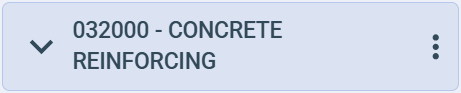
|
||
| Gray | 
|

|
|
| Dark Blue | 
|
|
|
| Navy Blue | 
|
|
|
Element Node Indicators
For project element nodes, the following indicators or icons are available:
| Indicator | Description | Example |
|---|---|---|
| No Indicators | The project element is in its default baseline state. |
|
 Quick Add Icon
|
This indicates that you selected the project element for quick add.
See Add Multiple Project Elements in Assemblies View (New Workspace) and Add Multiple Elements in Divisions View (New Workspace). |

|
 Manufacturer Options Icon
|
This indicates that the product type is a manufacturer product type. | 
|
| PI Icon | This indicates that the family is imported on the project level.
See Project-Level Import. |

|
| OM Icon | This indicates that the family is based on a published office master family. | 
|