New Workspace
Use the new workspace, to build out, organize, and edit your project specifications in a structured environment. The workspace supports adding, managing, and reviewing project elements and their content items.
The new workspace is the primary area in Specpoint for working on the contents of your project specifications. This workspace provides you with a structured interface for adding, removing, reviewing, and managing project elements, such as assemblies, families, and product types. For each project element, you can use the workspace to work on the element's content items, such as performance requirements, articles, and paragraphs. These content items define the specific components, requirements, and properties of your project assemblies and enable intelligent product selection. The new workspace contains all the features that you need to work on specification content at every level.
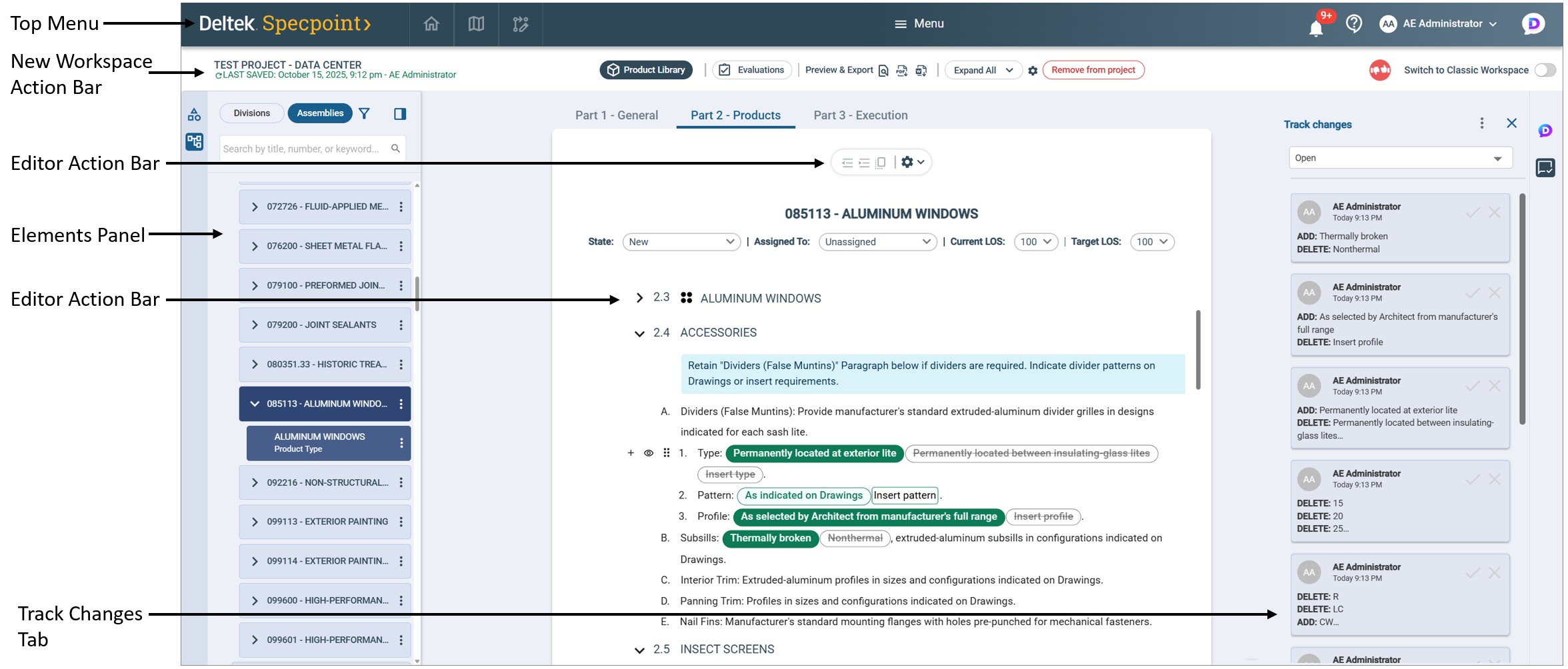
New Workspace Design
The new workspace provides a simplified and intuitive environment for editing project specifications. The interface organizes its features to resemble the structure and flow of a previewed or exported section, which helps users visualize how their content will display in the project output. The layout and controls are designed to be familiar to anyone who has used modern document editing tools, reducing the time needed to become comfortable with the workspace.
In contrast to the classic project workspace, which uses multiple segmented panes and toolbars, the new workspace centralizes key features and actions in a unified interface. You can access frequently used tools from the new workspace action bar and editor action bar, and navigate between elements more efficiently. This design makes it easier to locate features and perform tasks without searching through multiple menus or panels. As you work, you can focus on creating and refining content, with less effort spent on navigation or tool discovery.
While working on your project, you can shift between the classic project workspace and the new workspace at any time. Both workspaces retain and reflect all edits that you make to your project in either workspace.
Parts of the New Workspace
- New Workspace Action Bar: This action bar provides you with general features that you can use to work on your project elements and their content items. This bar also provides access to project management functions, including project parameters, product selection, and workspace settings.
- Categories Panel: This panel enables you to select categories and disciplines, which filter the available project elements and product listings.
- Elements Panel: This pane displays project elements in a hierarchical tree, supporting both UniFormat (Assemblies View) and MasterFormat (Divisions View). Use this pane to add, remove, and manage elements for your project. You can also use the available filter and search functions.
- New Workspace Editor: This editor enables you to view and edit the properties and content items of the selected project element. The element form organizes content into parts (General, Products, Execution), articles, and paragraphs. Use this form to add, modify, move, activate/inactivate, or remove articles and paragraphs according to your project requirements.
- Track Changes Tab: This tab allows you to review, accept, or reject edits made to element content items. You can use track change tips on this tab to navigate to in-line track changed content.
- Ask Dela Chat Box: The Ask Dela chat box is an integrated generative AI assistant that answers questions about Specpoint features, MasterSpec content, and related resources. You can use it to get guidance directly within the workspace.
You can show or hide parts of the new workspace You can toggle the visibility of the Categories panel, Elements panel, Track Changes tab, and Ask Dela chat box. This allows you to enlarge the size of the new workspace editor after you access needed features and make your desired selections. Customize your view of the workspace based on your preferences to maximize your workflow.