New Workspace Editor
In the new workspace, use this editor to view and work on your selected project element's properties and content items in a more intuitive user interface.
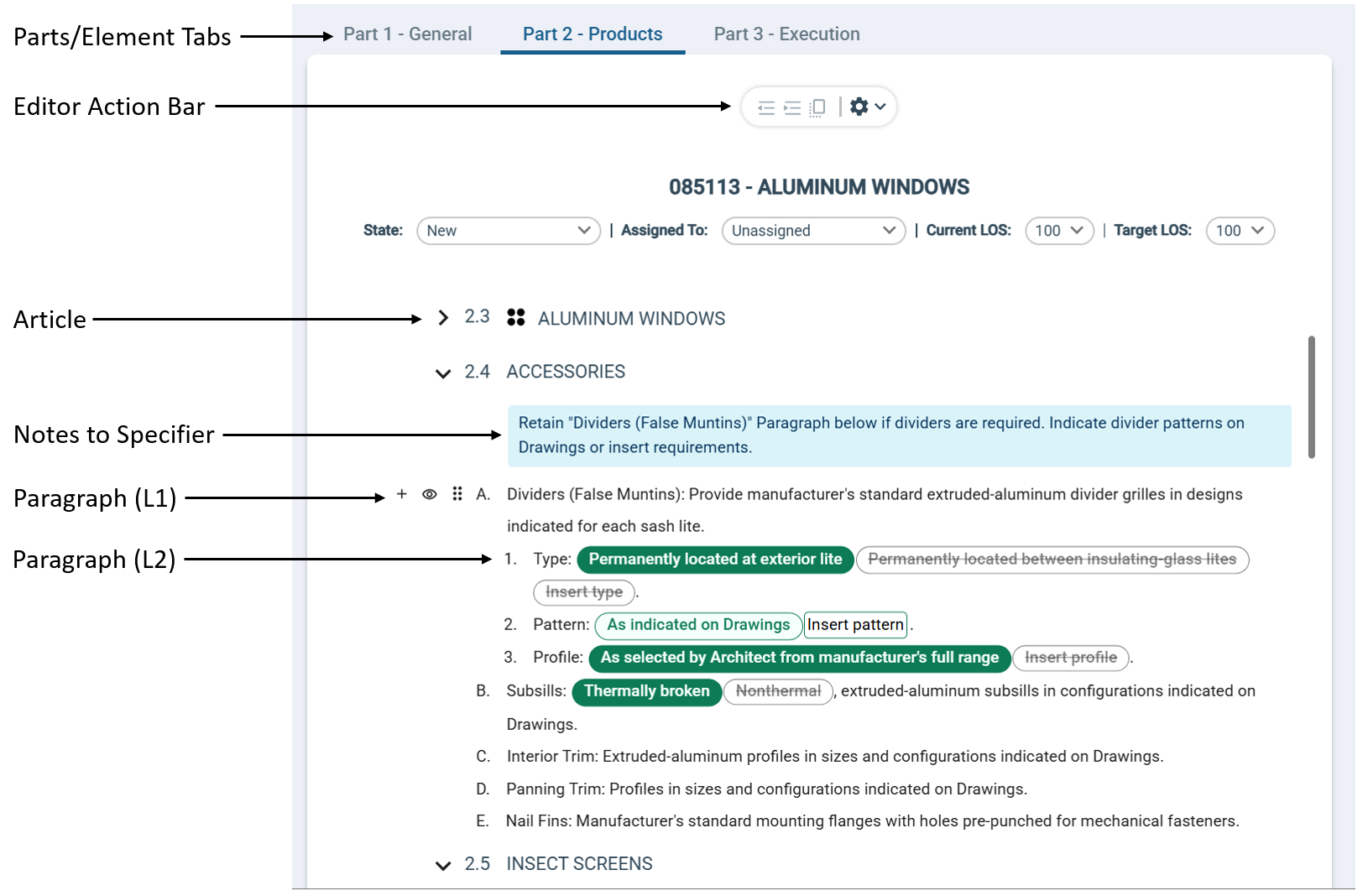
The new workspace editor displays the available content items for the selected element in the Elements panel. For unadded elements, use this editor to review an element's contents and determine whether it fits your project requirements prior to adding it to your project specifications. For added project elements, use this editor to modify the element's available content items, such as articles, paragraphs, and performance requirements. Depending on the element type, the following content items are available:
| Element Type | Content Item |
|---|---|
| Assemblies (top-level, assembly groups) | Performance Requirements |
| Subassemblies (subassembly groups and subassembly types) and Divisions | None |
| Families, Sections, or Product Types | Parts, Articles, and Paragraphs |
Design
Specpoint's new workspace editor offers a streamlined, user-friendly environment for editing project elements, building on the strengths of the classic workspace's element form. Designed to feel familiar to users of contemporary document editors and text processing applications, the new workspace editor enables design professionals to work more productively and collaboratively on their project specifications.
The new workspace editor provides a more intuitive visual experience with a layout that is similar to the section preview and the exported project output. This consistency helps users better understand how their content will appear once finalized, which makes it easier to spot issues or inconsistencies during editing and reduces the need to switch between views.
Permissions
- You are either an administrator or author.
- You are a member of the project team.
- The project element must be added to the project.
This editor is view-only to contributors or for unadded project elements.
Related Options
For working on content items on the element form, relevant options are available in the following portions of the new workspace:
| Portion | Description |
|---|---|
| New Workspace Action Bar | The main action bar of the
new workspace contains options for managing your selected element in the Elements panel and its content items on the editor.
As an administrator or author, use these options to add, remove, preview, and export the selected project element. In addition, you can also use the options on this action bar to expand and collapse all articles, expand and collapse all performance requirements, and view supporting documents. |
Track Changes Tab

|
This tab contains a record of changes that project team members made to the element's articles and paragraphs. Use this tab to perform the following tasks:
For more information, see Track Changes Tab. |
Design Automation
To maintain the structure of the element contents, Specpoint enforces multiple limits to your actions based on the element content type and the current context. Moreover, for each action that you perform on an article or paragraph in the new workspace editor, Specpoint automatically makes adjustments to related content.
For more information, see Design Automation for Element Contents.
Preview and Export Shortcut
The workspace toolbar provides options for previewing or exporting a section. After you completed your modifications to a family, section, or product type, you can preview the element in a traditional section view. This enables you to preview how the contents of the element display when you export the section or the project manual.
In addition, you can also export a family, section, or product type as both a PDF file and a DOCX file. This allows you to share and store content outside the platform without exporting the entire project manual.
For more information, see Preview and Export and Included Contents in the Section Preview and Exported Files.