Create Interproject Relationships (Network)
Use this procedure to create an interproject relationship in a network drive.
To create an interproject relationship in a network view:
-
Place the cursor at the appropriate edge of the predecessor activity.
- Use the left edge to create start-to-start and start-to-finish relationships.
- Use the right edge to create finish-to-start and finish-to-finish relationships.
When the cursor is positioned on the edge of the activity box, the cursor changes to a shape.
-
Drag the cursor to create one of the following relationships:
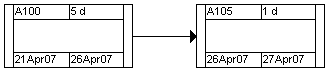
- Finish-to-Start
Drag the relationship line from the right edge of the predecessor activity to the left edge of the successor.
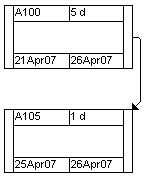
- Finish-to-Finish
Drag the relationship line from the right edge of the predecessor activity to the right edge of the successor.
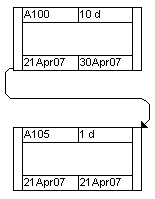
- Start-to-Finish
Drag the relationship line from the left edge of the predecessor activity to the right edge of the successor.
- Finish-to-Start
Drag the relationship line from the right edge of the predecessor activity to the left edge of the successor.
Note: If you accidentally release the mouse button before creating the relationship, Open Plan assumes that you want to create a new activity and displays the Activity Details dialog box.While a relationship lag can be either positive or negative, the default relationship that Open Plan creates has zero lag. By default, Open Plan uses the calendar of the successor activity to calculate any lag in the relationship.
To change either of these settings, double-click the relationship line, and edit the dialog box that is displayed.
- Finish-to-Start
Related Topic
Related Procedures