Advanced Tab
This tab provides advanced controls for the manner in which Open Plan treats activities during resource scheduling.
These controls allow you to provide flexible treatment of activity durations during resource scheduling or to require that an activity start on its earliest feasible date regardless of the effect on resource loading.
Contents
| Field | Description |
|---|---|
| ID, Desc., Status, Duration |
These fields are common to all tabs. See Common Fields for a description of these fields. |
| Total Float |
Displays the total float for the activity as calculated by time analysis. This is the maximum number of work periods by which the activity can be delayed without delaying project completion or violating a target finish date. |
Resource Scheduling
Open Plan provides advanced controls for the treatment of the activity.
| Field | Description |
|---|---|
| Type |
|
| Min Duration |
When the Split option is chosen, this field controls the minimum duration of any piece of the split activity. |
| Max Splits |
When the Split option is chosen, this field controls the maximum number of pieces into which the activity can be split. |
| Max Duration |
When either the Stretch or Reprofile option is chosen, this field controls the maximum duration for the activity. You may enter the maximum duration using any of the following duration units:
While you may use decimal values (for example, 4.5 D), you cannot enter durations using mixed duration units. (For example, 4D4H is not allowed.) |
| Priority |
This field controls the priority Open Plan gives the activity during resource scheduling and acts as a tie-breaker. You can enter any 3-digit number. Lower numbers indicate a higher priority than higher numbers. The default for this field is zero (and, therefore, top priority). Negative numbers are allowed. For this setting to take effect, you must also select Priority as one of the priorities on the Advanced tab of the Resource Scheduling dialog box. |
| Separate Resources |
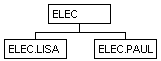
This option controls whether Open Plan should consider members of a pool and members who share the same skill as separate resources during resource scheduling. For example, assume the following resource pool:
If this option is selected and the resource assignment for an activity calls for 8 hours of ELEC for 5 days and a second assignment of ELEC for 5 days, Open Plan treats the two assignments separately and can schedule 8 hours of LISA and 8 hours of PAUL for each day. On the other hand, if this option is not selected, Open Plan combines the two assignments and attempts to schedule a single resource for 16 hours a day with the following results:
This same example holds true if you are assigning resources based on a skill instead of a pool. |
| Suppress Requirements |
This option controls whether Open Plan should suppress resource requirements for the activity during resource scheduling.
|
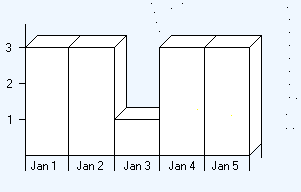
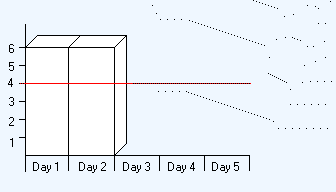
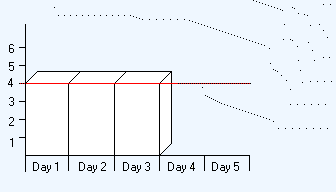
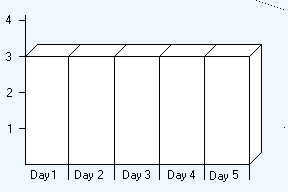 5 days at 3 units per day
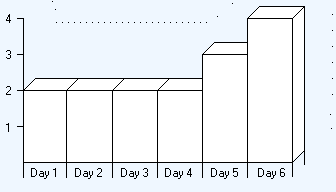 4 days at 2 units per day, followed by 1 day at 3 units per day and 1 day at 4 units per day
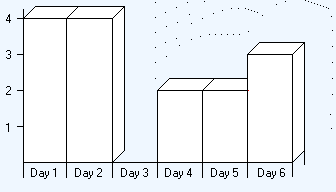 2 days at 4 units per day, followed by 1 day at zero units per day, followed by 2 days at 2 units per day and 1 day at 3 units per day.
Earned Value
| Field | Description |
|---|---|
| EVT |
You can specify the EVT for the activity. When the Base Physical Percent Complete on EVT option is selected on the Progress Calculations dialog box, Open Plan uses the selected EVT to update the earned value of the activities when progress calculations are run. This field is disabled when the _UserCannotChangeInProgressEVT user preference on the System Preferences Defaults dialog box is set to 1 and the activity is in-progress or completed. For information about how the EVT field affects the Physical % Complete field, see Rules For EVT and Activity Physical % Complete. You can choose from the following EVTs:
There are few hard and fast rules about selecting performance measurement techniques. The general rule is to select a method that allows you to "earn how you plan." For example, if an activity spans two periods and the budget spread is $50 in the first period and $50 in the second period, you should select an Earned Value that, if on schedule, would allow you to earn half of the $100 budget when the activity is started and the other half when it is finished. (This scenario would most likely use the 50-50 EVT.) Note: 50-50, 0-100, 100-0, and User-Defined Percentage EVTs are normally used on activities that span no more than 2 periods.
|
| Start % |
This field is enabled when you select User-Defined Percentage for the EVT. You can enter the starting percentage an activity earns in this field. The remainder is earned when the activity is completed. |