Basis-of-Design (BOD) Product Paragraph
Use this paragraph to specify a product listing as a basis of design (BOD) for a product type and to fulfill a product requirement.
A basis‑of‑design (BOD) product serves as the reference product for a product type. It defines the required level of performance, quality, and design intent, and provides the standard for evaluating acceptable comparable products. By identifying a BOD product, you help reviewers clearly understand the project requirements, even when the specification allows other products.
In addition to the basis of design product, you can select manufacturers or product listings as comparable products. Comparable products are acceptable alternative products that meet the requirements established by the basis‑of‑design (BOD) product. These products allow flexibility in product selection while ensuring consistency with the project's design intent.
Basis-of-Design Product Paragraph in the New Workspace

- Basis-of-design product
- Comparable product selection via Product Library (non-inline)
- Display‑only manufacturer and product listing pills
For basis-of-design product, the BOD Product text field ([Insert manufacturer's name; product name or designation]) is available in the BOD Product paragraph. Use this field to specify a product listing that the product type uses as a basis of design. To specify the BOD product:
- To use a product registered in Specpoint as a BOD, open the Product Listings window and add the product listing as BOD. When you add a product listing as BOD through this method, Specpoint automatically selects the product listing's product properties in the associated product type property paragraphs.
- To use a product not registered in Specpoint as a BOD, enter the name of a product in the BOD Product text field.
For selection via Product Library, comparable product information is specified through product selection. Open the Product Listings window and add listings that fulfill the requirements for comparable products. These selections determine which manufacturers or products are listed for the product type.
For display‑only manufacturer and product listing pills, the BOD Product paragraph displays the selected comparable products as pills. These pills reflect the current product selection and update automatically as products are added to or removed from the project. The pills are display‑only and cannot be selected, cleared, or changed directly in the paragraph. Comparable product pills appear only when the BOD Product paragraph is active and display only for listings added to the project.
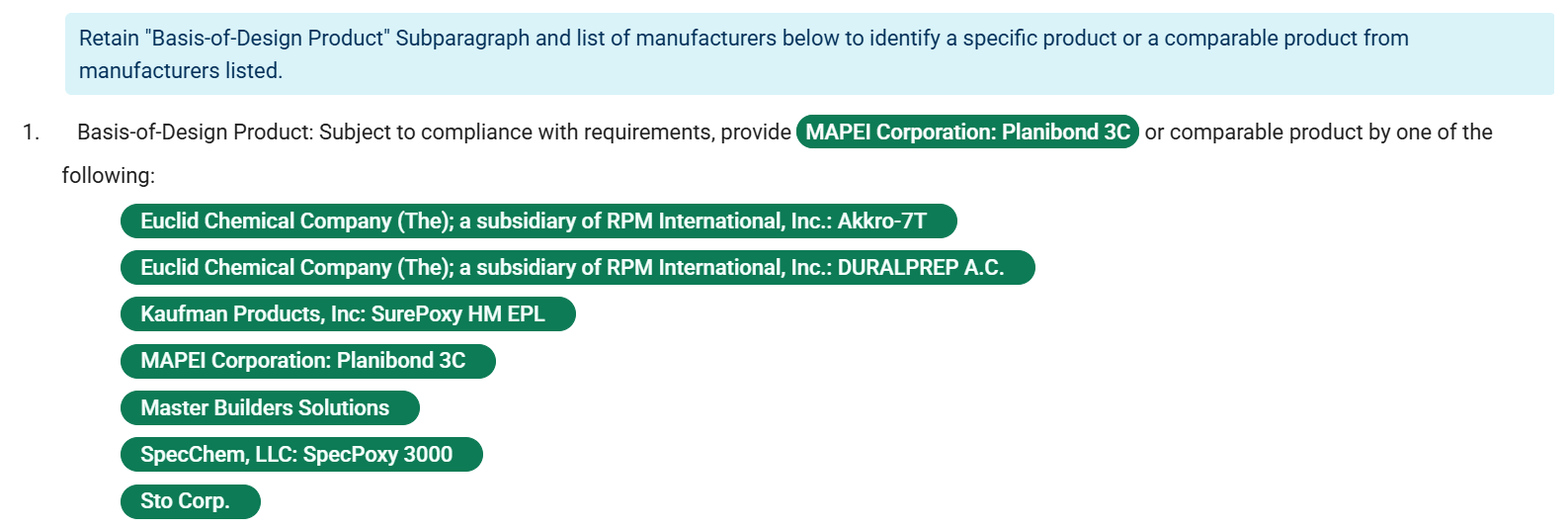
Basis-of-Design Product Paragraph in the Classic Workspace
- Basis-of-design product
- Inline selection for comparable products
- Automatic addition or selection of pills for added comparable products via Product Library
- Custom entries for unlisted products
- To use a product registered in Specpoint as a BOD, open the Product Listings window and add the product listing as BOD. When you add a product listing as BOD through this method, Specpoint automatically selects the product listing's product properties in the associated product type property paragraphs.
- To use a product not registered in Specpoint as a BOD, enter the name of a product in the BOD Product text field.
For inline selection of comparable products, the BOD Product paragraph lists pills for manufacturers associated with the corresponding product type. You can select or clear these manufacturer pills directly in the paragraph. Selecting a manufacturer pill adds the associated product listing to your project, and clearing a manufacturer pill removes the associated listing from the project.

For automatic addition or selection of pills for added manufacturers and products, Specpoint keeps the BOD Product paragraph aligned with the Product Listings window. When you add a manufacturer listing to the project, Specpoint automatically selects the corresponding manufacturer pill in the BOD Product paragraph of the associated product type. Likewise, when you select a Premium MasterSpec or Premium listing, Specpoint adds a pill for the listing and selects it. Added product listings appear in the BOD Product paragraph in the following format:
<Manufacturer name>:<Product listing name>.
When you remove a product listing from the project, Specpoint automatically clears the corresponding manufacturer selection from the associated BOD Product paragraph. For Premium MasterSpec and Premium listings, Specpoint also removes the associated listing option from the paragraph.
For custom entries for unlisted products, if your product type requirement is based on a manufacturer or product listing that is not available in Specpoint, you can manually enter a custom manufacturer or product listing in the paragraph’s available text fields ([Insert Manufacturers Name]).
For more information, see Design Automation for Product Selection.
Related Product Type Properties
When you add a product listing as a BOD or comparable product, Specpoint updates all related product type properties within the product type and related families and sections. Specpoint automatically selects options in the related product type properties' option sets based on the product properties of the added product listing. This feature enables you to automatically specify your product requirements based on a registered product listing in the platform.
For each custom product listing entry that you add in the available text fields, you must select the appropriate options and/or enter the correct values for all related product type properties.
For more information, see Design Automation for Element Contents.