Time Analysis
Time analysis is the process of determining the overall schedule of a project by calculating start and finish dates for each activity in the project.
The time analysis calculations performed by Open Plan are specifically designed to schedule large networks with speed, accuracy, and efficiency. The ability to schedule a network that contains thousands (or tens of thousands) of activities is the hallmark of all high-end project management systems.
The calculations performed by time analysis are based on the Time Now date, the duration of the activities, the logical relations between them, and activity progress. Time analysis does not take into consideration the availability of the resources required by each activity.
In determining the overall schedule, time analysis calculates several data for the project.
Early Dates
Calculated in the forward pass of time analysis. Early dates are the earliest dates on which an activity can start and finish.
Late Dates
Calculated in the backward pass of time analysis. Late dates are the latest dates on which an activity can start and finish.
Float
Float is the number of time periods by which an activity can be delayed without affecting other activities in a project. During time analysis, Open Plan calculates two principal float values:
- Total Float: The difference between the early and late start dates, measured in working periods of the activity calendar. Total float can be either positive or negative.
- Free Float: The maximum amount by which an activity can be delayed beyond its early dates without delaying any successor activity beyond its early dates. If target finish dates are not set, free float is always less than, or equal to, total float. Free float cannot be negative.
Project Information
Each time you perform time analysis, Open Plan calculates the following information for the project:
- The computed status of the project as
follows:
- Planned
- In-progress
- Complete
- The latest early finish date in the project
- The latest late finish date in the project
- Percentage of the total project duration that is complete
- The minimum value for total float for any activity (or activities) in the project
Subproject Information
Open Plan calculates the following information for each subproject during time analysis:
- Original duration of the subproject
- Early and late dates
You can set a system preference to have Open Plan copy a summary of this data to the early and late date fields of the activity representing the subproject.
- Computed remaining duration for the subproject
- Percentage of the subproject duration that is complete
- The computed status of the subproject
- Float
In addition, the time analysis function provides the following information about each subproject:
- A flag for the following activity
types:
- Start activity: A subproject without predecessors
- Finish activity: A subproject without successors
- Isolated activity: A subproject with neither predecessors nor successors
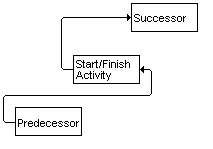
- Start/finish activity: A subproject that
has successors only from its start and/or predecessors only from its finish
- One of the following indications of
the subproject's criticality:
- Not critical: A subproject that has total float greater than zero
- Critical: A subproject that has total float less than or equal to zero
- Most critical: A subproject that has total float equal to the smallest value for the project
- Controlling critical: A subproject that is potentially critical but has float due to calendars
Activity Information
In addition to early dates, late dates, and float, the time analysis calculations in Open Plan provide the following information about each activity in the project:
- Computed remaining duration of the activity
- Computed status of the activity as planned, in-progress, or complete
- A flag for the following activity
types:
- Start activity: An activity without predecessors
- Finish activity: An activity without successors
- Isolated activity: An activity with neither predecessors nor successors
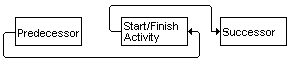
- Start/finish
activity: An activity that has successors only from its start
and/or predecessors only from its finish
- One of the following indications of
the activity's criticality:
- Not critical
- Critical: total float less than or equal to zero
- Most critical: total float equal to the smallest value for the project
- Controlling critical: potentially critical but has float due to calendars
Time Analysis Functions
Time analysis consists of three separate functions:
- Forward pass: Open Plan calculates the early start and early finish dates in the forward pass by starting at the Time Now date and moving forward through the project as determined by the relationships between activities. As it moves through the project, Open Plan adds the durations of the individual activities and considers any lags between them.
- Backward pass: Open Plan calculates the late start and late finish dates in the backward pass by starting at the project finish date and moving backward through the project as determined by the relationships between activities. As it moves through the project, Open Plan subtracts the durations of the individual activities and considers any lags between them.
- Float calculations: Open Plan calculates two principal float values during time analysis: total float and free float.
In general, factors that affect time analysis are specified when entering or modifying activity data and when progressing a project.
- Target dates
- Activity types
- Relationship types
- Lags
- Calendars
- Activity progress
Open Plan provides three ways to perform time analysis on a project.
| Option | Description |
|---|---|
| Time Analysis dialog box | When you select a project and click on the Processes tab, or you click Time Analysis but you have not entered a Time Now for the project, Open Plan displays the Time Analysis dialog box. |
| Perform Time Analysis button | You can perform
time analysis whenever you want by clicking the
button on the Processes tab.
When you perform time analysis using this method, the settings that were last set on the Time Analysis dialog box control the operation. If you have not entered a Time Now for the project, Open Plan automatically displays the Time Analysis dialog box before allowing you to proceed. To automatically calculate dates for new activities, select the Calculate dates even if TA is turned off? option on the Options dialog box Project tab. |
| Automatic time analysis | When you perform
time analysis, you can set an option that performs time analysis automatically
whenever you change the logic of the project or make any time-related change to
an activity. You can also set automatic time analysis by clicking
 on the
Processes tab. on the
Processes tab.
The following actions change the logic of the project:
Attention: For more information, see
Automatic Time Analysis. For steps to enable
this feature, see
Enable Automatic Time Analysis.
To automatically calculate dates for new activities, select the Calculate dates even if TA is turned off? option on the Options dialog box Project tab. |
Session Log
Each time you perform time analysis using either the Time Analysis dialog box or the Time Analysis button, Open Plan creates a session log file that records any system or error messages issued during the operation. Open Plan saves the file (Opp_ta.log) and enables you to examine its contents at the conclusion of each session.
Included in each session log is a list of all start and finish activities in a project.
Calendar File
If no calendar file is assigned to the project, time analysis assumes an 8-hour day, 5 days per week with no holidays. If this is not what your project needs, you must add a calendar.