Subprojects in Network Views
Network views include features related to hierarchical projects.
These features are as follows:
- Displaying project hierarchies
- Adding child activities
- Cutting and pasting activities in different subprojects
Displaying Project Hierarchies
Open Plan provides two sets of commands for displaying different hierarchical levels of a project that includes internal or external subprojects and navigating between them.
- The Expand, Expand All, Collapse Subproject, and Collapse All commands enable you to expand and collapse the display of multiple hierarchical levels of a project within a single view.
- The Go To Subproject, Go To Parent, and commands enable you to move through the different hierarchical levels by either drilling down into a subproject or moving up to the parent or top level.
When you expand a subproject in a network view, Open Plan can display the child activities in a frame that includes the subproject ID.
After you expand a subproject, you can edit the displayed activities and relationships. You can also create relationships between activities both within the same subproject and in different subprojects. You cannot, however, add new activities or relationships to the expanded subproject. Instead, you must drill down to the appropriate level using the Go To Subproject command to add new activities and relationships.
Moreover, you can search for and view any activity in a network view instantly regardless of whether the activity is in the current view. When you enter an activity description, activity ID, or any available field on the Find and Replace dialog box and then click Find Next (or press the ENTER key), Open Plan automatically navigates to the subproject where you can find the activity, provided that the activity has not been filtered out by a filter assigned on the Placements dialog box.
Adding Child Activities
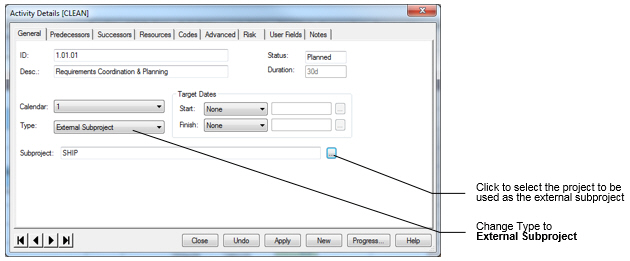
In a network view, use the Add Child command to add child activities to a parent. If you use this command for a standard activity, Open Plan automatically converts the activity type to subproject before allowing you to add a child. This means that Open Plan will ignore any durations for the parent activity for subsequent time analysis.
When adding a child to a parent, you enter only the local portion of the activity ID. After you have completed entering information about the child activity, Open Plan goes to the appropriate subproject level so that you can continue entering children at that level. To return to the parent activity after entering a child, you must use the Go To Parent command.
For an external subproject, the Add Child command is available only if the external subproject is open.
Moving Activities Between Subprojects
To move activities from one subproject to another in the Network view, use the Cut and Paste commands. You can also use the Copy and Paste commands to place copies of activities into different subprojects. When you move or copy activities between subprojects, Open Plan automatically adds the appropriate prefix to the local portion of the activity ID to indicate the new parent. If Open Plan detects the presence of existing activities with potentially duplicate IDs, the local portion of the new activity IDs are renumbered as well.
You can also move an activity to a different subproject by changing the parent portion of the activity ID. When you move an activity using this technique, Open Plan retains all the relationships for the activity.