How a Network View Displays a Hierarchy
By default, network views display only one hierarchical level at a time. However, it is possible to show multiple levels of a hierarchical project simultaneously in Open Plan.
- Drill down: In this mode, Open Plan displays only the activities at the selected hierarchical level. When you display an activity at a lower level of the project hierarchy, the window caption indicates the ID of the subproject being displayed, and the Activity Details dialog box displays only the unique portion of the lower level activity ID. To perform any function that could potentially change the size of a subproject, you must first drill down to that subproject in the hierarchy.
Therefore, to perform the following functions, you must first go to the subproject:
- Create an activity
- Move an activity within the subproject
- Cut, copy, or paste an activity
- Expand a subproject activity
- Add an annotation either to the subproject workspace or to an activity within the subproject
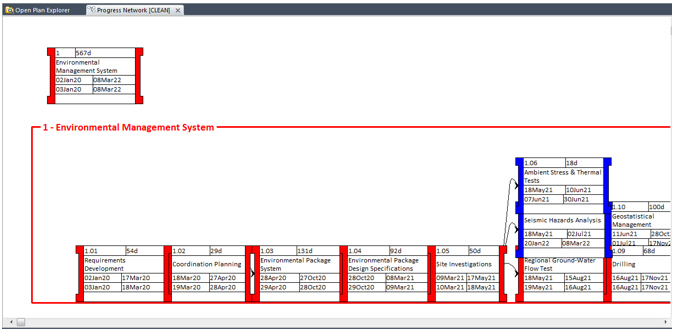
- Expand: In this mode, Open Plan displays subproject activities at the same time as it displays activities at a higher level. When you display an expanded subproject, you can perform most editing functions on the displayed activities. You can choose whether to display the expanded subproject within a frame that identifies the parent activity by using the Display Subproject Frame command that is available from the right-mouse context menu.
Features related to the display of hierarchical projects work identically for projects containing both internal and external subprojects.
You can use automatic placements to display activities from all levels in a format slightly different from that illustrated above.
By default, Open Plan positions an expanded subproject just below any activities already displayed. On large projects, you can use the Zoom commands to see the rectangle containing the subproject. Once you have expanded a subproject, however, you can move it by dragging it to a new position within the view. If you wish, you can turn off the display of the frame surrounding the subproject. You can also collapse any subproject by right-clicking within the subproject area and clicking the Collapse Subproject command.
The position of an expanded subproject is not saved between sessions. If you close a view and reopen it, you must expand and reposition any subprojects you adjusted in the previous session. However, Open Plan does save information about the drill-down level when you save the view using the Save View command. Thus, if you drill down to a specific subproject and then save a network view, Open Plan automatically drills down to the same subproject the next time you open the view.
When you display expanded subprojects in a view, you can draw relationships between activities both within an expanded subproject and to activities outside of the subproject area.
The duration of a subproject activity is derived from the durations of its child activities.
Items such as activities, relationships, and annotations displayed in an expanded subproject do not behave identically to the same items displayed at the current level of the view. For example, you can continue to edit activities, relationships, and annotations appearing in the subproject by right-clicking the item you want to update. However, you cannot reposition these items within the subproject area or drag them outside of the subproject area.