Setting up time and expense invoice format options
If you want to set up your invoice format to include time and expense billing, follow these instructions as part of setting up an invoice format.
To set up time and expense invoice format options
- Click the Time and Expenses tab. It contains two sections: the upper section applies to the entire invoice and the lower section contains tabs for each activity type: Labor, Expense, and Consultant.
- For primary group, select one of these options:
| Select | To |
|---|---|
|
Activity type |
Print the Labor section first with the labor for all phases, then the Expense section with the expenses for all phases, and then the Consultant section with the consultant charges for all phases. |
|
Phase |
Print a section for each phase. The labor, expenses, and consultant charges print for each phase before breaking for the next phase. |
- In the check boxes next to the primary group, indicate how you want to print information:
| For | Do this |
|---|---|
|
Subtotal |
Select this check box to print subtotals for activity type or phase (the option you selected for the primary group). |
|
Text |
If you selected Phase for the primary group, select this check box to print phase text. If you selected the Summarize phases check box when setting up a billing group for the project, the text for the billing group prints instead.
If you selected Activity for the primary group, select this check box to print activity type text for labor, expense, or consultant.
|
|
Bold |
If you selected Phase for the primary group, select this check box to print in boldface
the title for the phase (as entered in If you selected Activity Type for the primary group, select this check box to print the title for Labor, Expenses, and Consultant in boldface. |
|
Uppercase |
If you selected Phase for the primary group, select this check box to print in all uppercase letters
the title for the phase (as entered in If you selected Activity Type for the primary group, select this check box to print the title for Labor, Expenses, and Consultant in all uppercase letters. |
| ID | If you chose Phase for the primary group, select this check box to print
the ID for the phase (as entered in  > Manage > Project Command Center > Manage > Project Command Center |
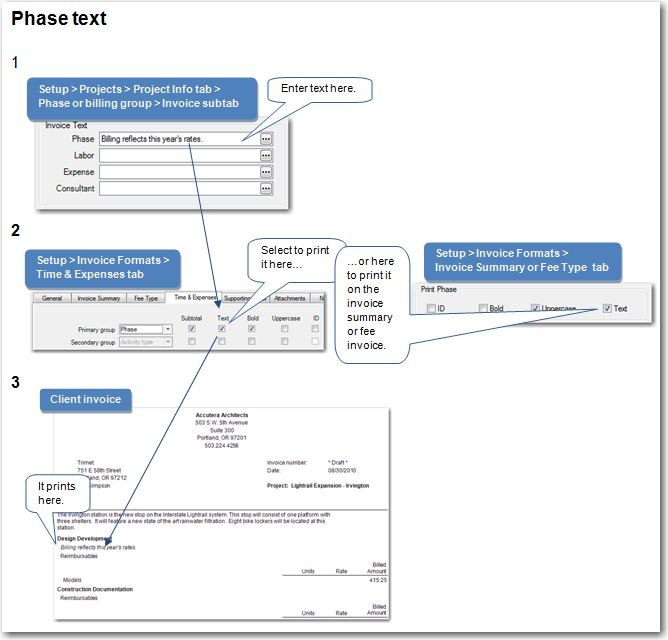
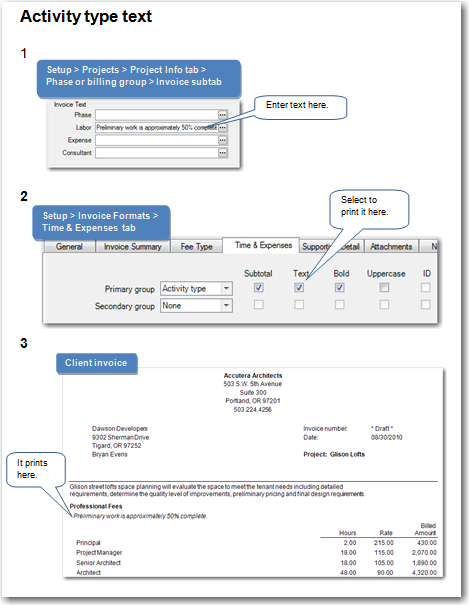
- If you selected Phase for the primary group, then Activity Type automatically appears for the secondary group.
If you selected Activity Type for the primary group, use the secondary group to
indicate if you want to print phase information for each activity type.
Click the arrow  and select one of these options:
| Select | To |
|---|---|
|
Phase |
Print phases separately on the invoice. |
|
None |
Not print phases separately on the invoice. |
- Unless you selected None for the secondary group, you can select the check boxes next to the secondary group, as follows:
| For | Do this |
|---|---|
|
Subtotal |
Select this check box to print subtotals for activity type or phase (the option in the secondary group). |
|
Text |
If you selected Phase for the secondary group, select this check box to print phase text. If you selected the Summarize phases check box when setting up a billing group for the project, the text for the billing group prints instead.
If you selected Activity for the secondary group, select this check box to print activity type text for labor, expense, or consultant.
|
|
Bold |
If you selected Phase for the secondary group, select this check box
to print in boldface
the title for the phase (as entered in If you selected Activity Type for the secondary group, select this check box to print the title for Labor, Expenses, and Consultant in boldface. |
|
Uppercase |
If you selected Phase for the secondary group, select this check box to print in all uppercase letters
the title for the phase (as entered in If you selected Activity Type for the secondary group, select this check box to print the title for Labor, Expenses, and Consultant in all uppercase letters. |
| ID | If you selected Phase for the secondary group, select this check box to print the ID for the phase (as entered in > Manage > Project Command Center |
- Select the Suppress subtotals when only 1 line prints check box, as needed.
- Select the Suppress detail with zero amounts to bill check box, as needed.
- Use the tabs on the lower part of the window to format the invoice for labor, expense, and consultant billing. Click a tab and enter the following information, as needed:
| For | Do this | ||||||||||||||||
|---|---|---|---|---|---|---|---|---|---|---|---|---|---|---|---|---|---|
|
Description |
Change the initial description of Labor, Expense, or Consultant to the description that you want to print at the beginning of this section. For example, you may want to replace Labor with Professional Services. |
||||||||||||||||
|
Print markups as part of (labor, expense, or consultant) total |
Depending on if you are viewing the Labor, Expense, or Consultant tab, this field is titled with labor, expense, or consultants. When you have billing rates that are calculated as a markup of cost, select this check box if you want to sum the (labor, expense, or consultant) cost and apply the markups to the (labor, expense, or consultant) total. The amount prints on the invoice at the end of the (labor, expense, or consultant) section. See also Changing the billed amount when printing markups as part of the total. |
||||||||||||||||
|
Print notes |
Select this check box to print on the invoice any notes that you entered in |
||||||||||||||||
|
Print columns for |
Select the check box for each column that you want to appear on the invoice:
|
||||||||||||||||
|
Detail groups |
Detail groups determine the order that information appears on your invoice. The information you select for the first detail group prints first, the information for the second prints next, and so on. For example, you want to print the employee type and then detail for each employee. On the Labor tab, you would select Employee Type in the first detail group, Employee in the second detail group, and none in the third and fourth detail groups. |
||||||||||||||||
|
Subtotal |
To print subtotals for a detail group, select this check box to the right of the detail group. |
||||||||||||||||
|
Bold |
To print the detail group description in boldface, select this check box to the right of the detail group. |
||||||||||||||||
|
Print full detail |
To print all the detail for the last detail group you selected, select this check box. All entries associated with the invoice appear with no summary. |
