Remove a Paragraph (New Workspace)
Remove a user-added paragraph or subparagraph from an element to delete unnecessary content from a family or section in your project.
When you remove a paragraph, multiple rules apply and Specpoint automatically makes adjustments to related content.
For more information, see Removal of Element Contents.
To remove a paragraph:
-
In your selected part, locate the article that contains your desired paragraph and click
 to expand the article.
-
In the article, select all its title/text and delete it.
The paragraph displays an in-line indicator for a deleted track change.

-
In the
new workspace, click
 to toggle the tab's visibility.
-
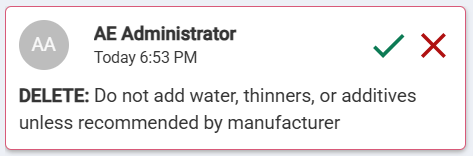
On the Track Changes tab, locate the removed paragraph's track change tip.
-
In the track change tip, click
 (Accept Suggestion).
Warning: This deletes the paragraph and all its subparagraphs permanently.
(Accept Suggestion).
Warning: This deletes the paragraph and all its subparagraphs permanently.