Remove an Article (New Workspace)
Remove a user-added article from an element to delete unnecessary content from a family or section in your project.
When you remove an article, multiple rules apply and Specpoint automatically makes adjustments to related content.
For more information, see Removal of Element Contents.
To remove an article:
-
In the article, select all its title/text and delete it.
The article displays an in-line indicator for a deleted track change.

-
In the
new workspace, click
 to toggle the tab's visibility.
-
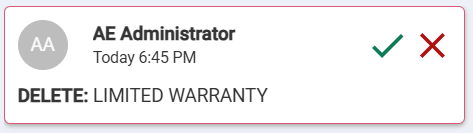
On the Track Changes tab, locate the removed article's track change tip.
-
In the track change tip, click
 (Accept Suggestion).
Warning: This deletes the article and all its child paragraphs permanently.
(Accept Suggestion).
Warning: This deletes the article and all its child paragraphs permanently.