Contents of the Advanced Tab
Use the fields and options to configure the Options dialog box Advanced tab.
Category
This column displays the options that are enabled. You can add a category by selecting it from the predefined categories in the list box.
Value
This column controls the value you assign to the category.
You can select from the categories in the following table.
User Preferences
| Category | Description |
|---|---|
| _BULK_LOAD_TASKS_TO_MSP_2013 | For Microsoft Project 2013 and later, all tasks are read in at one time instead of individually.
By default, it is set to 1. |
| _CREATEOP33COMPATIBLEBACKUP | This option enables you to create a backup file that is compatible with Open Plan 3.3.
By default, it is set to 0. |
| _DEFAULTACTIVITYDURATION | This option enables you to set the value initially assigned to the original duration for a new activity. It accepts any valid duration. The default is 0d. |
| _DEFAULTFINISHTIME | This enables the user to specify a default time to be added to finish dates that are entered without a specified time. The format of the time is HH:MM.
You can enter from 00:00 through 24:00. The default is 16:00. |
| _DEFAULTOPENMODE | This option controls the default mode for
. This option also sets the default access mode for new projects. There are three modes:
The default setting is E. |
| _DEFAULTPROJECTNAME | This option specifies the project to be used as the default, provided that the _USEDEFAULTPROJECT option is set to
1.
You can see it in the File Name field on the Projects tab of the Application Preferences dialog box. |
| _DEFAULTSTARTTIME | This option enables you to specify a default time to be added to start dates that are entered without a specified time. The format of the time is HH:MM. You can enter from 00:00 through 24:00. The default setting is 08:00. |
| _ENABLE_MENTOR | With this option, you can enable all options on the Mentor tab of the Application Preferences dialog box.
By default, it is set to 0. |
| _ENABLE_TA | With this option, you can enable the Time Analysis options on the Mentor tab of the Application Preferences dialog box.
By default, it is set to 0. |
| _EXPORT_ONLY_CALS_IN_USE | When this option is set to 1, Open Plan checks that a calendar is being used before exporting it to Microsoft Project. By default, it is set to 0. |
| _EXPORT_ONLY_P6_CALS_IN_USE | Web Export
When this option is blank or set to 0, Open Plan exports all the calendars in the calendar file assigned to the project whether or not they are being used by an activity. This is the default for a web export. When this option is set to 1, Open Plan exports only those calendars that are being referenced by the data being exported. Open Plan follows these rules:
XER Export This option is ignored for XER exports. Open Plan exports only those calendars that are being referenced by the data being exported. Open Plan follows these rules:
|
| _EXPORT_ONLY_P6_RES_IN_USE | When this option is blank or set to
0, Open Plan exports all the resources in the resource file assigned to the project whether or not they are being used by an activity. This is the default.
When this option is set to 1, Open Plan exports only those resources that are being referenced by the data being exported. Open Plan follows these rules:
|
| _EXPORT_ONLY_RES_IN_USE | When this option is set to 1, Open Plan checks that a resource is being used before exporting it to Microsoft Project. By default, it is set to 0. |
| _FIRSTDAYOFWEEK | This option automatically sets the starting day of each workweek. Normally, you set it in the
Weeks Starts On field on the General tab of the Application Preferences dialog box.
The default value depends on your Windows regional settings. |
| _HIDE_MSP | This option controls whether the Microsoft Project application should be displayed during the import or export process.
The default setting is 1. |
| _KEEP_MSP_OUTPUT_FILES | Use this setting to review the data that was exported to Microsoft Project.
When this option has a value of 1, Open Plan creates CSV integration files and saves them to the Open Plan working folder (for example, ). Each file has a unique name that includes the Microsoft Project project name and a time stamp. If the setting is enabled, the generated CSV files will remain in the folder until you delete them (disabling the setting will not delete accumulated files). You may want to periodically delete them to keep the folder size from becoming too large. The default setting is 0. |
| _KEEP_P6_OUTPUT_FILES | Use this setting to review the data that was exported to Oracle Primavera P6.
When this option has a value of 1, Open Plan creates CSV integration files and saves them to the Open Plan working folder(for example, ). Each file has a unique name that includes the Primavera P6 project name and a time stamp. If the setting is enabled, the generated CSV files will remain in the folder until you delete them (disabling the setting will not delete accumulated files). You may want to periodically delete them to keep the folder size from becoming too large. The default setting is 0. |
| _LOGVIEWTHRESHOLD | This option controls when the user is prompted to view messages produced by operations such as time analysis and resource scheduling. There are two settings:
The default setting is 1. |
| _MAX_MSP_REC_COUNT_PER_FILE | This is the maximum number of records output to each CSV file during export to Microsoft Project. You can enter a value from 100 through 10000000. The default setting is 400. |
| _MAX_P6_BATCH_UPDATE_RECS | This is the maximum number of records that Open Plan sends to the server in a single Primavera P6 export update operation. You can enter a value from 1 through 5000. The default setting is 250. |
| _NOTIFICATIONPOLLINGINTERVAL | This option controls how often (in fractional seconds) Open Plan checks to see if the session has been terminated or if there are any new messages. The default setting is
5 seconds.
This preference indicates the number of fractional seconds (for example, 5.5 indicates five and a half seconds) that Open Plan waits before polling again for system messages. |
| _OPENLASTFILE | This option controls whether the last file (project, calendar, code, or resource) used is opened on startup. There are two settings:
The default setting is 0. |
| _OPPCOORDINATES | Normally, Open Plan maintains this preference. It saves the position and size of the application during a session so that it can restore the window in a subsequent session using the stored coordinates and window size. |
| _SHARED_LOCK_DEFAULT_DURATION | This preference controls how often (in minutes) Open Plan checks to see how long a shared-mode lock has been in effect before it reminds you that you have exceeded the recommended maximum lock duration. You are prompted but not forced to release the lock. You can enter a value from 1 through 480. The default setting is 30 minutes. |
| _SKIP_BSA_DB_SEARCH_FOR_ACT_DELETION | This preference controls whether to send you a warning message when deleting an activity if related baseline acts exist.
The default setting is 0. |
| _SPLASHSCREENENABLE | Normally, you can set this preference using the
Opening Splash Screen option in the Show section on the General tab of the Application Preferences dialog box. This preference controls the display of the Open Plan splash screen at startup.
The default setting is 1. The process of applying this option differs from the way the predefined options are applied. For more information, see Set the Splash Screen. |
| _STATUSBAR | This option controls the display of the Open Plan status bar.
The default setting is 1. |
| _SUPPRESSEMPTYCLIPNOTE | A clip note is a help item that comes up when you create a project, pool, calendar, code, or view within Open Plan. This option enables the display of these help items to be suppressed.
The default setting is 1. |
| _SUPPRESSLOOPDETECTION | This option enables you to turn off full automatic loop detection in Open Plan (by setting a value of
0) or to restrict it (by setting a value less than the total number of activities) for large networks or networks with large numbers of complex relationships. Full loop detection will still be performed during Time Analysis.
The default setting is 1000. The number is a threshold value that determines at what point loop detection will be turned off. Thus, for the default value of 1000, loop detection is enabled as long as the total number of activities does not exceed 1000. |
| _TA_PERCENT | Normally, you can set this preference on the Mentor tab of the Application Preferences dialog box. You must set both the _ENABLE_MENTOR and _ENABLE_TA preferences to
1 for this preference to be applied (see _ENABLE_TA for more details).
You can set a value from 0 through 100. The default setting is 25. |
| _TIMEPHASEINTERVAL | In the absence of a reporting calendar, this preference determines the time buckets in the time-phased grid on the Resource tab of the Activity Details dialog box.
You can enter WEEK, MONTH, DAY, QUARTER, or YEAR. The default setting is WEEK. |
| _USE_MSP_DEADLINES | Normally, you set this preference using the Microsoft Project Export Wizard rather than on the Application Preferences dialog box.
The default setting is 1. |
| _USE_WINDOWS_COLORS | Normally, you set this preference using the
Use Windows Color Scheme option on the Color tab of the Application Preferences dialog box.
The default setting is 0. |
| _USEDEFAULTPROJECT | Normally, you set this preference using the
Create New Projects Using Default Project option on the Project tab of the Application Preferences dialog box.
It specifies whether the template project specified in DefaultProjectName should be used when creating new projects.
The default setting is 0. |
| _USEMEMORYBASEDUNDOSTORAGE | Specify whether you want Open Plan to use memory-based or disk-based storage.
The default setting is 0. |
| _USERCANNOTCHANGEBASELINEDSTEPS | This option specifies whether the user can change baselined steps.
|
| _USERCANNOTCHANGEINPROGRESSEVT | This option specifies whether the user can change in-progress EVT.
The default setting is 0. |
| _VIEWDIALOGSYNC | Normally, you set this preference using the
View and Dialog Box Navigation option on the Project tab of the Application Preferences dialog box. It determines the synchronization that occurs in a view related to the dialog box when you navigate to a different record on the dialog box.
The default setting is 1. |
| AllowActiveXInBrowserView | When you view a web page locally from within Open Plan, this option enables the local page to access OLE objects and ActiveX controls without issuing a warning.
The default setting is 0. If you link to a page outside the local zone, this setting no longer applies, and your browser’s default security takes over. |
| AllowScriptInBrowserView | When you view a web page locally from within Open Plan, this option enables the local page to run scripts without issuing a warning.
The default setting is 0. If you link to a page outside the local zone, this setting no longer applies, and your browser’s default security takes over. |
| AllowZeroBaselineUsage | This option helps with Cobra integration by enabling Open Plan to save zero (0) resource usage to the Baseline Usage (BSU) table.
The default setting is 0. |
| BarchartToolTipsField | This option enables you to define text to be displayed as a Tool Tip for the barchart. It requires that you enter a single field as the Value. However, in addition to enabling you to enter a standard field, Open Plan also enables you to specify a calculated field that contains exactly the information that you want displayed.
The default value is Description. For more information about calculated fields, see Calculated Fields. |
| BarPrintMode | This preference is used to correct problems on certain devices when drawing barchart views that contain bars that use hatch patterns.
The default setting is 0. |
| CalCompFix | This preference prevents Open Plan from printing necked bars which are known to cause problems with certain Calcomp plotter drivers due to a problem with the driver support of the GDI Polygon function. This eventually results in a general protection fault in Open Plan.
The default setting is 0. |
| DONOTCONFIRMEXIT | This preference is used to control whether Open Plan displays a confirmation message each time you quit the application.
The default setting is 0. You can also set this preference using the Do not ask again option on a dialog box. |
| GENERATENEWGUIDSWHENRESTORING | This preference indicates whether Open Plan generates new GUID (unique keys) when restoring records from a backup.
The default setting is 0. |
| HistogramArrayLimit | This preference defines the maximum number of array elements in the histogram. Each array element represents a time unit as defined by the date scale of the view.
You can enter a value from 1000 through 100000. The default value is 15000. If the value you entered surpasses the maximum value, Open Plan prompts you to select less granular time buckets (for example, a week instead of a day) when defining the histogram date scale. |
| LAST_IPMR2_GROUPOPTIONS_SET | Normally, this preference is maintained by the user interface. It stores the name of the last group options set that was used for an IPMDAR export. |
| LOGPROCESSOPTIONSINBATCHMODE | This preference controls the logging of options used for processes (for example, Time Analysis) to the batch file when running a batch process.
The default setting is 1. |
| RISKPERCENTILEARRAYSIZE | This preference is set in conjunction with the RISKPERCENTILES preference. It specifies the number of percentile "buckets" or the size of the array used to store percentile values for key activities during risk analysis.
The default value is 20. |
| RISKPERCENTILES | This preference is used to specify the percentile values for the array defined by RISKPERCENTILEARRAYSIZE. The number of array elements specified in RISKPERCENTILEARRAYSIZE should be 1 less than the number of numbers specified in RISKPERCENTILES. Each number should be separated with a space. The numbers are used by the risk analysis process.
The first value of the array must be 0. The values of the array must be cumulative. The last value of the array must be 100. The default values (21 numbers from 0 through 100, incremented by 5 each time) for the array are: 0 5 10 15 20 25 30 35 40 45 50 55 60 65 70 75 80 85 90 95 100 |
| ROUNDMETHOD | This preference enables you to choose the rounding method used in risk analysis.
The default setting is 3. |
| SAVE_PLACEMENTS_WITH_VIEW | This preference controls how Open Plan saves placement with regard to view preferences.
The default setting is 0. |
| ShowSQLLog | This option enables you to view the SQL Log in the Open Plan Log Viewer. The log is created when you start your Open Plan session and is automatically updated whenever the database is accessed.
If you wish to view the SQL Log outside the context of Open Plan, you can use any text editor (such as Windows Notepad) to open the sql.log file located in the \User directory of your Open Plan installation. |
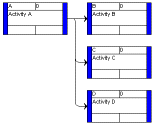
| SuppressCombineVerticals | When performing automatic placements, Open Plan combines vertical relationship lines when showing relationships using the Routed line style as in the following example:
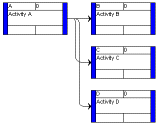
The SuppressCombineVerticals option instructs Open Plan to display each relationship line separately:
The default setting is 0. |
| SUPPRESSSTRAIGHTENLINES | This preference instructs Open Plan to display each straighten relationship line separately.
The default setting is 0. |
| USELOCALFILEFORBACKUP | This option enables you to enable or disable the use of a local folder in creating or restoring a backup file.
The default setting is 0. |
| USEPROCESSTHREAD | Normally, when you run a process in Open Plan (for example, time analysis or resource scheduling), a separate thread spins off to perform the process while the main Open Plan thread handles the user interface. In some cases, you run into problems with the separate thread technique. This preference provides a way for you to use a single thread, which often enables a process to complete in situations where they are experiencing problems.
The default setting is 1. |
System Preferences
| Category | Description |
|---|---|
| _DUMPCALLSTACK | In certain situations (for example, a transaction count error occurs), Open Plan can dump a call stack to the system log, which might help Deltek Development discover the source of an issue. Normally, you would not set this variable without additional instructions from Deltek Support Services. To view a call stack meaningfully, you would need to be furnished with a set of Program Database (PDB) files that do not ship with the product.
The default setting is 0. |
| _MaxDBDriverIdleMinutesBeforeAutoReset |
This preference enables you to specify the number of idle minutes allowed before Open Plan automatically resets the data source connection. The allowable range for this value is from 10 to 480 minutes, with a default setting of 55 minutes.
|
| _LOGSQLRESULTCOUNT | This preference enables you to create a separate COUNT query prior to a regular data query. If the number of records differs, the difference is logged for further analysis.
The two queries may legitimately return a different number of records, particularly in a shared-mode environment because the queries are not issued simultaneously. For the most part, however, the COUNT and regular queries will normally return either the same number of records or the difference will be relatively minor.
The default setting is 0. |
| _SUPPRESSINTERNALMESSAGES | This option enables you to control the display of internal messages that alert users of certain issues. By default, if a database error occurs, a message box displays on your machine alerting you to the error.
To disable this functionality, set the value to 1. The default setting is 2. Currently, Open Plan supports reporting of errors only where unique constraint violations occur. It displays such errors, however, only when users are doing an explicit save or a save is triggered in Shared mode. |
| AllowEditPPC | Use this option to specify when you can edit Physical % Complete.
The default setting is 0. |
| MATCH_P6_LABOR_HOURS | This option enables you to use the resource assignment level as hours regardless of Open Plan’s default duration unit when importing/exporting data to/from Primavera P6. There are two settings:
The default setting is 0. |
| USEUNIQUEWPCOSTDATAPROCESS | With this option, you can enable or disable concatenation of Control Account key fields and the Work Package ID when creating an Integrated Program Management Data and Analysis Report (IPMDAR) file during the Schedule Data Export process.
The default setting is 0. |
Defaults
Click the Defaults button to display the System Preferences Defaults dialog box that your system administrator can use to define system-wide preferences from which a user can select.