Company window
unavailable in ajeraCore
General tab
Use this tab to set up general preferences.
| For | Do this | ||
|---|---|---|---|
|
Company name |
View the company name, which can be as many as 80 characters. This name prints on reports and invoices and appears as the company name throughout Ajera. |
||
|
Employer ID number |
Type the federal identification number for the company, or the Social Security Number if you are operating as a sole proprietor. Be sure to include dashes in the appropriate places. This number prints on your 1099 forms. |
||
|
Select an image that you want to appear on company reports and financial statement designs. Ajera uses the logo of the company associated with the employee printing the report or financial statement.
|
|||
|
Beginning balances: |
|||
|
Enter the date for the beginning balances that you enter into Ajera.
Typically, you would enter the date of the last reconciled trial balance. If you leave this field blank, Ajera automatically enters the beginning balance date of the organization (
|
|||
|
Current year |
Type the calendar year of the last month of the company's fiscal year. For example, the company's fiscal year is March 2010 to February 2011, so you enter 2011 in this field. When you perform the Close Fiscal Year task, Ajera increments it to the next year. |
||
|
First month |
Select the first month of the company's financial reporting year. |
||
|
Phone numbers |
Type as many as three phone numbers for the company in the fields on the left. Type any description for a number in the field to the right of it.
|
||
|
Fax |
Type a fax number for the company and any description to the right of it. |
||
|
|
Type the email address of the company. You can click |
||
|
Website |
Type the address of the company's website. You can click |
||
 and select the file you created when preparing
your logo.
and select the file you created when preparing
your logo.  > Setup >
  to send an email to that address.
 Address tab
Use this tab to set up address information.
| Field | Description |
|---|---|
|
Company address |
The company's main address. In the first three lines, enter the street address, suite number, and so on. |
|
City, State, Zip Country |
The city, state, zip code, and country. |
|
Mailing address |
The mailing address for the company if different from the company address. |
|
Same as address |
It indicates if the mailing address is the same as the company address. |
Billing/Payroll tab
The information on this tab is copied from the organizational preferences. Use this tab to set up billing and payroll preferences for this company.
| For | Do this | ||||||||
|---|---|---|---|---|---|---|---|---|---|
|
Invoice accounting date |
Select Invoice Date or Billing Cutoff Date to reflect revenue on financial statements for the company. For example, when you bill October time and expense on November 10, do you want the billed revenue to appear on your October or November financials? If November, you would select Invoice Date. |
||||||||
|
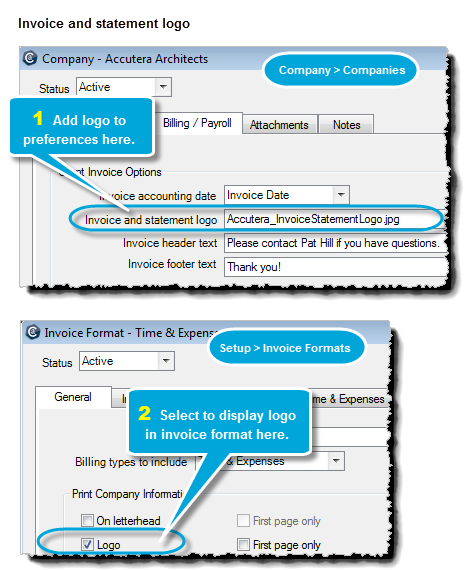
Select the image you want to print on client invoices, client statements, and credit memos for the company. If you leave this field blank, only the company name appears. When you upload the logo, Ajera converts it into a .PNG format, which is the most reliable and compact bitmap format. For efficient performance, Ajera resizes logo files larger than 2 million pixels to 2 million pixels.
|
|||||||||
|
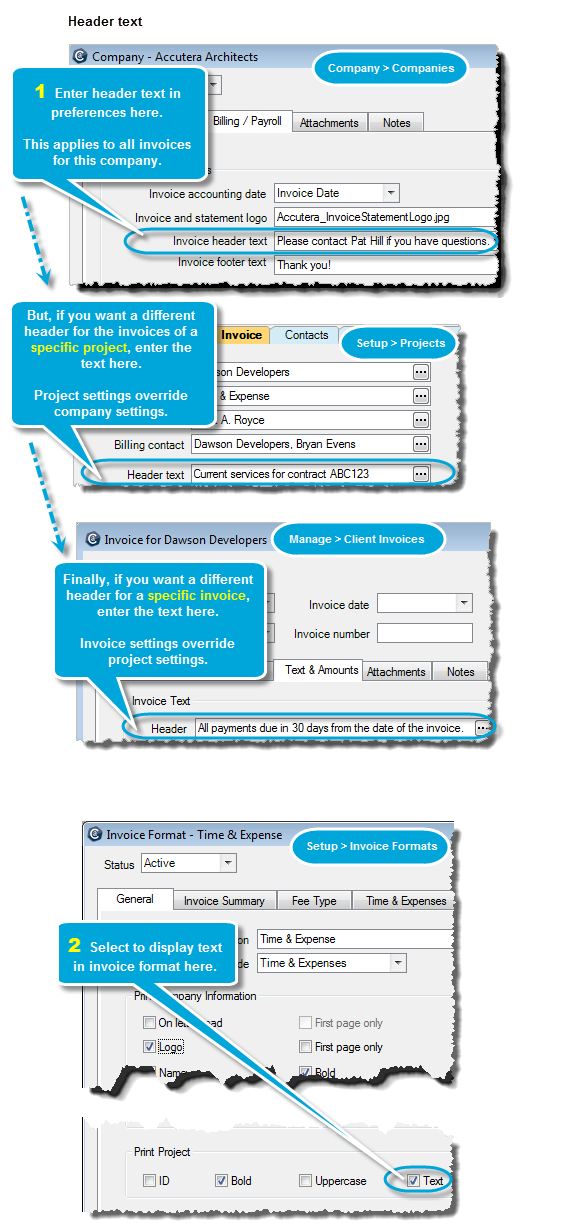
Enter text that you want to print on the invoice below the client mailing address.
|
|||||||||
|
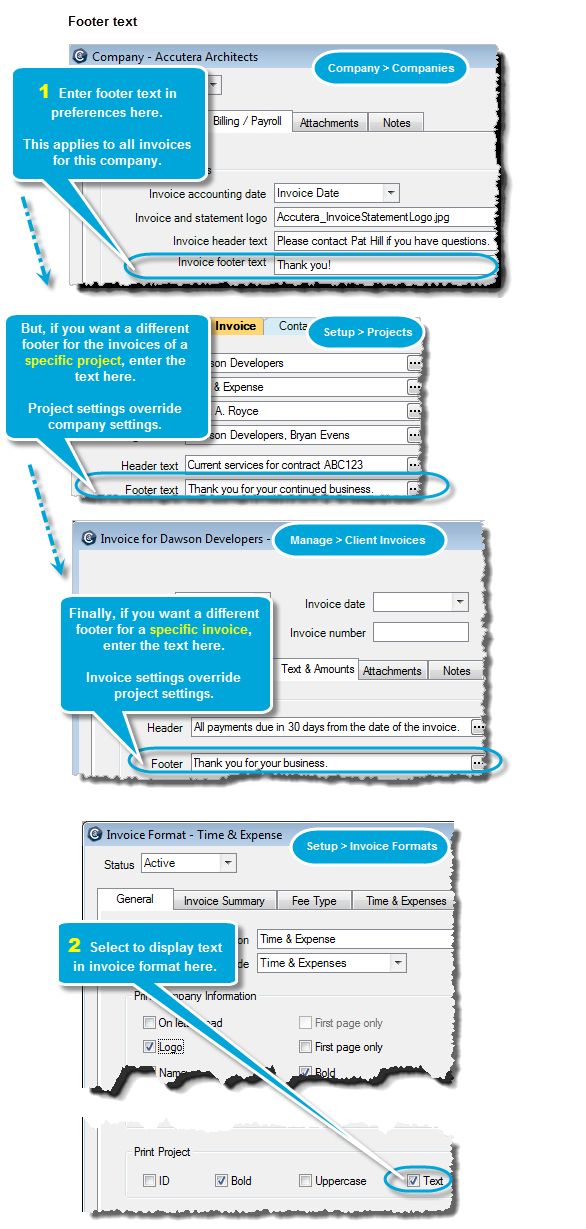
Enter text that prints only on the last page of the invoice. For example, you may use it to print a holiday greeting or contract information.
|
|||||||||
|
Select one of the following options:
|
|||||||||
|
Direct Deposit Paystub Company Name/Text |
Enter the company name and any additional text that you want to print on an employee's direct deposit paystub. |
||||||||
|
Average labor budget rates - Cost |
Enter the average rate you want to use to calculate the cost amount for budgeted hours. Ajera uses this amount to calculate cost budgets when you enter budgeted hours without specifying an employee or employee type. |
||||||||
|
Average labor budget rates - Billing |
Enter the average rate you want to use to calculate the contract amount for budgeted hours. Ajera uses this amount to calculate fee budgets when you enter budgeted hours without specifying an employee or employee type. |
||||||||
Integrations tab
Use this tab to setup integrations.
Attachments tab
Use this tab to add an attachment for the company.
|
Field |
Description |
|---|---|
|
The category of the attachment An attachment category is a group of files with similar characteristics (for example, RFPs). You can set up categories if your security settings give you access to them. |
|
|
Description |
The name of the attachment |
|
Added |
The date and time when the attachment was made |
Notes tab
This tab contains any notes about the company.