Designing KPI Widgets
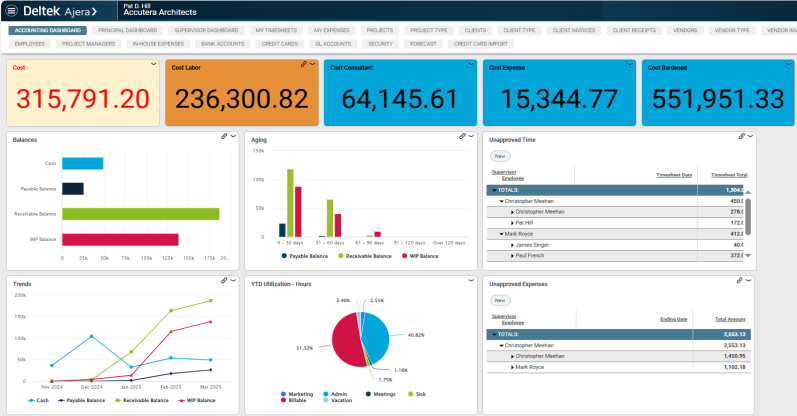
Key Performance Indicator widgets, or KPI, are widgets that allow you to view key metrics as a single number to give you better visibility on amounts for your organization. Use KPI widgets to ensure that project or financial information, like totals or utilization, are meeting or falling short of expectations. The widget displays a single value, highlighted with a font and a color of your choice. You can customize the widget by selecting columns needed to display your desired metric. The same widget designer options exist for KPI widgets as for other widgets in Ajera.
When you select the columns while creating a new KPI widget, Ajera identifies a numeric or amount based column that you selected and hides all other, non-numeric columns. If you select multiple numeric columns, Ajera displays the first numeric column selected and hides the other numeric and non-numeric columns. If you edit the widget to add a new numeric column, that column will be automatically hidden. You will need to manually hide or unhide numeric columns to view them on the KPI widget. One numeric column needs to be selected at all times on the KPI widget.
KPI widgets have the same linking options as other widgets on the dashboard. For example, a KPI widget on a home page dashboard will link to other Home page dashboards and a KPI widget on a Project page will link to other Project pages on the dashboard. If a link exists on a widget, you will see a link ( ) symbol in the upper right-hand corner of the widget.
Before you begin
To design KPI widgets
- Click
 >
>  to open Design mode, and click the tab you want.
 - In the Tab Properties area, click
 Add Widget or on a widget you want to change, click
  to open the widget menu and click:
 Edit: Opens the Designer and displays the widget settings. Change them, as needed.
  Copy: Opens a screen that allows you to choose where to copy the widget to. Click Edit and change the widget settings, as needed.
  Delete: Removes the widget.
- Under Reporting, click KPI or select a widget from the Gallery.
- Select a widget Base. View the available Bases here.
- Click OK.
- Select available columns by expanding one or more of the following options (if available) or search using the search field:
- General Information
- Dates
- People
- Hours/Units
- Dollars
- Accounts
- Keys
Note: You must select at least one numeric column to generate a result. If you select multiple columns, only the first column displays and all other columns are hidden by default.
- Edit Sort options.
- Click Edit Sort Options.
- Click the columns you want to add sorting options on,
- Select a sorting option:
- Ascending: Show numbers from lowest to highest, or show text in alphabetical order
- Descending: Show numbers from highest to lowest, or show text in reverse alphabetical order
-
Set the font size, text color, and background color.
-
Click Edit KPI Options.
-
In the Font Size field, select a font size to use for the numeric value displayed in the KPI widget or leave it blank to dynamically change the size of the font based on the value displayed and the size of the widget.
-
In the Text Color field, select a color to use for the text displayed in the KPI widget.
-
In the Background Color field, select a background color to use for the KPI widget.
-
Apply conditional formatting. Use conditional formatting to change the text or background color when the values of the widget are exceeding or falling short of expectations. The widget needs to contain the columns needed to make the comparison to change the color.
-
Click Edit KPI Options.
-
In the Colors field, use the first color picker to select a text color.
-
In the Colors field, use the second color picker to select a background color.
-
In the Column drop-down, select a column.
-
In the Operator field, select an operator.
-
In the Value field, enter a value.
-
Click
 to save changes.