Reject a Track Change
Reject a track change to finalize a decision, discard the change, and return the respective content to its previous state.
To reject track changes within a project, you must be an administrator or author. To reject track changes within an office master, you must be part of the office master access group.
To reject a track change:
-
On the Track Changes tab (
 ) of the workspace, select a track change tip.
You can also select the in-line track change in an article or paragraph.
) of the workspace, select a track change tip.
You can also select the in-line track change in an article or paragraph. -
In the track change tip, click
 .
The changed content reverts to its previous state. For added text, Specpoint permanently removes the added content. The track change tip displays the following message: Rejected Edits.
.
The changed content reverts to its previous state. For added text, Specpoint permanently removes the added content. The track change tip displays the following message: Rejected Edits.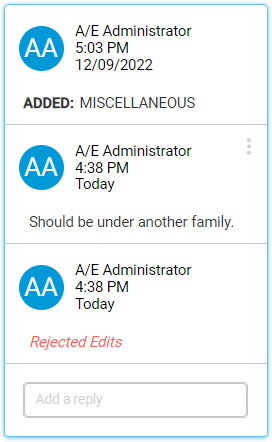
You can still reply to a rejected track change tip.