Add Multiple Elements in Divisions View (Classic Workspace)
As an administrator or author, use the quick add feature to add multiple project elements, such as sections and product types, and set up the general content outline of your project specifications.
To add multiple MasterFormat elements to the active project:
-
In the Project Elements pane, select unadded project elements.
Locate a division, section, or product type, and perform the following for each element that you want to select:
- To select only the project element, click
 > Select for Quick Add in the element node.
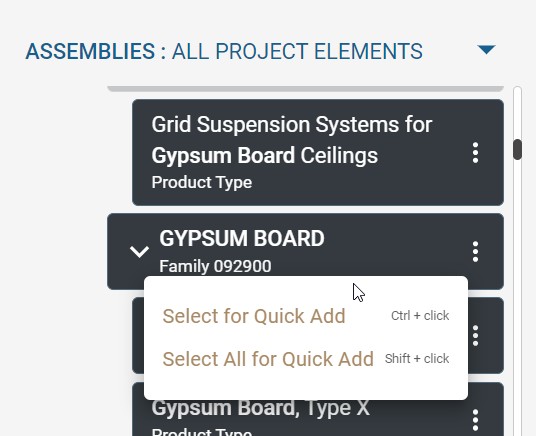
You can also hold CTRL and click the element.
- To select the project element all its child elements, click
> Select All for Quick Add in the element node.
You can also hold SHIFT and click the element.
- To clear an element selection, click
> Remove from Quick Add in the element node.
You can also hold CTRL and click the selected element.
The selected project elements include a plus icon ( ).
).

- To select only the project element, click