Reject a Track Change (New Workspace)
As an administrator or author, reject a track change to finalize a decision, discard the change, and return the respective content to its previous state.
To reject a track change:
-
On the Track Changes tab (
 ) of the
new workspace, select
Open in the filter field.
) of the
new workspace, select
Open in the filter field.
-
In the track change tip, click
 .
The track change tip is now available on the Track Changes tab under Resolved and displays the following message: Rejected Edits.
.
The track change tip is now available on the Track Changes tab under Resolved and displays the following message: Rejected Edits.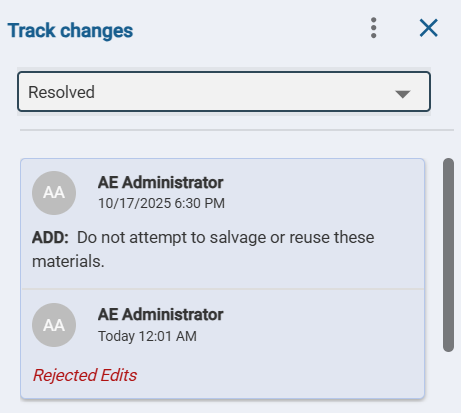
In the new workspace editor, the changed content reverts to its previous state. For added text, Specpoint permanently removes the added content. The changed content now displays without a track change in-line indicator.