Use the Comprehensive EAC workflow to review and compare the current EAC (Estimate at Completion) cost set with a configurable Prior EAC cost set.
This field displays the unique key field for each Comprehensive EAC record.
This field displays the title for the Comprehensive EAC workflow. You can no longer edit this field after you save the record.
This field displays the end date for the Comprehensive EAC workflow completion.
This field displays the level of urgency (priority code) for the Comprehensive EAC workflow.
This field displays the project where you executed the Comprehensive EAC workflow.
This field displays the Control Account Manager associated with the selected control account.
This field displays the selected control account.
This field displays the calculated Cost Performance Indicator (CPI) value (Earned/Actual).
This field displays the calculated Schedule Performance Index (SPI) value (Earned/Budget).
These fields display the Baseline and Forecast start and finish dates.
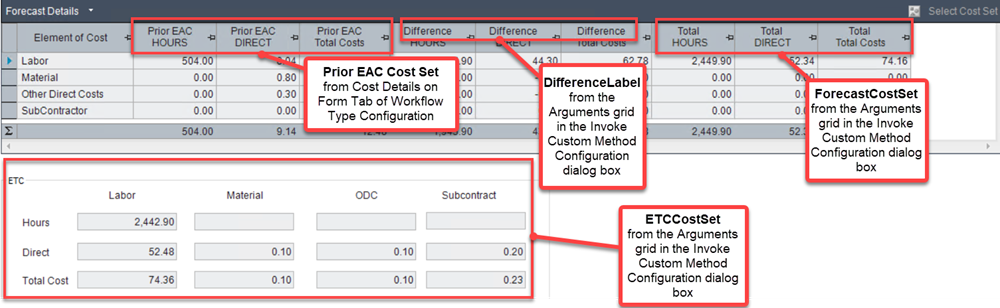
Use this grid to review and compare a current EAC (Estimate at Completion) cost set with a configured Prior EAC cost set.
The upper part of the grid displays details of the Prior EAC cost set (composed of Frozen Forecast classes) and the EAC cost set (composed of Actual and Forecast classes), showing calculated results (such as Hours, Direct, and Total Costs) for each element of cost (such as Labor, Material, Other Direct Costs, and Subcontractor). It also shows the difference between the Prior EAC and EAC cost set calculations.
The lower part of the grid displays details of the ETC cost set (composed of Forecast classes), showing calculated results for each element of cost.
If you manually created the workflow, only the first three columns (HOURS, DIRECT, and Total Costs) in the upper part of the grid will be populated, leaving the ETC fields at the bottom part of the grid empty. In addition, creating the workflow manually enables the Select Cost Set button in the same grid, allowing you to select a cost set. This may change the formula used in the grid, so not all of the required columns are displayed in the upper part of the grid, and the ETC fields at the bottom will remain blank until you start the workflow.
Click this button to select a cost set to display both the approved budget and the value of the change stored in a different cost set.
Use this field to enter specific tasks or activities that are yet to be completed, as well as deadlines or timelines for the remaining work. You can also click Edit to modify the existing text.
Use this field to outline potential risks and issues that could affect the completion of the remaining scope, as well as favorable circumstances or opportunities that could help achieve it. You can also click Edit to modify the existing text.
Use this field to enter dependencies on factors, assumed limitations, and hypotheses about future events or outcomes. You can also click Edit to modify the existing text.
Use this field to provide an explanation for why the proposed EAC change should be implemented. You can either enter the text directly into the field or click Edit to modify the existing text.
Use this field to record additional information, observations, or comments that may not fit into other fields on this form. You can also click Edit to modify the existing text.
Set up the Comprehensive EAC workflow custom fields in the User-Defined Data form
Create a scheduled alert for the Comprehensive EAC workflow