How a Resource View Displays Information
You can display resources in Open Plan in different orientations and manners.
Open Plan displays resources in a structural display in one of two orientations.
| Orientation | Description |
|---|---|
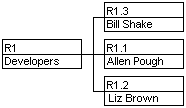
| Sideways | The top resource pools are displayed at the left or a resource structure, with the child resources arranged to the right of them.
You can display resources in a horizontal orientation as a ladder:
And, you can display resources in a horizontal orientation as a spread:
|
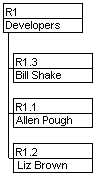
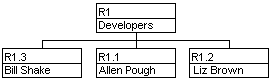
| Vertical | The top resource pools are displayed at the top of the structure, with the child resources arranged beneath them.
You can display resources in a vertical orientation as a ladder:
And, you can display resources in a vertical orientation as a spread:
|

For each of these orientations, Open Plan can also display the resources in one of two manners.
| Orientation | Description |
|---|---|
| Centered | The resource pool is centered relative to its child resources.
In a vertical orientation, the resource pool is centered above its child resources:
In a sideways orientation, the resource pool is centered to the left of its child resources:
|
| Offset | The resource pool is offset relative to its child resources.
In a vertical orientation, the resource pool is displayed above its topmost child resource:
In a sideways orientation, the resource pool is displayed to the left of its leftmost child resource:
|
You can customize the information detail that is displayed in resource boxes in many ways:
- You can choose to show the full ID of the resource.
- You can show skills that a resource may have.
- You can choose both a style and a color for the resource box.
You can also customize the layout of information that is displayed within the resource box.
Open Plan makes it easy to work with resource hierarchies. For example, you can assign an entire group of resources to a different pool by dragging the resource boxes to a different position in the resource hierarchy. You can also expand and collapse individual resource pools in order to display the appropriate level of detail. When you collapse a resource pool, it is displayed as a stacked series of resource boxes.
In addition, you can display the resource hierarchy in a compressed mode in which individual resources belonging to one pool can be displayed beneath another pool.
The maximum number of levels that can be displayed in a resource hierarchy file is limited only by the total characters in a row, which is limited to 59.
A Zoom Out command allows you to view resource structures that cannot be displayed on a single screen. If you select Zoom Out from the normal display mode, Open Plan applies a reduced display mode to the window. In this display mode, the resource boxes are reduced so that all the resources in the structure are visible. You can continue to work with the resources just as though you were in the normal display mode.
If the entire resource structure can be displayed at once, the Zoom Out command is not available.
A Zoom In command reverses the action of the Zoom Out command.