How a Network View Displays Information
A network view displays information about a project as a series of boxes that represent activities.
Various features of the network view such as color, shape, and information displayed within an activity box can display a great deal of information at a glance. A network legend provides information about the data that is displayed. Use the Print Preview command to display the network legend. You can also display the legend in the network view by clicking Manual on the Legend tab of the Network Preferences dialog box. To display the Network Preferences dialog box, click Preferences on the View tab.
Activity boxes are connected by lines that represent the relationships between activities. The type of relationship is indicated by where the lines start and end. The left edge of the activity box represents the start of an activity; the right edge represents the finish.
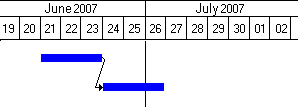
- Finish-to-Start: This is the default relationship type. It specifies that the start of the successor activity depends on the completion of the predecessor activity. In most cases, this means that the successor activity cannot start until the predecessor activity is completed. In the finish-to-start relationship, the arrow starts at the right edge of the predecessor activity and ends at the left edge of the successor.
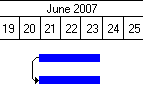
- Start-to-Start: This relationship specifies that the start of the successor activity depends on the start of the predecessor activity. In most cases, this means that the successor activity cannot be started before the start of the predecessor activity. In the start-to-start relationship, the arrow starts at the left edge of the predecessor activity and ends at the left edge of the successor.
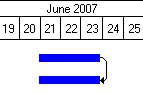
- Finish-to-Finish: This relationship specifies that the finish of the successor activity depends on the completion of the predecessor activity. In most cases, this means that the successor activity cannot be completed before the completion of the predecessor activity. In the finish-to-finish relationship, the arrow starts at the right edge of the predecessor activity and ends at the right edge of the successor.
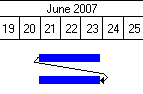
- Start-to-Finish: This relationship specifies that the finish of the successor activity depends on the start of the predecessor activity. In most cases, this means that the successor activity cannot be completed before the start of the predecessor activity. In the start-to-finish relationship, the arrow starts at the left edge of the predecessor activity and ends at the right edge of the successor.
Open Plan network views can display activities from multiple levels of a hierarchical project.
After you have entered the explanation in the Show This Explanation column for a field, and selected the Display Explanation When Hovering over Applied Rule(s) option, hovering your mouse over the said field in the activity box displays the explanatory text.
You can display explanatory text captions in the network view, explaining why a certain activity box has a specific formatting, such as font, text color, background color, and so on. You can do this by using the Conditional Formatting dialog box.
Intersecting Lines
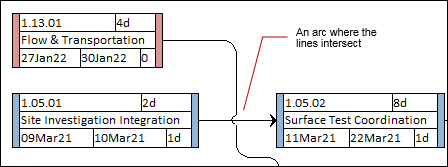
When two lines intersect, Open Plan draws an arc on the vertical line where they cross. This indicates that the two lines don't join and also makes it easier for you to follow the path of the line. This feature is included in both the routed and direct line modes.
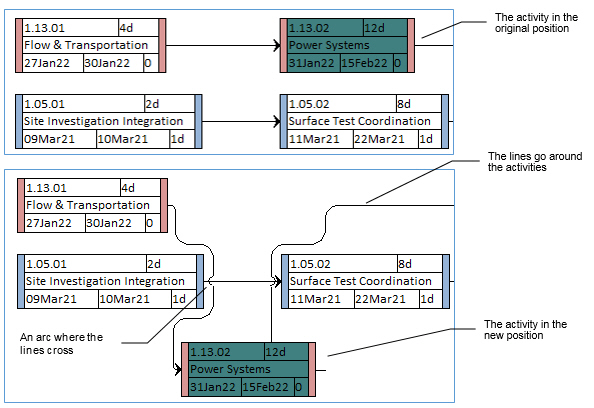
In routed mode, Open Plan tries to organize the logic lines so that they avoid going under the activity boxes. In the example below, Activity 1.13.02 has been moved and Open Plan has arranged the lines so that they do not go under any activity boxes, and added arcs so that you can follow the path of the lines.
Related Topics
Related Procedures
- Create an Activity in a Network View
- Edit an Activity
- Create a Relationship Using a Mouse (Network)
- Create a Relationship Using the Keyboard (Network)
- Display Child Activities in a Network View
- Expand a Subproject in a Network View
- Move Up the Hierarchy in a Network View
- Split a Network View into Two Panes