Annotating a Network
The network view contains an annotation feature that allows you to highlight important information about your project. You can attach the annotation to either the view as a whole or to a specific activity.
If you attach the annotation to an activity, the annotation stays with the activity whenever it is moved on the view. Open Plan displays the annotation only in the view in which it is created.
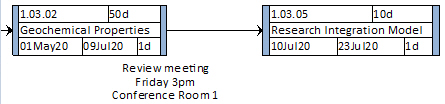
Open Plan allows you to customize the way the annotation is displayed in a number of different ways. You can:
- Display the annotation within any of three different borders or without a border.
- Select the font to be used in the annotation, or choose the default font option (Arial, 50).
- Choose the color on which the annotation is displayed.
- Display the annotation behind or in front of other elements on the view.
- Allow the annotation box to automatically resize, depending on the text length entered in the Text field.
Activity Annotation
As an option, you can attach an annotation to an activity. When attached, an annotation maintains the same position relative to the activity, even if the activity moves. If you delete the activity, Open Plan deletes the annotation.
Only one annotation can be attached to an activity at a time. If you attach a new annotation to an activity that already has an annotation, the existing annotation will remain displayed but will no longer be attached to the activity.
Defining an Annotation
To define an annotation, use the Add Annotation command on the View tab to display the Network View Annotation dialog box.
Annotations can contain multiple lines of text. To insert a line break in annotative text, press Ctrl+Enter. It is also possible to cut or copy text from an annotation to the clipboard as well as to paste text from the clipboard into an annotation.