The Spreadsheet Pane
The Spreadsheet pane of a barchart view uses a tabular format to display activity information in rows and columns.
You can enter, display, and edit any activity-related information in the spreadsheet pane of a barchart view, including information stored in user-defined fields.
For fields with a limited number of valid entries (for example, an activity type), Open Plan displays a list of valid choices in the edit box.
Because data entry in the spreadsheet pane tends to be keyboard-oriented, Open Plan provides a number of keyboard shortcuts for navigating and updating information in this type of display. Three of the most common navigation shortcuts are as follows:
- To move down one cell, press Enter.
- To move right one cell, press Tab.
- To move left one cell, press Shift+Tab.
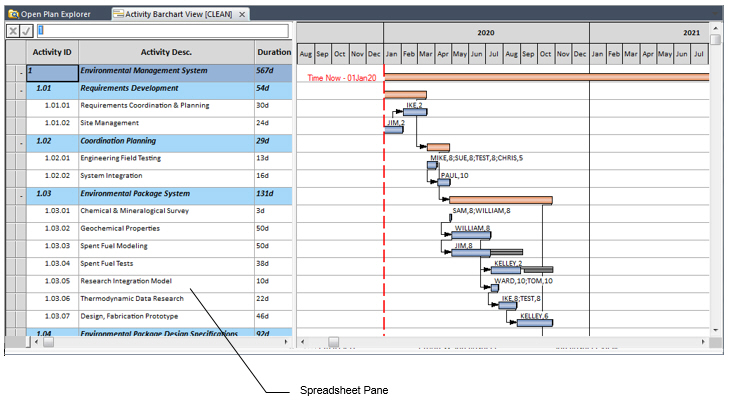
Many of the features and steps in the barchart spreadsheet view are the same as those for the Spreadsheet view.
Other keyboard functions depend on the type of cell that has focus when you press a key. For example, if you have selected a data entry cell (that is, a cell in which you can enter text, numeric, or date information), the following keyboard shortcuts are available:
| Key | Action |
|---|---|
| Down Arrow | Move down one cell |
| Up arrow | Move up one cell |
| Left arrow | Move left one character |
| Right arrow | Move right one character |
| Shift+Left arrow | Select previous character |
| Shift+Right arrow | Select next character |
| Ctrl+Up arrow | Move to top row in view |
| Ctrl+Down arrow | Move to bottom row in view |
| Ctrl+Left arrow | Move to first cell in row |
| Ctrl+Right arrow | Move to last displayed cell in row |
| Ctrl+Home | Move to top left cell |
| Ctrl+End | Move to bottom right cell |
| Page Up | Move up one screen |
| Page Down | Move down one screen |
| Home | Move to first character in cell |
| End | Move to last character in cell |
If you have selected a cell displaying data generated by Open Plan (for example, an early start date), the following keyboard shortcuts are available:
| Key | Action |
|---|---|
| Down arrow | Move one cell down |
| Up arrow | Move up one cell |
| Left arrow | Move left one cell |
| Right arrow | Move right one cell |
| Ctrl+Up arrow | Move to top row in view |
| Ctrl+Down arrow | Move to bottom row in view |
| Ctrl+Left arrow | Move to first cell in row |
| Ctrl+Right arrow | Move to last displayed cell in row |
| Ctrl+Home | Move to top left cell |
| Ctrl+End | Move to bottom right cell |
| Page Up | Move up one screen |
| Page Down | Move down one screen |
| Home | Move to first cell in row |
| End | Move to last cell in row |
Finally, if you have selected a cell with a fixed number of valid values (for example, activity type), the following keyboard shortcuts are available:
| Key | Action |
|---|---|
| Down arrow | Choose next value |
| Up or Left arrow | Choose previous value |
| Home | Choose first value |
| End | Choose last value |