Contents of the Resources Tab
Use the fields and options to configure the Resources tab.
Contents
| Field | Description | ||||||||||||||||
|---|---|---|---|---|---|---|---|---|---|---|---|---|---|---|---|---|---|
| ID | This read-only field displays the activity ID. This field can be modified in the Activity Details dialog box. | ||||||||||||||||
| Desc. | This is a read-only field that displays the activity description. This field can be modified in the Activity Details dialog box. | ||||||||||||||||
| Activity Physical % Complete | Use this field to enter the activity physical % complete. When you update this field, Open Plan also updates the data in the
Phy. % column in the grid below.
Note: You can only edit this field if the earned value technique (EVT) for the selected activity is
Percent Complete and there is not an
Actual Finish date. You select EVT on the Activity Details Advanced tab.
Attention: For more information about how the
EVT field affects the
Physical % Complete field, see
Rules for EVT and Activity Physical % Complete.
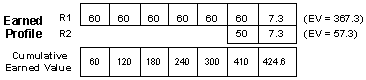
By entering the activity PPC, Open Plan calculates the resource PPCs with regard to duration, curve, offsets, and periods. For example, assume the following:
Because of the activity duration and the offset of the second resource, the two resources overlap. When you enter the activity PPC of 38.6%, Open Plan makes the following calculations: First, Open Plan determines the earned value of the activity by multiplying the sum of the resource assignment BACs with the activity PPC you entered:
Next, Open Plan looks at the activity profile and determines in which period the earned value falls in relation to the resources:
Since only a fraction of the last period is used, Open Plan evenly distributes the earned unit amount between the two resources:
Then, Open Plan adds the earned value for each resource and divides by the resource’s BAC to determine the PPC for the resource:
When you change the value in the Activity Physical Percent Complete field and tab out of the field, Open Plan recalculates the Resource Physical Percent Complete and displays this value in the Phys. % column. Before progressing a new activity, you should run time analysis otherwise the resource assignment physical percent complete may not be updated. |
||||||||||||||||
| Start Date | The start of the period covered by the actuals entered.
The date in this field applies to all of the resource progress records entered during the current session. |
||||||||||||||||
| End Date | The end of the period covered by the actual quantity and actual cost values entered. If a date is entered in this field, the actual values are spread between the start and end dates. If this field is left blank, the actual values are applied on the start date.
The date in this field applies to all the resource progress records entered during the current session. |


Grid
| Field | Description | ||||||||||||||||||||||
|---|---|---|---|---|---|---|---|---|---|---|---|---|---|---|---|---|---|---|---|---|---|---|---|
| Resource |
Each resource assigned to the activity is identified on two lines in this column.
In addition, you can enter valid resource IDs in blank rows at the bottom of the table to indicate actual quantity and actual cost for unbudgeted resources. You can also enter actuals on a row that does not contain a resource ID to have Open Plan roll up the actuals to the activity directly. You cannot enter progress information for a resource for which resource progress is automatically calculated based on activity progress. (This setting is defined on the General tab of the Resource Details dialog box.) Attention: For more information about the automatic creation of resource progress, see
Calculating Resource Progress Automatically.
|
||||||||||||||||||||||
| Phy. % | Open Plan displays the resource physical percent complete (PPC) in this field. This is the amount of the activity’s requirement for that resource that has been used. When you update this field, Open Plan also updates the data in the Activity
Physical % Complete field above.
Note: You can only edit this column if the earned value technique (EVT) for the selected activity is
Resource % Complete. You select EVT on the Activity Details Advanced tab.
Attention: For more information about how the
EVT field affects the
Physical % Complete field, see
Rules for EVT and Activity Physical % Complete.
You can enter the PPC for each resource, or you can have Open Plan calculate the PPC based on the activity progress. If you enter the PPC at the resource level, Open Plan calculates the activity PPC for you based on the rolled up earned value of each resource. If you enter the PPC at the activity level, Open Plan calculates each resource’s PPC with regard to duration, curve, offsets, and periods. When you change the value in the Phys. % field and tab out of the field, Open Plan recalculates the Activity Physical Percent Complete and displays this value in the Activity Physical Percent Complete field. Note that physical percent complete at the activity level and at the resource level are interdependent and that changing one value affects the other. Open Plan uses the budgeted cost (BAC) of each resource for determining these PPC values. For example, assume that an activity has two resource assignments (with linear requirements) as follows:
In this case, the activity PPC is calculated as follows:
If you change the activity PPC at the activity level, that PPC will be applied to all resource assignments belonging to that activity with consideration for any curve, offsets, and periods. Attention: For detailed information on how Open Plan calculates the physical percent complete at both the activity level and resource level, see Cost Calculations in the
Deltek Open Plan Developer’s Guide.
|
||||||||||||||||||||||
| Qty/Cost | This column provides heading information for the rest of the grid. For each resource identified on this tab, Open Plan provides both quantity and cost information.
By default, Open Plan displays two shades of the appropriate color for both quantity and cost information. The lighter shade indicates that you can enter information in the field. The darker shade indicates that information in the field cannot be modified. You can change these default colors using the Color tab on the Options dialog box. |
||||||||||||||||||||||
| Actual | This column controls the following types of data:
|
||||||||||||||||||||||
| Remaining | This column controls the following types of data:
|
||||||||||||||||||||||
| Previous | This column displays the following types of data:
|
||||||||||||||||||||||
| Budget | By default, Open Plan calculates budget values by rolling up the cost (escalated/unescalated) from a baseline. If a PMB exists, Cost Calculations will use this baseline. If no PMB exists, Open Plan calculates budgets using the currently selected baseline or the first selected baseline if multiple baselines are selected.
This column displays the following types of data:
|