T&E Overview Tab
The T&E Overview tab provides a consolidated view of team availability, pending approvals, and key time and expense tasks, helping you quickly identify actions and manage your teams efficiently.
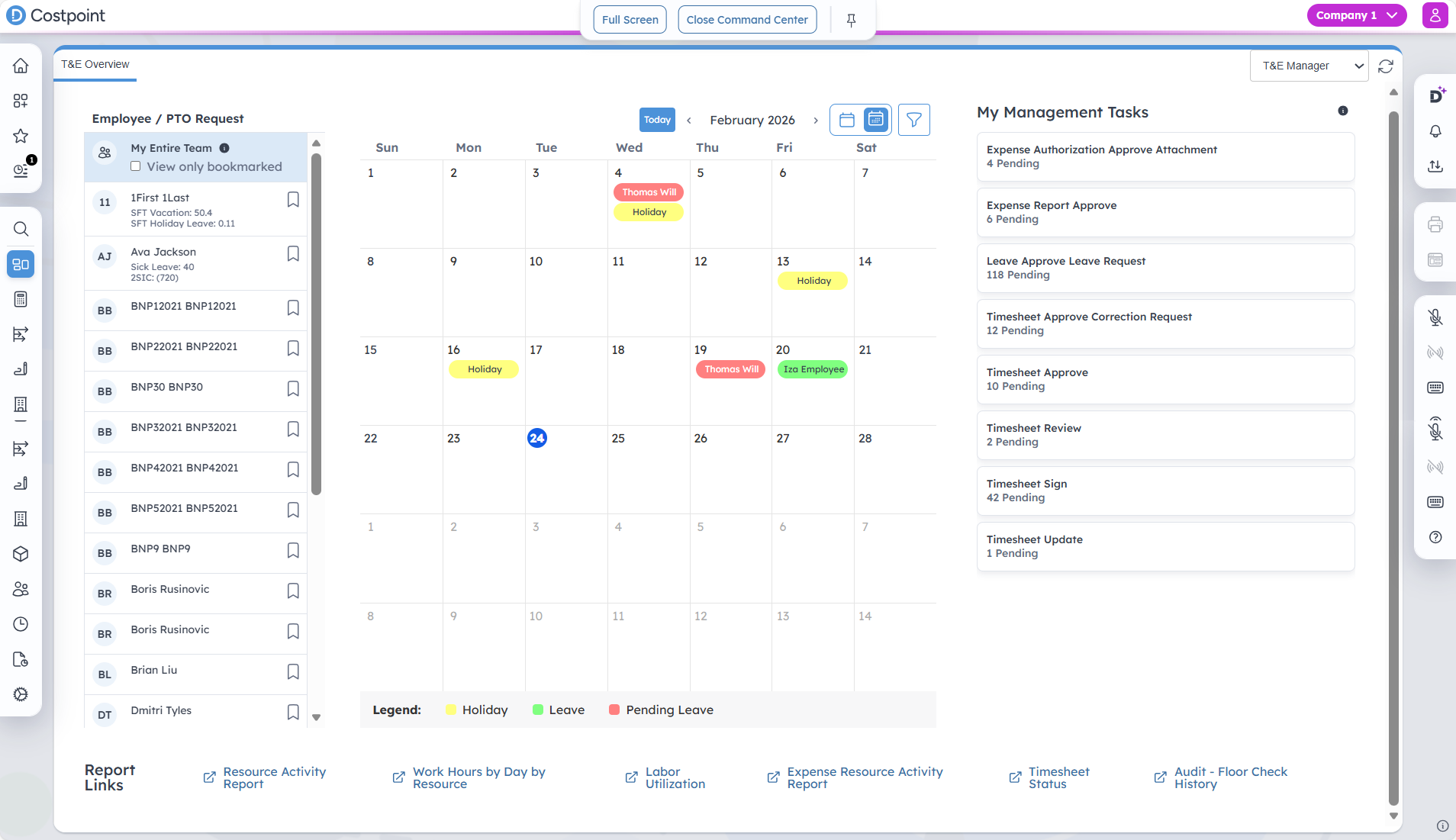
Employee/PTO Request
This section displays a list of your team members and their current leave balances. Click an employee's name to view only that person's leave information on the calendar. To display your full team again, click My Entire Team.
You can also bookmark employees for quick access. Select the View only bookmarked checkbox to display only bookmarked employees on the calendar. Bookmarks are saved in the browser's local storage. Clearing your browser's local storage or using a different machine will cause bookmarks to reset.
Calendar
The calendar shows your team's time off, company holidays, and pending leave requests. You can review historical data from the past 15 months and view future entries with no limit.
Click
 to switch between weekly and monthly views. To filter the calendar, click
 and select between
Approved,
Pending, or
Holidays.
and select between
Approved,
Pending, or
Holidays.
Calendar entries are labeled to indicate their type or status:
- Holidays: This indicates company holidays.
- Leave: This indicates approved leaves for the employee.
- Pending Leave: This indicates leave requests awaiting your approval.
My Management Tasks
This section lists your pending tasks as a manager related to timesheets and expenses. Each task type shows the number of pending items, enabling you to quickly identify where attention is needed. Click a task type to open the relevant screen in Time & Expense, where you can review details and complete the outstanding task.
Report Links
The T&E Overview tab gives you quick access to Costpoint BI and Time & Expense reports. When you click on the following report links, the prompt page opens on a new tab within the Command Center, where you can set the prompts and generate the reports based on your default format preference. You can also use the Export Report drop-down list in the upper-right corner of the Command Center screen to export the reports in HTML, PDF, Excel, Excel Data, CSV, or XML format.
- Resource Activity Report
- Work Hours by Day by Resource
- Labor Utilization
- Expense Resource Activity Report
- Timesheet Status
- Audit - Floor Check History