Report Drilling
This section describes the drilling functionality of Maconomy standard reports.
Several Maconomy Web Intelligence (WebI) reports allow users to drill down into levels to view more detailed information. When you drill down, the report restricts to the dimension value you selected and changes the view of the report to display data by the dimension one level lower in the drill hierarchy.
For example, a report may display data by company. Drilling down on the company may change to show data by customer. The deeper you go, the more granular the data becomes.
Standard Drill Down
For some standard reports, Maconomy BPM uses a predefined drill down hierarchy defined in the report's business layer. When drilling down, no new query is executed as data are kept in memory.
For instance, a revenue report may allow drilling down to the Customer level to identify which customers generated revenue. You can then drill further to the Job level to determine which jobs contributed to that income.
Example
This section uses the AR Aging report as an example of a standard Maconomy BPM report with drill down functionality. The AR Aging report offers drill down from Company to Customer to Job level.
-
In the initial view, the AR Aging report displays the total outstanding amounts for customers and how old these amounts are.
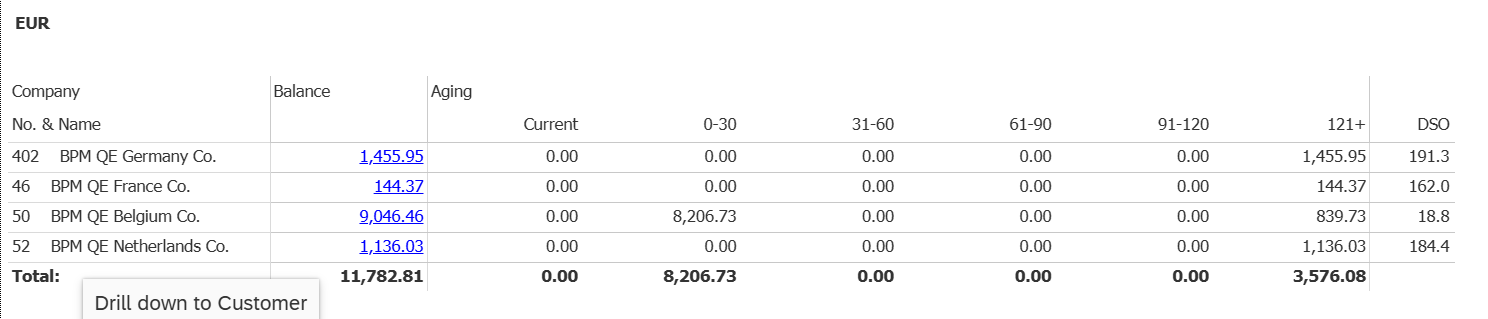
Click an entry in the Company column to drill down to the Customer breakdown.
- At the Customer breakdown, the report shows the outstanding amounts by customer, restricting to the company previously selected.

Click an entry in the Customer column labeled Company 50 to drill down to the Job breakdown.
- At the Job breakdown, the report shows the outstanding amounts by job, restricting both to the company and customer previously selected.

You can click an entry in the Job column to return to the Customer view.
Drill Hierarchies
Different BPM reports may use different drill hierarchies indicating that the dimensions used in the breakdowns are different.
Standard Hierarchy
The standard hierarchy used in most of the drillable reports is as follows:
Company » Customer » Job
In Maconomy, some reports use the Customer hierarchy, which can include up to five levels: Level 1 through Level 5.
Hierarchy Drill Down
WebI reports may also use a hierarchical drill-down structure, where the order of levels is defined by the user.
In Maconomy, some reports use the Customer hierarchy, which can include up to five levels: Level 1 through Level 5.
Reports Using Customer Hierachy
Some reports use the customer hierarchy instead. This relates to Maconomy's customer hierarchies. The reports are similar to their standard counterparts using the standard drill hierarchy, but differs in that it uses a different hierarchy as follows:
Company » Customer Level 1 » Customer Level 2 » Customer Level 3 » Customer Level 4 » Customer Level 5 » Job
Reports that use the Customer Hierarchy include the following:
- Customer Profitability, By Customer (Customer Hierarchy)
- Customer Profitability (Customer Hierarchy)
- Customer Profitability Comparison, By Customer (Customer Hierarchy)
- Revenue Analysis, By Customer (Customer Hierarchy)
- Revenue Analysis (Customer Hierarchy)
- WIP Aging (Customer Hierarchy)
- WIP Rollforward (Customer Hierarchy)
- Job Profitability Budget (Customer Hierarchy)
- Job Profitability Comparison (Customer Hierarchy)
- Job Profitability Summary (Customer Hierarchy)
- WIP Aging, By Dimension (Customer Hierarchy)
- Job Profitability Summary, By Job (Customer Hierarchy)
Configure Customer Hierarchy Levels
For reports that use Customer Hierarchy, you need to set up customer hierarchies for your customers in Maconomy. This is done in Setup » System Setup » Customer Level Setup workspace to build a hierarchy that suits your needs.
For example, you might have a client at the top level, several brands at the second level, and multiple products at the third level. You can enter the following in the Level 1 Name to Level 3 Name fields in the workspace:
- Customer Level 1 Name: Rich Financial Services Firm (the client, an enterprise corporation)
- Customer Level 2 Name: Rich Company (the company name or brand)
- Customer Level 3 Name: Rich Insurance (a product or service offered by the company)
Example
This example uses the AR Aging (Customer Hierarchy) report to illustrate the Customer Hierarchy drill-down levels.
- In the initial view, the AR Aging (Customer Hierarchy) report displays the total outstanding amounts for customers and how old these amounts are.
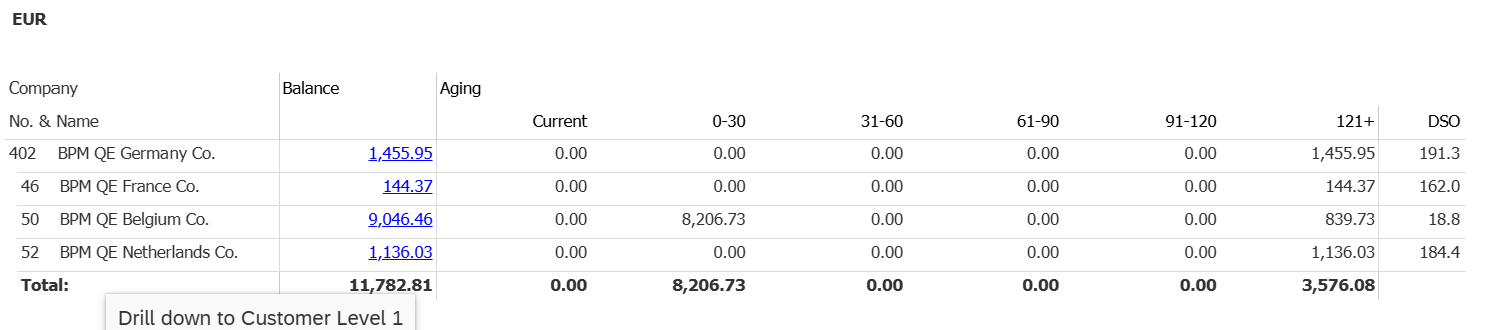
Click an entry in the Company column labeled Belgium company to drill down to Customer Level 1.
- In the Customer Level 1 view, the report shows outstanding amounts by companies within Belgium.
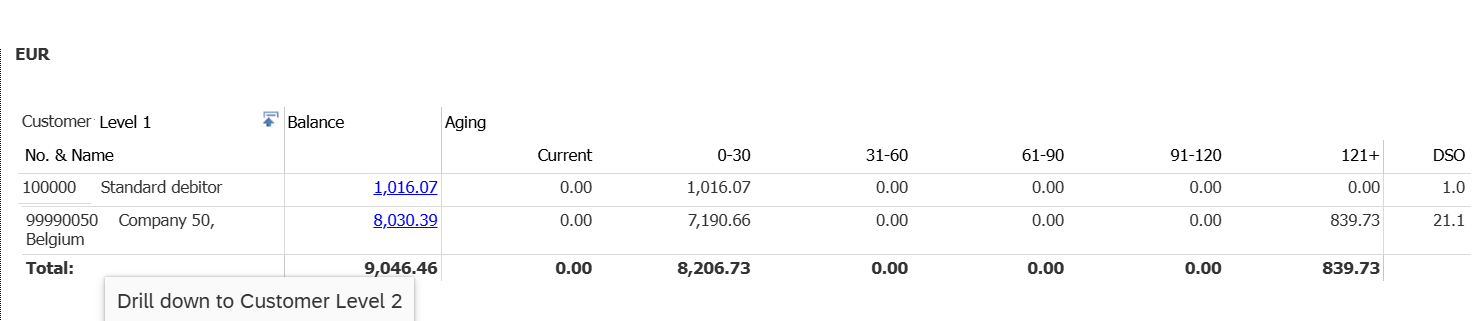
Click an entry in the Customer Level 1 column labeled Company 50 to drill down to Customer Level 2.
- In the Customer Level 2 view, the report lists outstanding amounts by sub-companies under the main company.

Click an entry in the Customer Level 2 column labeled Company 50 with a different company number to drill down to Job.
- In the Job view, the report displays outstanding amounts by job within the sub-company.

You can click an entry in the Job column to return to Customer Level 2.