Download a Report Directly from the Reporting Form
You can select a report from the Favorites tab or the Reports tab and then download the report directly to a specific file format, such as Adobe PDF.
To download a favorite or a standard report directly from the Reporting form:
-
Depending on whether you need to download a favorite report or a standard report, complete the substeps for one of the following actions:
Action Steps Download a Favorite Report - Click the Favorites tab.
- In the Reports grid, hover over the end of a report row, and click the
 Grid Options tool to display a list of options.
- Select the Download option.
Download a Standard Report - Click the Reports tab.
- In the Reports grid, click the report link (in blue) to open the report on its report form.
- On the
Other Actions
menu of the Reporting form, click
 and then select the
Download option.
and then select the
Download option.
-
In the
Download Report As field of the Download Report As dialog box, click
and select a format from the list of available file formats for the report.
The file format options include: Adobe PDF (.pdf), Microsoft Word Document (.doc), Microsoft Excel Spreadsheet (.xls), and Microsoft PowerPoint (.pptx).
-
Click
Download.
On the Vantagepoint toolbar, a highlighted notification displays when the download process begins, indicating whether the report downloaded successfully or processing errors occurred.
After the file downloads successfully, Vantagepoint automatically saves the downloaded report to the Downloads folder on your computer.
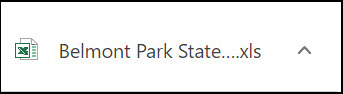
A downloaded report box showing the report's name and its file extension appears at the bottom left of your computer screen, as in this Excel (.xls) example:
You can either print the downloaded report or save it to a different location on your computer, and then open the file in the application associated with the downloaded report's file format.