Element Form (Classic Workspace)
In the classic workspace, use this form to view and work on your selected project element's properties and content items.
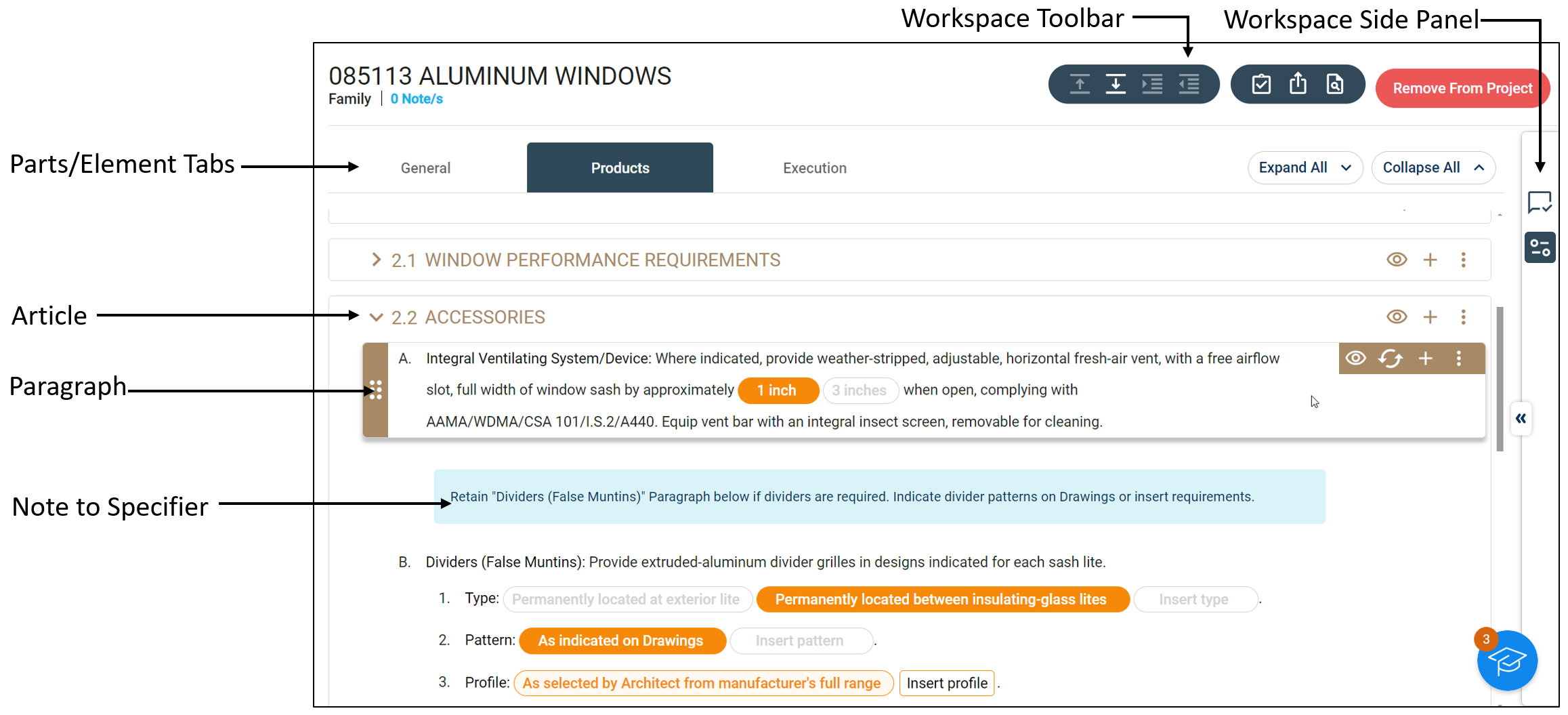
The element form displays the available content items for the selected element in the Project Elements pane. For unadded elements, use this form to review an element's contents and determine whether it fits your project requirements prior to adding it to your project specifications. For added project elements, this form functions as an editor that enables you to modify the element's available content items, such as articles, paragraphs, and performance requirements. Depending on the element type, the following content items are available:
| Element Type | Content Item |
|---|---|
| Assemblies (top-level, assembly groups) | Performance Requirements |
| Subassemblies (subassembly groups and subassembly types) and Divisions | None |
| Families, Sections, or Product Types | Parts, Articles, and Paragraphs |
For more information, see Element Form for Assemblies (Classic Workspace) and Element Form for Families and Product Types (Classic Workspace).
Permissions
- You are either an administrator or author.
- You are a member of the project team.
- The project element must be added to the project.
This form is view-only to contributors or for unadded project elements.
Related Options
For working on content items on the element form, relevant options are available in the following portions of the project workspace:
| Portion | Description |
|---|---|
| Workspace Toolbar | On the project workspace action bar, the workspace toolbar contains options for managing your selected element in the Project Elements pane and its content items on the
element form.
As an administrator or author, use these options to add, remove, preview, and export the selected project element. In addition, you can use the options on this toolbar to move, promote, and demote paragraphs. The available options depend on your selected project element or content item. |
Track Changes Tab

|
In the workspace side panel, this tab contains a record of changes that project team members made to the element's articles and paragraphs. Use this tab to perform the following tasks:
For more information, see Track Changes Tab. |
Project Properties Tab

|
In the workspace side panel, this tab contains various options that you can use to manage a project element's properties and its available content items on the
element form. This tab contains the following sets of options:
For more information, see Project Properties Tab. |