Configure Specpoint Project Parameter for a Revit Template File

Configure the SpecpointProjectGuid project parameter for a Revit template file to make all Revit projects that you make based on this template available for linking to Specpoint projects.

Perform this procedure only when you will use a Revit template file (.RTE).

To configure the Specpoint project parameter for a Revit template file:

  1. Launch Revit.
  2. In Revit, open a Revit template.
    Note: Revit template files have a file extension of .RTE.
  3. On the Revit ribbon, click the Manage tab.
  4. In the Project Parameters window, click .
  5. Under Parameter Type in the Parameter Properties window, select Project parameter.
  6. In the Name field under Parameter Data, enter SpecpointProjectGuid.
  7. In the Discipline field, select Common.
  8. Select Instance.
  9. In the Data Type field, select Text.
  10. Select Values are aligned per group type.
  11. In the Group parameter under field, select Text.
  12. Under Categories, select Project Information.
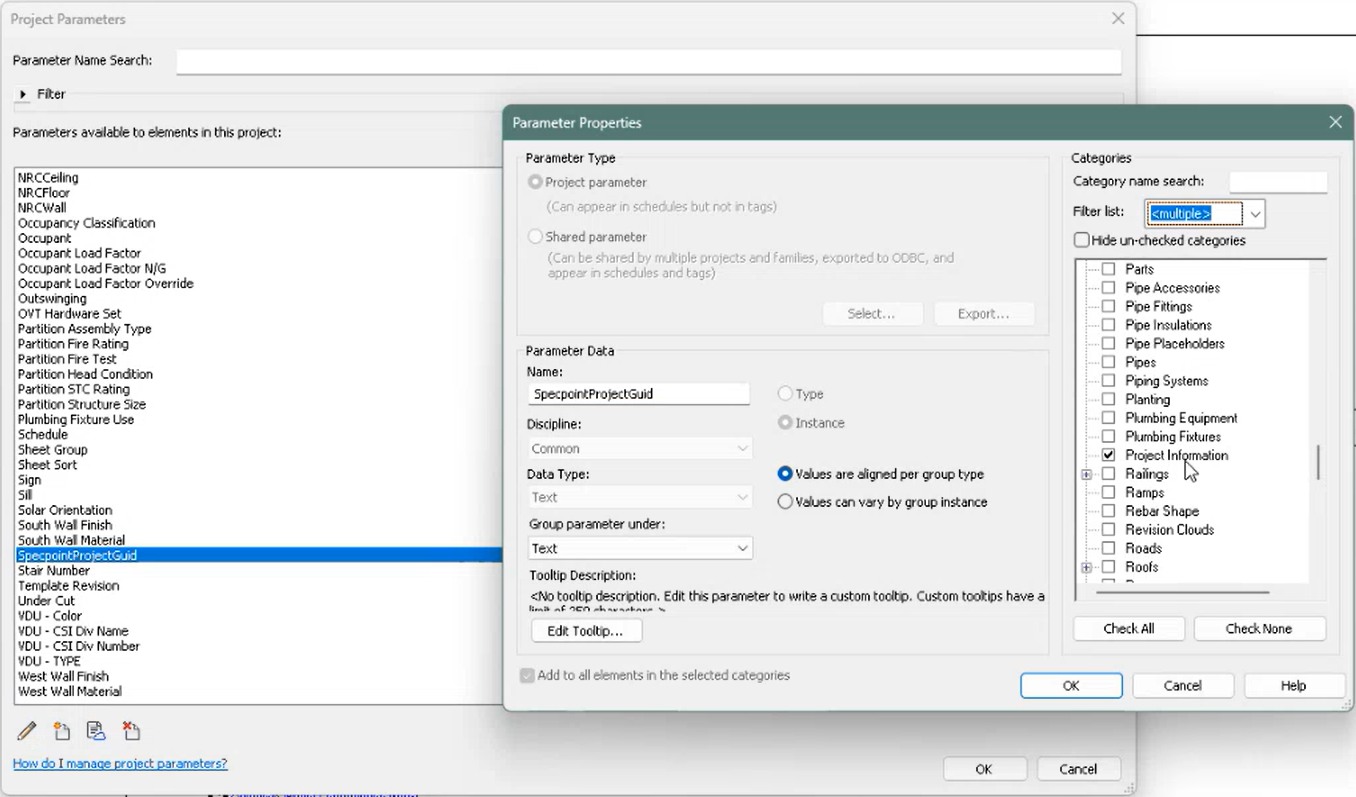
  13. Click OK.
  14. In the Project Parameters window, click OK.
  15. In Revit, save the template file.