
Displaying Multiple Subprojects
Displaying expanded subprojects from multiple hierarchical levels usually requires the use of commands.
These commands are as follows:
- Go To Subproject: Drill down to the next level of the project. The level from which you drilled down is no longer displayed in the view.
- Expand: Maintain the current level of the view, but display the children of the selected activity as an expanded subproject.
Attention: For more information about displaying subprojects, see How a Network View Displays a Hierarchy.
To understand how you might use these commands to expand subprojects from different levels, assume that you want to represent the following project in a single network view:
| Activity | Description |
|---|---|
| 1 | Project |
| 1.1 | Subproject 1 |
| 1.1.1 | Detail activity 1 |
| 1.1.2 | Detail activity 2 |
| 1.2 | Subproject 2 |
When you first display this project in a network view, only the top level activity appears:
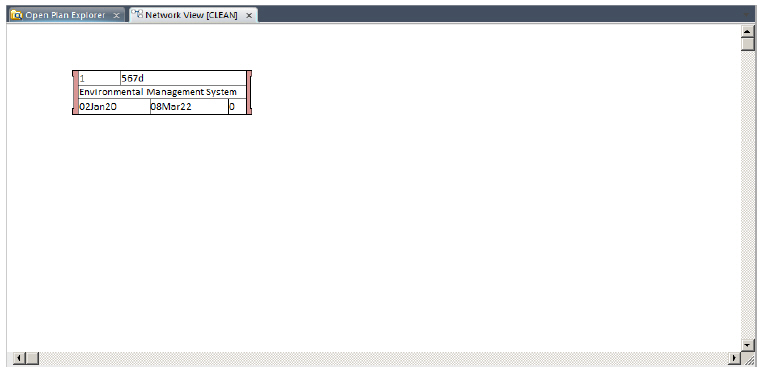
By selecting this activity and clicking Expand, you can display the following:
To display the detail activities in the project, you must first drill down a level and expand Subproject 1:
After you have displayed the lowest level of detail in the project, click the Go To Top Level command to display all of the expanded subprojects in the same view:
Related Topics
- How a Network View Displays a Hierarchy
- How a Network View Displays Information
- Customizing a Network View
- Working with Activities in a Network View
- Annotating a Network
Related Procedures
- Create an Activity in a Network View
- Edit an Activity
- Create a Relationship Using a Mouse (Network)
- Create a Relationship Using the Keyboard (Network)
- Select Multiple Activities in a Network View
- Change the Font on Activity Boxes
- Split a Network View into Two Panes