
Generating HAR Files
A HAR (HTTP Archive) file is a JSON-formatted log of a web browser's interactions with a web server. It captures all network requests made during a browser session, including request/response headers, body content, timing information, and more. HAR files are an invaluable tool for diagnosing network issues, performance problems, and unexpected application behaviour.
This guide explains how to generate a HAR file using Google Chrome and how to use it effectively when troubleshooting the Maconomy Web Client.
What is a HAR File?
HAR stands for HTTP Archive. The format is a JSON-based standard maintained by the Web Performance Working Group and is supported by all major browsers. A HAR file captures the complete picture of browser-to-server communication, including:
- HTTP Requests — Every request made by the browser: URLs, HTTP methods (GET, POST, etc.), headers, and request bodies.
- HTTP Responses — Server responses including status codes (e.g.
200 OK,401 Unauthorized,500 Internal Server Error), headers, and response bodies. - Timing Information — Detailed timing for each phase of a request: DNS lookup, TCP connection, SSL/TLS handshake, time-to-first-byte (TTFB), and download.
- Cookies — All cookies sent and received with each request.
- Page Events — Browser-level page load events and their timestamps.
HAR files can be opened and analysed using a variety of tools:
- Browser DevTools (Chrome, Firefox, Edge, Safari)
- Google Admin Toolbox — HAR Analyzer
- HAR Viewer (open-source)
Why HAR Files are Useful
When troubleshooting issues in the Maconomy Web Client, a HAR file gives support teams the full picture of what the browser was doing at the time the problem occurred. Common use cases include:
- Identifying failed requests — Pinpoint requests that return error status codes (4xx, 5xx) indicating server-side problems or misconfiguration.
- Diagnosing performance issues — Identify slow requests, bottlenecks, or timeouts that degrade application performance.
- Investigating authentication problems — Examine request headers and cookies to trace authentication failures or session expiry.
- Verifying proxy configuration — Confirm that requests are routed correctly through reverse proxies and that required headers are preserved.
- Capturing error details — Retrieve the exact error payloads returned by the Maconomy server, which are often not visible in the application UI.
- Reproducing issues remotely — Share a detailed record with a developer or support team so they can understand exactly what happened, even without access to the environment.
Privacy Considerations
HAR files may contain sensitive information including authentication tokens, session cookies, usernames, passwords submitted in forms, and other personal data. Always review the contents of a HAR file before sharing it. You can open the .har file in a plain text editor to inspect and redact sensitive values before attaching it to a support ticket.
Generating a HAR File in Chrome
The following steps describe how to capture a HAR file using Google Chrome. The process is near-identical in other Chromium-based browsers such as Microsoft Edge and Brave.
Step 1: Open Chrome DevTools
Navigate to the page where you are experiencing the issue. Open the Chrome DevTools panel using one of the following methods:
- Press F12
- Press Ctrl+Shift+I (Windows/Linux) or Cmd+Option+I (macOS)
- Right-click anywhere on the page and select Inspect
Step 2: Navigate to the Network Tab
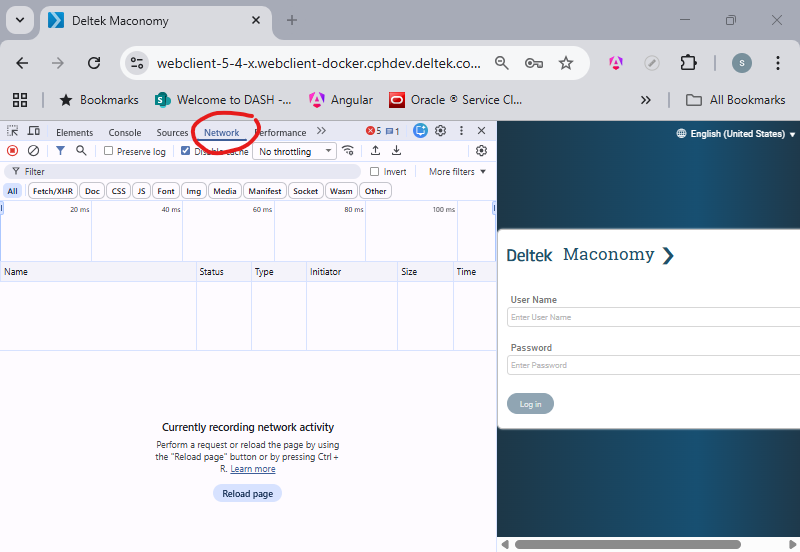
In the DevTools panel, click the Network tab. If it is not immediately visible, click the » overflow arrow to reveal additional tabs.
Step 3: Configure Recording Options
Before reproducing the issue, verify the following settings at the top of the Network panel:
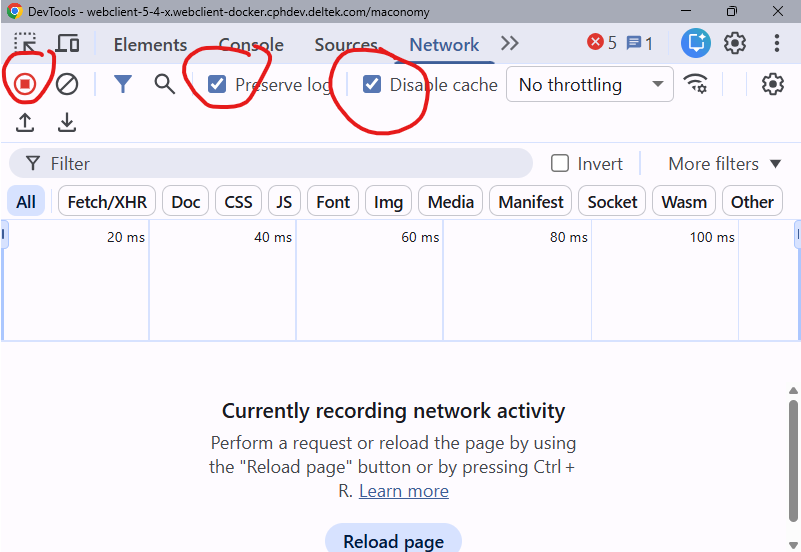
- Record button (red circle ●) must be active. If the circle is grey, click it to start recording.
- Enable the Preserve log checkbox. This ensures that all captured requests are retained even if the page navigates or refreshes during the reproduction steps.
- Optionally enable Disable cache to force all resources to be fetched fresh from the server. This can help surface caching-related problems.
Step 4: Reproduce the Issue
Start from the Login Page
Unless specified otherwise, navigate to the Maconomy Web Client login page before beginning to record. Once recording is active and Preserve log is enabled, press F5 to refresh the page. This ensures that all requests — including those made prior to authentication — are captured from the very start of the session. Then log in and reproduce the issue as normal.
With the Network tab open and recording active, reproduce the steps that trigger the issue. For example:
- Navigate to the Maconomy Web Client login page and press F5 to reload it, so that the HAR capture begins from the very first request.
- Log in to the Web Client.
- Navigate to the affected workspace or page.
- Perform the action that causes the error or unexpected behaviour.
All network activity during this time will appear in the request list in the Network panel. You will see each request listed with its URL, HTTP method, status code, and timing.
Step 5: Export the HAR File
Once the issue has been reproduced, export the captured network traffic as a HAR file:
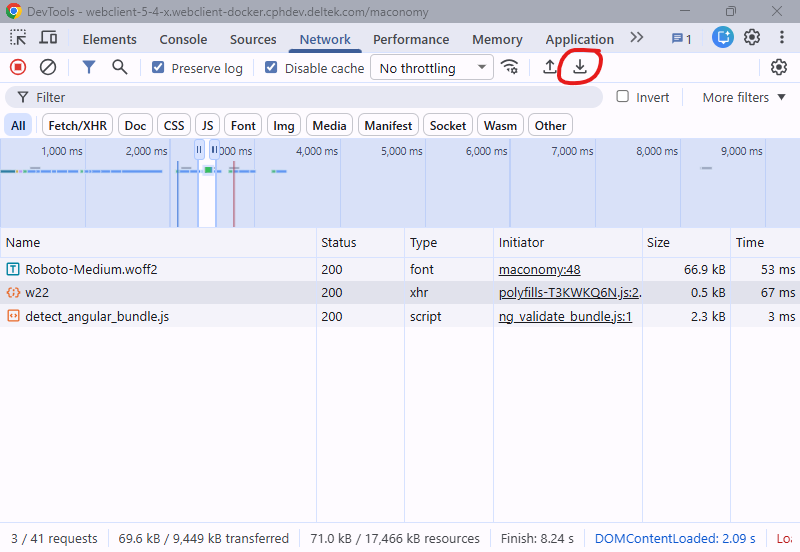
- Click the Export HAR... button in the Network panel toolbar.
- Choose a save location and give the file a descriptive name, for example
maconomy-login-issue-2024-03-15.har.
Clear Before Capturing
For a cleaner HAR file, click the Clear button (🚫 circle-with-slash icon) in the Network panel toolbar to clear any previous requests before you start reproducing the issue. This makes the resulting file smaller and easier to analyse.
Other Browsers
The steps above are written for Chrome, but all major browsers support HAR export. The table below summarises the key differences.
| Browser | Open DevTools | Network tab name | Export HAR |
|---|---|---|---|
| Chrome | F12 / Ctrl+Shift+I | Network | Toolbar button → Export HAR... |
| Edge | F12 / Ctrl+Shift+I | Network | Toolbar button → Export HAR... |
| Firefox | F12 / Ctrl+Shift+I | Network | Toolbar button → Export HAR... |
| Safari | Cmd+Option+I | Network | Right-click request list → Export HAR |
Edge is Chromium-based, so its DevTools are essentially identical to Chrome — the same steps apply without modification.
Firefox uses the same keyboard shortcuts and a near-identical layout. The Network tab is labelled Network and the export option reads Save All As HAR rather than Save all as HAR with content; response bodies are included by default.
Safari: Enable the Develop Menu First
By default, Safari hides its developer tools entirely. Before you can open the Network tab, you must enable the Develop menu:
- Open Safari → Settings (or Preferences on older macOS).
- Go to the Advanced tab.
- Tick Show features for web developers (macOS Sonoma and later) or Show Develop menu in menu bar (earlier versions).
Once enabled, open Web Inspector via Develop → Show Web Inspector or Cmd+Option+I, then follow the same recording and export steps as for Chrome.
Viewing and Analysing a HAR File
Re-importing into Chrome DevTools
You can load a HAR file back into Chrome DevTools to inspect it interactively:
- Open DevTools and go to the Network tab.
- Click the Import HAR icon in the toolbar.
- Select your
.harfile.
The requests will appear in the Network panel just as they did during the original capture. You can click on any request to inspect its headers, response body, timing, and cookies.
Using the Google HAR Analyzer
Alternatively, Google provides an online tool for viewing HAR files at https://toolbox.googleapps.com/apps/har_analyzer/. Upload your HAR file to:
- Filter requests by URL pattern or MIME type.
- Identify the slowest requests using the waterfall timeline view.
- Highlight requests with error status codes.
Understanding the HAR Structure
The HAR format uses a straightforward JSON structure. The key sections are:
| Section | Description |
|---|---|
log.creator | Information about the browser and version that generated the file. |
log.pages | An array of page load events with timestamps and titles. |
log.entries | The main content: an array of all captured request/response pairs. |
Each entry in log.entries contains:
| Field | Description |
|---|---|
startedDateTime | ISO 8601 timestamp of when the request was initiated. |
time | Total elapsed time in milliseconds. |
request.method | The HTTP method (GET, POST, PUT, etc.). |
request.url | The full request URL. |
request.headers | Array of request header name/value pairs. |
request.postData | The request body, if present (e.g. for POST requests). |
response.status | HTTP status code (e.g. 200, 401, 500). |
response.content.text | The response body (may be base64-encoded for binary content). |
timings | Breakdown of time by phase: dns, connect, ssl, send, wait, receive. |
Providing HAR Files to Support
When raising a support case or sharing a HAR file with the Maconomy support team, please follow these guidelines:
- Describe the issue clearly — Include the steps you followed to reproduce the problem, the expected outcome, and the actual outcome.
- Review the file for sensitive data — Open the
.harfile in a text editor and redact any passwords, tokens, or personal data you are not comfortable sharing. - Attach the HAR file — Attach the
.harfile directly to your support ticket or email. If the file is large (over a few MB), compress it as a.ziparchive first. - Include supplementary diagnostics — If available, also attach the
.jsonexport from the Sanity Tests tool. Together, the HAR file and the Sanity Tests export give support the broadest diagnostic picture.
TIP
To aid customer care in resolving any issue as quickly as possible, attach both the .har file and a .json export from the Sanity Tests tool to your support ticket or email.
HAR Format Specification
The HAR format is defined by the Web Performance Working Group. The current version is HAR 1.2. For the complete technical specification, see http://www.softwareishard.com/blog/har-12-spec/.