
IIS Configuration
Understanding the web.config File
The web.config file is an XML-based configuration file used by IIS and ASP.NET applications. It controls various aspects of your web application's behavior, including:
- URL rewrite rules - Define how incoming requests are processed
- HTTP headers - Set custom headers for security and caching
- Authentication - Configure security settings
- Error handling - Define custom error pages
- Modules and handlers - Control which IIS modules are active
The web.config file is hierarchical, meaning you can place it at different levels:
- Root level - Applies to the entire application
- Subdirectory level - Overrides or extends root settings for specific paths
What are Rewrite Rules?
Rewrite rules in IIS are powerful URL manipulation tools that allow you to:
- Redirect incoming requests to different URLs or endpoints
- Proxy requests to backend servers (reverse proxy functionality)
- Modify URLs to be more user-friendly or SEO-optimized
- Enforce security policies such as HTTPS redirection
- Route traffic based on conditions like user agent, IP address, or URL patterns
The URL Rewrite Module in IIS uses pattern matching and conditions to determine when and how to transform incoming requests. This is particularly useful for:
- Creating clean, readable URLs
- Implementing reverse proxy scenarios
- Supporting single-page applications (SPA) with deep linking
- Load balancing across multiple backend servers
Why Reverse Proxy Configuration is Essential
In the Maconomy web client architecture, the web server (IIS or Apache) serves a dual purpose:
- Serving static content - HTML, JavaScript, CSS files that make up the web client
- Acting as a reverse proxy - Forwarding API requests to the backend Maconomy server
The reverse proxy configuration is critical for several reasons:
- CORS Prevention - By proxying requests through the same origin as the web client, you avoid Cross-Origin Resource Sharing (CORS) security restrictions that browsers impose when JavaScript makes requests to different domains
- SSL Termination - The web server can handle HTTPS encryption/decryption, simplifying the backend configuration
- Unified URL Structure - Users access everything through a single URL, improving user experience and simplifying firewall rules
The Maconomy web client requires access to several backend endpoints:
- maconomy-api - The main RESTful API for data and metadata
- containers - Container data and specifications
- filedrop - File upload functionality (e.g., expense receipts)
- configurations - JSON specifications that configure the web client
- handshake - Authentication and session management
- workspaces-rpc - Workspace-related operations
- analyzer - Analytics and reporting features
The example configuration below demonstrates some of the essential endpoints (maconomy-api, boe, and containers). Additional endpoints like filedrop, workspaces-rpc, configurations, handshake, analyzer, auth, and environment can be added following the same pattern as needed for your specific installation.
Related Documentation
- Web Client Installation - Complete installation guide including IIS and Apache setup
- Troubleshooting - Solutions to common IIS configuration issues
- Architecture - Detailed overview of the Maconomy web client architecture
Example Configuration
Below is a complete example of a web.config file, used as part of a Maconomy system, that demonstrates common IIS rewrite patterns:
<?xml version="1.0" encoding="UTF-8"?>
<configuration>
<location path="index.html">
<system.webServer>
<httpProtocol>
<customHeaders>
<add name="Cache-Control" value="no-cache, no-store, must-revalidate" />
<add name="Pragma" value="no-cache" />
<add name="Expires" value="0" />
</customHeaders>
</httpProtocol>
</system.webServer>
</location>
<system.webServer>
<httpProtocol>
<customHeaders>
    <add name="Content-Security-Policy" value="frame-ancestors 'self';" />
    <add name="X-Frame-Options" value="SAMEORIGIN" />
</customHeaders>
</httpProtocol>
<rewrite>
<rules useOriginalURLEncoding="false">
<!-- Deep linking support for Single Page Applications -->
<rule name="DeepLinkingSupport" stopProcessing="false">
<match url=".*" />
<action type="Rewrite" url="/" />
<conditions logicalGrouping="MatchAll" trackAllCaptures="false">
<add input="{REQUEST_FILENAME}" matchType="IsFile" negate="true" />
<add input="{REQUEST_FILENAME}" matchType="IsDirectory" negate="true" />
<add input="{REQUEST_FILENAME}" pattern="maconomy-api*" negate="true" />
<add input="{REQUEST_FILENAME}" pattern="boe" negate="true" />
<add input="{REQUEST_FILENAME}" pattern="containers*" negate="true" />
</conditions>
</rule>
<!-- Maconomy API reverse proxy -->
<rule name="ReverseProxyInboundRule1" patternSyntax="ECMAScript" stopProcessing="true">
<match url="^(maconomy-api|maconomy-api/.*)$" ignoreCase="true" />
<action type="Rewrite" url="http://localhost:9081{C:1}" appendQueryString="false" />
<conditions logicalGrouping="MatchAll">
<add input="{UNENCODED_URL}" pattern="maconomy-api(.*)" />
</conditions>
<serverVariables>
<set name="HTTP_X_FORWARDED_PROTO" value="https" replace="true" />
<set name="HTTP_Maconomy-Forwarded-Base-Path" value="/maconomy-api" replace="true" />
</serverVariables>
</rule>
<!-- BOE reverse proxy -->
<rule name="ReverseProxyInboundRule2" patternSyntax="ECMAScript" stopProcessing="true">
<match url="^(boe|boe/.*)$" ignoreCase="true" />
<action type="Rewrite" url="http://localhost:8443/BOE/{C:1}" appendQueryString="false" />
<conditions logicalGrouping="MatchAll">
<add input="{UNENCODED_URL}" pattern="boe(.*)" />
</conditions>
<serverVariables>
<set name="HTTP_X_FORWARDED_PROTO" value="https" replace="true" />
</serverVariables>
</rule>
<!-- Containers endpoint -->
<rule name="ReverseProxyInboundRule3" patternSyntax="ECMAScript" stopProcessing="true">
<match url="^(containers|containers/.*)$" ignoreCase="true" />
<action type="Rewrite" url="http://localhost:8102/containers{C:1}" appendQueryString="false" />
<conditions logicalGrouping="MatchAll">
<add input="{UNENCODED_URL}" pattern="containers(.*)" />
</conditions>
<serverVariables>
<set name="HTTP_X_FORWARDED_PROTO" value="https" replace="true" />
</serverVariables>
</rule>
<!-- Additional endpoints can be added following the same pattern -->
<!-- Examples: filedrop, workspaces-rpc, configurations, handshake, analyzer, auth, environment -->
</rules>
</rewrite>
</system.webServer>
<system.web>
<!-- Allow colon in URLs for configurations endpoint compatibility -->
<httpRuntime maxUrlLength="1024" relaxedUrlToFileSystemMapping="true" requestPathInvalidCharacters="<,>,*,\" />
</system.web>
</configuration>
Key Components Explained
The default IIS configuration is quite restrictive to maximize security. These settings relax certain restrictions to support modern web application patterns while maintaining protection against common attack vectors.
1. Custom Headers
<customHeaders>
<add name="Content-Security-Policy" value="frame-ancestors 'self';" />
<add name="X-Frame-Options" value="SAMEORIGIN" />
</customHeaders>
These headers enhance security by preventing clickjacking attacks.
2. index.html Cache Headers
<location path="index.html">
    <system.webServer>
        <httpProtocol>
            <customHeaders>
                <add name="Cache-Control" value="no-cache, no-store, must-revalidate" />
                <add name="Pragma" value="no-cache" />
                <add name="Expires" value="0" />
            </customHeaders>
        </httpProtocol>
    </system.webServer>
</location>
The <location path="index.html"> block scopes these headers to the SPA entry point only, so the browser never serves a stale index.html:
Cache-Control: no-cache, no-store, must-revalidate- The authoritative HTTP/1.1 directive.no-storeforbids caching outright, whileno-cache/must-revalidateforce the browser to revalidate before reuse. This is the header modern browsers obey.Pragma: no-cache- An HTTP/1.0 fallback for legacy proxies/clients that predateCache-Control. Ignored by modern browsers whenCache-Controlis present.Expires: 0- An HTTP/1.0 fallback; the invalid value0is treated as "already expired." Also superseded byCache-Controlon modern browsers.
Why this matters: index.html references the content-hashed bundle files (main-<hash>.js, chunk-<hash>.js, …), whose filenames change on every production build. A stale index.html would point at bundle names that no longer exist after a redeploy, giving the user a broken app. Forcing index.html to always be re-fetched guarantees the current bundle references. The hashed bundles themselves are not given these headers — they can be cached aggressively because a new build produces new filenames, which is exactly why the no-cache headers are scoped to index.html only and not applied site-wide.
3. Deep Linking Support
The DeepLinkingSupport rule ensures that Single Page Applications (SPAs) work correctly with direct URL access. It rewrites all requests that aren't files or directories to the root, allowing the web application to handle routing.
4. Reverse Proxy Rules
Each reverse proxy rule follows a similar pattern:
- match url: Defines the URL pattern to match (e.g.,
^(maconomy-api|maconomy-api/.*)$) - action: Rewrites the URL to the backend server
- conditions: Additional matching criteria
- serverVariables: Sets HTTP headers for the proxied request
The {C:1} capture group preserves the path after the matched prefix.
5. HTTP Runtime Configuration
<httpRuntime maxUrlLength="1024" relaxedUrlToFileSystemMapping="true" requestPathInvalidCharacters="<,>,*,\" />
This configuration controls how IIS processes HTTP requests:
maxUrlLength="1024" - Sets the maximum allowed URL length to 1024 characters. By default, IIS limits URLs to 260 characters, but modern web applications (especially those using reverse proxies or complex query strings) often need longer URLs. This setting prevents legitimate requests from being rejected with a "404.14 - URL Too Long" error.
relaxedUrlToFileSystemMapping="true" - Allows URLs that don't strictly conform to Windows file system naming conventions. This is particularly important when:
- Your application uses URL paths that contain characters normally invalid in file names
- You're implementing a reverse proxy that forwards requests with special characters
- Your SPA uses routing with characters that Windows would normally reject
requestPathInvalidCharacters - Specifies which characters are considered invalid in the request path. The characters listed here will cause IIS to reject the request:
<(Less than)>(Greater than)*(Asterisk)\(Backslash)
Important: Note that the colon character (
:) is NOT included in this list. This is intentional and required for the Maconomyconfigurationsendpoint to function properly. Some IIS installations block colons by default, which causes the configurations endpoint to fail. By excluding the colon from the invalid characters list, we allow these endpoints to work correctly while still maintaining security against common attack vectors like path traversal and XSS.
WARNING
If you encounter errors like "Bad Request: Unable to connect to 'configurations' endpoint", verify that the colon character is not included in your requestPathInvalidCharacters setting. See the Troubleshooting guide for more details.
6. BOE Endpoint Pattern Matching
The BOE endpoint configuration uses different patterns in different contexts, and it's critical to understand why:
In the DeepLinkingSupport rule, the pattern is simply boe (without wildcards):
<add input="{REQUEST_FILENAME}" pattern="boe" negate="true" />
This exact match prevents the rule from incorrectly matching URLs like storyboard_employee. Previously, using boe* as a wildcard pattern would match any string containing 'b', 'o', and zero or more 'e' characters, which incorrectly captured unrelated URLs.
In the ReverseProxyInboundRule2, the pattern uses a capture group boe(.*):
<add input="{UNENCODED_URL}" pattern="boe(.*)" />
The (.*) regular expression captures everything after "boe" and makes it available as {C:1} in the action URL. This is essential for properly forwarding the complete path to the backend server. Using just boe or boe* would not extract the path suffix, breaking the proxy functionality.
Key Takeaway: In regular expression patterns used by URL rewrite rules, * is a quantifier that means "zero or more occurrences of the preceding character." The pattern boe* matches "bo" followed by zero or more "e" characters (matching: bo, boe, boee, etc.), which is why it incorrectly matched storyboard_employee. To match "followed by anything," use .* where . means "any character" and * means "zero or more times." The pattern boe(.*) combines this with a capture group (parentheses) that makes the matched content available as {C:1} for forwarding to the backend server. Always use (.*) when you need to capture and forward URL segments in reverse proxy rules.
Configuring web.config: Automatic vs. Manual
You have two options for configuring IIS rewrite rules for the Maconomy web client:
Option 1: Automatic Configuration with MConfig (Recommended for Initial Setup)
MConfig 9.9 and later can automatically configure IIS for the web client, including:
- Creating the website and application pool
- Setting up the required rewrite rules
- Configuring the DeepLinkingSupport rule for SPA routing
- Adding basic reverse proxy rules
To enable automatic IIS configuration:
- In MConfig, navigate to the Web Products window
- Select the "Enable support for Web client" checkbox
- Click OK to apply
MConfig will automatically update the web.config file with the necessary routing rules.
TIP
After MConfig completes the initial setup, verify the configuration in IIS Manager and adjust parameters as needed (e.g., port numbers, additional endpoints, security headers).
WARNING
While MConfig provides a good starting point, you may need to manually add additional endpoints (like boe, analyzer, workspaces-rpc) or customize security settings based on your specific requirements.
For complete installation instructions, see the Web Client Installation guide.
Option 2: Manual Configuration
For more control or when modifying an existing configuration, you can edit the web.config file manually. This approach is recommended when:
- You need to add custom endpoints not configured by MConfig
- You're troubleshooting specific issues
- You're making fine-tuned adjustments to existing rules
Manually Editing web.config
To manually modify rewrite rules in your web.config file:
Step 1: Locate and Open the web.config File
The web.config file is typically located in the root directory of your web application at C:\inetpub\wwwroot\YourApplication\web.config. Open it with a text editor using administrator privileges (right-click your editor and select "Run as administrator").
Step 2: Modify the Rules
Within the <rules> section, you can:
Add a new rule:
<rule name="MyNewRule" stopProcessing="true">
    <match url="^api/(.*)$" />
    <action type="Rewrite" url="http://localhost:8080/api/{R:1}" />
</rule>
Modify an existing rule: Change the URL pattern, action URL, or conditions as needed.
Delete a rule: Remove the entire <rule>...</rule> block.
Step 3: Save and Test
- Save the file
- IIS automatically detects changes and reloads the configuration
- Test your application to verify the changes work correctly
WARNING
Always back up your web.config file before making manual changes. Invalid XML syntax will cause IIS to fail loading your application.
Using the IIS Manager Interface
For users who prefer a graphical interface, IIS Manager provides a user-friendly way to manage rewrite rules. The URL Rewrite module offers visual tools for creating, editing, testing, and organizing rewrite rules without directly editing XML.
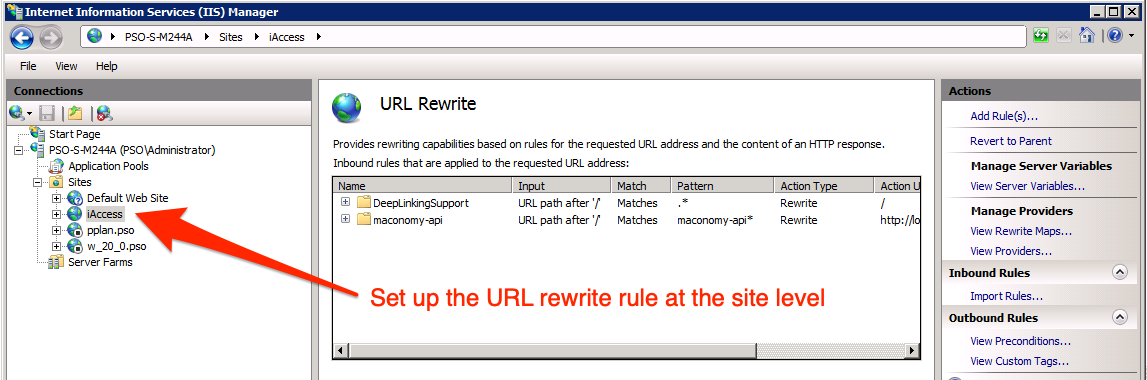
Managing Rules in IIS Manager
Once your rules are configured, IIS Manager provides these key capabilities:
Rule Ordering - Rule order matters! IIS processes rules from top to bottom. To reorder:
- Select a rule in the URL Rewrite interface
- Use "Move Up" or "Move Down" in the Actions pane
- Place more specific rules before general ones
Testing Rules - The built-in test tool helps verify patterns:
- Select a rule
- Click "Test Pattern" in the Actions pane
- Enter a test URL to see if it matches
Editing Rules - Modify existing rules by selecting them and clicking "Edit..." to adjust patterns, actions, conditions, or server variables.
TIP
Rules with stopProcessing="true" will prevent subsequent rules from executing if they match. Use this strategically to optimize performance.
Best Practices
- Test in a development environment before applying changes to production
- Use descriptive rule names to make maintenance easier
- Add comments in your
web.configto document complex rules - Monitor IIS logs to verify rules are working correctly
- Use conditions wisely to avoid performance issues
- Enable Failed Request Tracing for debugging complex rewrite scenarios
- Keep rules organized by grouping related rules together
Troubleshooting
404 Error When Refreshing Page
Refreshing the page after navigation causes a 404 error because SPAs handle routing client-side, but the server looks for files that don't exist. Ensure the URL Rewrite Module is installed and the DeepLinkingSupport rule (from the example configuration above) redirects non-file requests to index.html. If issues persist, check for conflicting reverse proxy rules by temporarily removing them and re-adding one at a time.
Double Encoding and Special Characters
The symptom of this issue is that workspace records fail to load, document previews show "requested record or resource does not exist" errors, or network requests return 204 (No Content) instead of 200 OK. This commonly affects documents, draft invoices, and records with special characters (forward slashes, ampersands, periods) in identifiers.
The cause is that URL encoding occurs twice—once client-side and again by the web server—causing the backend to search for non-existent records with double-encoded keys. Additionally, certain characters may be blocked by requestPathInvalidCharacters or mishandled by network security appliances.
To resolve this issue:
Prevent double encoding - Ensure that
useOriginalURLEncoding="false"has been included in the<rules>tag in web.config:<rules useOriginalURLEncoding="false">Handle special path characters - Ensure
relaxedUrlToFileSystemMapping="true"is set in the<httpRuntime>configuration (included in the example above) to support forward slashes and periods in URLs.Allow necessary characters - Verify that required characters (like ampersands for query strings) are not blocked by
requestPathInvalidCharacters. See the HTTP Runtime Configuration section above.Network Security - For cloud deployments, ensure network security appliances are configured to bypass URL rewriting for the web client.
Multi-node deployments - If running multiple IIS nodes, verify all web.config files on all nodes are updated identically. Clear browser cache when testing changes.
Additional Resources
Microsoft IIS Documentation
- IIS URL Rewrite Module Documentation - Official reference for URL Rewrite configuration
- Regular Expressions in URL Rewrite - Pattern matching syntax guide
- Testing and Troubleshooting URL Rewrite - Debugging and testing rewrite rules
- Application Request Routing (ARR) - Required module for reverse proxy functionality