My Utilization
This section describes the fields and descriptions on the My Utilization report.
Overview
The My Utilization report displays several different utilization metrics and degrees to show the utilization of the employee running the report. The report automatically delimits data to the user logged on. Data related to the user-specified time range is shown. Also, it displays data by job and only registrations on time activities are included in the report.
The report does not offer any drilling nor the ability of slicing by a chosen dimension.
Report Description
Selection Criteria
| Field | Description |
|---|---|
| Utilization Degree Type | Restrict to only show entries on the selected utilization degree type, as follows:
|
| From Date | Only include entries with an entry date equal or after the answer to this prompt. |
| To Date | Only include entries with an entry date equal or before the answer to this prompt. |
| Job No. | Use this field to search for or enter a job number |
| Task Name | Use this field to search for or enter a task name. |
| Activity No. | Use this field to search for or enter an activity number. |
In the My Utilization tab, a pie graph and table are shown.
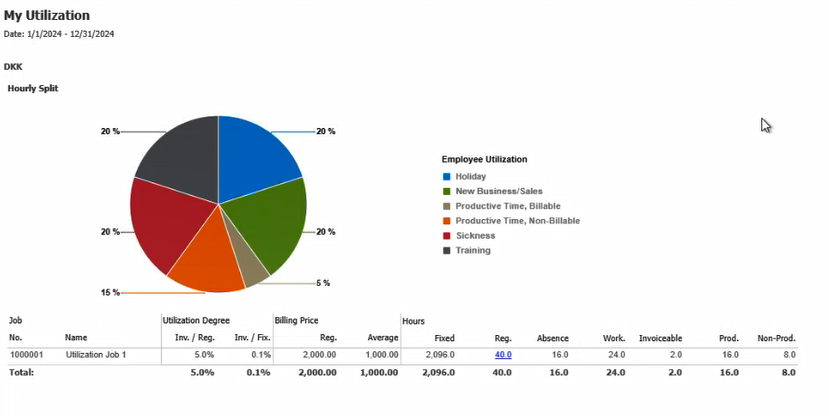
The Hourly Split Graph shows the distribution of hours per type and utilization per the user-specified time range.
The table fields and descriptions are as follows:
| Column | Description |
|---|---|
| No & Name | This column displays the number and name of the job for which the currently logged on employee is working. |
| Utilization Degree Inv./Reg. or Prod./Reg. | This column displays the utilization degree, which is the result of dividing invoiceable (Inv./Reg.) or productive (Prod./Reg.) hours by registered hours. |
| Utilization Degree Inv./Fix or Prod./Reg. | This column displays the utilization degree, which is the result of dividing invoiceable (Inv./Reg.) or productive (Prod./Reg.) hours by the number of fixed hours for the employee. |
| Billing Price, Reg. | This column displays the billing price registered. |
| Billing Price, Average | This column displays the average billing price registered. |
| Hours, Fixed | This column displays the fixed hours for the employee. |
| Hours, Reg | This column displays the registered hours for the employee. |
| Hours, Absence | This column displays the registered absent hours for the employee.
This is the number of hours registered on activities for which the employee utilization is absent time. |
| Hours, Work | This column displays the registered working hours for the employee.
This is the total number of hours registered less the absence hours. |
| Hours Invoiceable | This column displays the number of hours registered on invoiceable jobs and activities. |
| Hours, Prod. | This column displays the registered production hours for the employee.
This is the number of hours registered on activities for which the employee utilization is productive time. |
| Hours, Non-Prod. | This column displays the registered non-production hours for the employee.
This is calculated by subtracting the productive hours from the total working hours. |
Period Charts
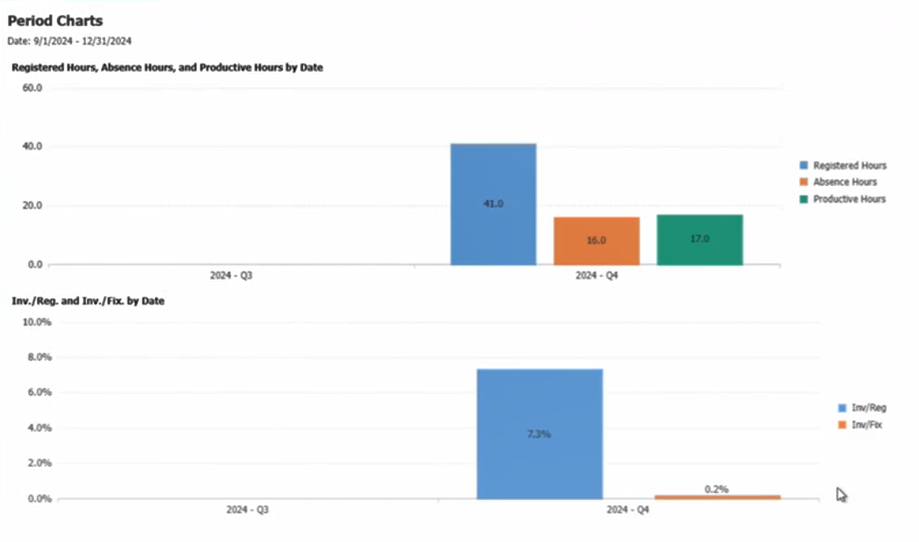
In the Period Charts tab, two charts are shown, as follows:
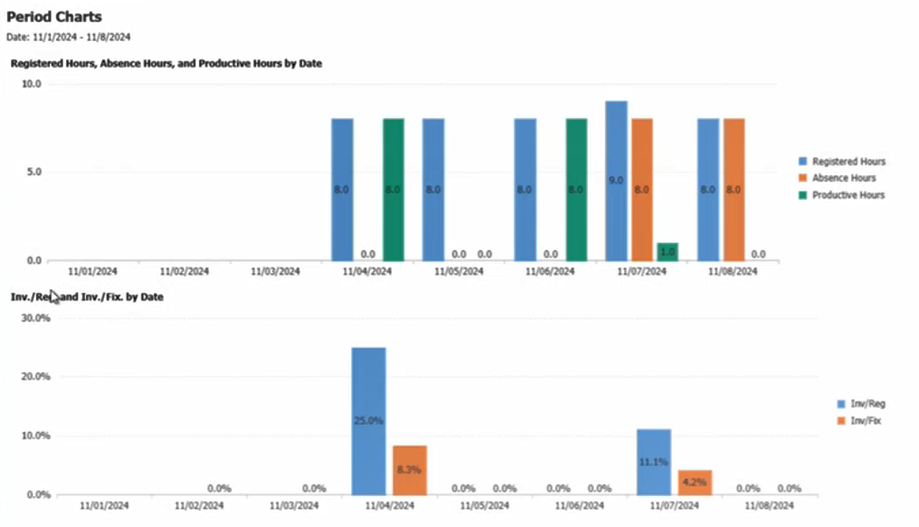
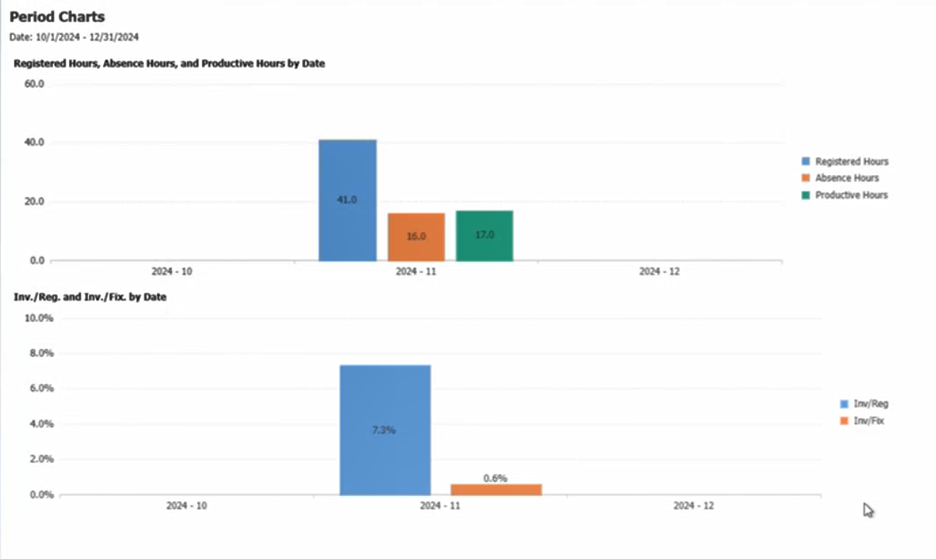
- Registered Hours, Absence Hours, and Productive Hours by Date: This shows the distribution of hours per utilization level (Billable Time, Productive Time and Absence Time) for the user-specified time range.
- Inv./Reg. and Inv./Fix by Date or Prod./Reg. and Prod./Fix.: This shows the distribution of hours per utilization degree type for the user-specified time range.
The period charts, depending on the user-specified time-range, automatically adjust to show results per date, per month, or per quarter, as shown below:
Daily View: Selected date from and to is less than or equal to 30 days
Monthly View: Selected date from and to is greater than 30 days but less than 3 months
Quarterly View: Selected date from and to is greater than 3 months