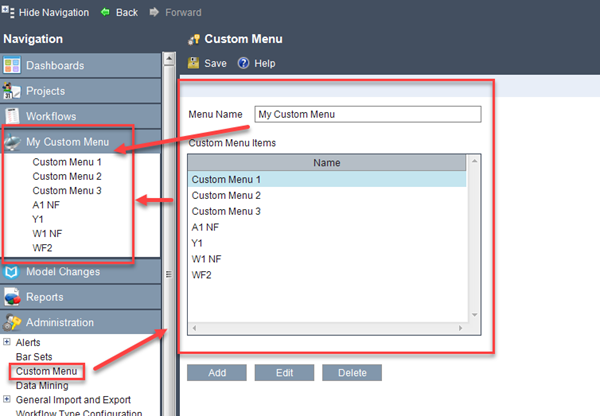
The custom menu items created by the PM Compass system administrators using the Custom Menu feature are grouped and displayed on the Navigation menu after Workflows.
The ability to view and execute a custom menu item depends on your user role.
The menu item labels displayed on the Navigation menu depend on the names you define in the Menu Name field on the Custom Menu form and the Name field in the Custom Menu Item dialog box, respectively. Refer to the illustration below as an example.
When you click a custom menu item in the list, the Field and Value grid displays. Use this grid to specify values for the API fields and execute the API call. The grid information dynamically updates based on the API fields defined on the Field Definitions tab of the Custom Menu Item dialog box. Click the Run button to connect and execute the external API endpoint as defined on the General tab of the Custom Menu Item dialog box. The API call will be logged in a text file and will include detailed log information.
Column and Button |
Description |
Field |
This column displays the API Field Label value. This column is not editable. |
Value |
Use this column to specify a value for the API field. The value you enter depends on the data type specified for the API field.
You must enter a value for a required API field; otherwise, PM Compass will display a "Field is required" message when you click the Run button. |
Run |
Click this button to validate the API fields and connect and execute the external API endpoint. Successful API requests return the requested resource and a success status code. Unsuccessful API requests return error status codes. For more information on the success and error codes, refer to "Success Codes" and "Error Codes" in the Deltek PM Compass API Developer Guide. |
Help |
Click this option to display the help topic related to this form. |