Patch Upgrade
This section includes steps to upgrade to the latest patch available for Pentaho.
Quick Links: Server Patch Upgrade | Client Patch Upgrade
Patch Upgrade
To upgrade to the latest patch for the Pentaho server and client, follow the instructions described in this section.
Server Patch Upgrade
- Download the update/patch.
You can check the installation files directory.
You can also find the latest patch from the Pentaho Customer Portal (log in using your credentials).
For example:
- Pentahopentaho-update-10.2.0.3-335.exe
- installer-hash-files-10.2.0.3-335.zip
- Run pentaho-update-10.2.0.3-335.exe as Administrator.
- Read and scroll through the license agreement, then select the checkbox to proceed.
- Select Upgrade then click Next.
- Verify if the specified installation folder is correct. Otherwise, click the Choose… button and select the Pentaho installation folder (for example, C:/Pentaho10/Pentaho).
- When prompted for the hash files zip file, navigate to the location of installer-hash-files-10.2.0.3.-335.zip.
- Follow the rest of the instructions until the wizard is completed.
- After the installation is complete, a list of files for merging displays.
Alternatively, you can also find this list in <install_directory>\pentaho\Pentaho__Installation\postInstallConfigReport.txt.
- Check the files listed under
"These config files need to be merged".
Check if you have changes to these files that need to be merged to the new files with .merge.post_upgrade file extension (for example, service.merge.post_upgrade file).
- If there are changes to the original file, copy these changes to the new file then delete the old file.
Change the file extension of .merge.post_upgrade to that of the original file (for example, from service.merge.post_upgrade to service.bat).
- If there are no changes on the original file, you can delete the original file then update the file extension of the new file from .merge.post_upgrade to that of the original file. (for example, from service.merge.post_upgrade to service.bat).
- If there are changes to the original file, copy these changes to the new file then delete the old file.
- Navigate to <install_directory>\pentaho\server\pentaho-server\data, select the folder pertaining to the repository database you used.
- Open the create_quartz_<db_tpye>.sql file and verify it can create QRTZ6 tables.
- Run the script on your database repository to update the quartz tables:
- a.
PostgreSQL:
- Open a command prompt window and run psql -U postgres -h localhost.
- Run command \i <install_directory>/pentaho/server/pentaho-server/data/postgresql/create_quartz_postgresql.sql
- b.
Oracle:
- Open a command prompt window and run sqlplus on your database instance. for example, sqlplus user/pass@servicename.
- Run script: @"<pentaho_directory>/pentaho-server/data/oracle/create_quartz_ora.sql"
- c.
MS SQL:
- Run script: sqlcmd -S <host> -U <username> -P <password> -i "<pentaho_directory>/pentaho-server/data/sqlserver/create_quartz_sqlServer.sql"
- a.
PostgreSQL:
- Go to C:\Pentaho10\pentaho\server\pentaho-server and run start-pentaho.bat as Administrator
Client Patch Upgrade
- Download
pdi-ee-client-10.2.0.3-335.zip.
You can check the installation files directory.
You can also find the latest patch from the Pentaho Customer Portal (log in using your credentials).
- Delete your existing Pentaho Data Integration client folder (for example, <install_directory>/pentaho/client).
- Extract pdi-ee-client-10.2.0.3-335.zip to the previous client folder. This creates a new client folder inside the directory containing the updated client files.
- Go to <install_directory>\pentaho\client\data-integration.
- Run Spoon.bat.
- On the menu bar, select
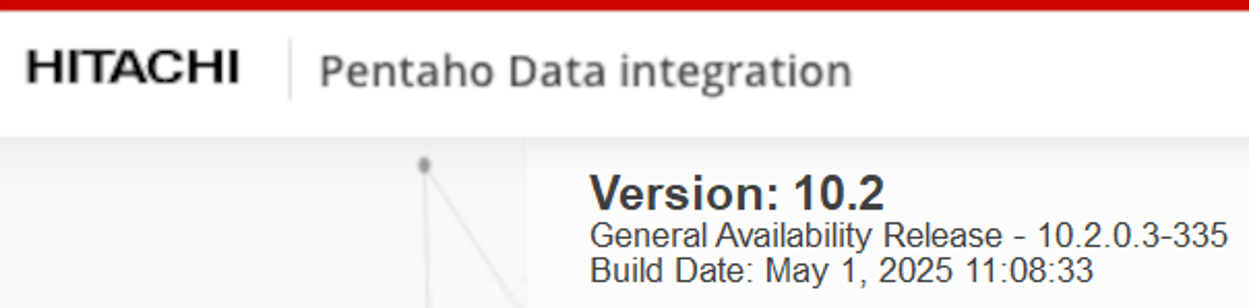
Help » About. Verify that your client shows the updated version.