About Projects in the browser
Learning Resource: Projects in the browser video
With Projects in the browser, you can change the status of the project or phase as needed. You can also edit cost and contract amounts at the project or phase level. When you change cost or contract amounts, those changes are also reflected in the Project Command Center and the Manage Project Task Widget. When you select a project in the project list, you can view the full work breakdown structure (WBS). When changes have been made to the project, the row(s) changed will be bolded. You will be prompted to save changes before exiting. You cannot adjust the WBS or delete phases with Projects in the browser. In addition, you can manage your attachments and easily open the project in the Project Command Center.
Projects in the browser will need to be turned on for any roles in Ajera except the administrator.
Customize how you view project information
- Add optional columns to the project list section and the project detail section to view more information about a project.
- You can control the order in which the columns display.
- Click and drag columns to resize the column widths. When you save, the column widths will remain the same the next time you log in.
- Click on any column header to filter or sort by that column.
- Use the Show Resources check box to show project resources in the WBS.
- Use the Show Tasks check box to show project tasks in the WBS.
Ajera remembers your last selection for the Show Resources, Show Tasks, and optional columns. For example, if you deselect either of the options or add optional columns, the options will be deselected and the optional columns will be selected the next time you log in.
Edit project information in the browser
You can change a project or phase level status. To edit the status, select the project or phase Status field and use the  to make a selection. Changes tothe status at a higher level of the project work breakdown structure are applied to child phases if they have the same status. When you select a status of Closed for a project, all phases for the project are closed and any draft invoices are removed from the Manage Client Invoices list.
You can edit certain project amount and cost amounts such as Total Contract Amount, Construction Cost, and Hours, Cost, and Contract amounts, and percentages like Reported Percent Complete, Percent of Construction Cost, and Percent Distribution, as well as project dates. To edit these amounts, click in the field and enter the amounts or use the to open a dialog box to edit amounts. This only applies to some of the columns, such as hours, cost, and contract amounts. Editable information shows with a blue highlight. When you select a row in the Project Detail grid, editable fields become enabled.
Once a budget is marked as Final, you will not be able to make changes to budget amounts unless your project security settings are set to allow changes to the Manage tab of the Project Command Center. You can still make changes to the schedule and resources.
Using the Actions column
You can use the Actions column to:
- View and add attachments
- Open the project in the Project Command Center
- Recalculate cost and fee amounts*
- Sum contract amounts at the phase or phase and resource level*
- Percent distribution*
*These items were represented as icons in the Project Command Center.
When there is an action needed, such as recalculating totals, summing contracts, or distributing percents, the Actions icon will turn blue  . Note that these items are dimmed and not available if your role in Setup > Company > Roles does not allow access for the corresponding actions.
Get to know the interface
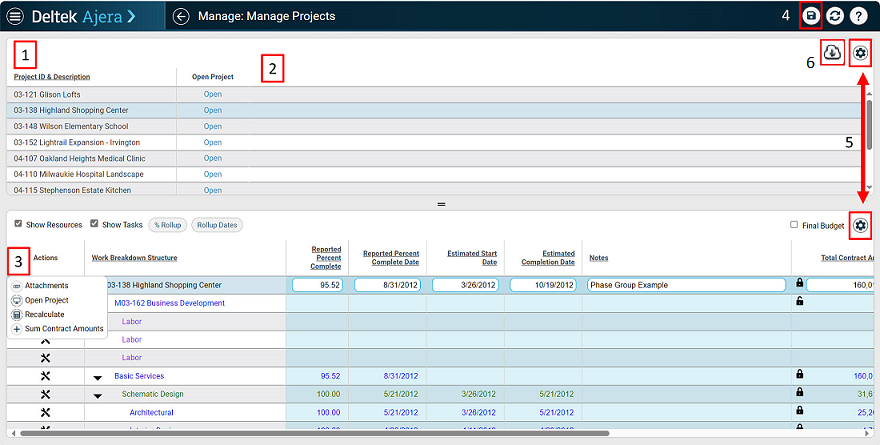
- The project list: Use this area to view pertinent information about your projects. The project list recognizes the security that was set on the Projects tab in Company > Roles.
- Add optional columns to view more information about the projects and control the order the columns display.
- Use column heading to sort and filter projects.
- You can resize columns by dragging the divider.
- Select a project to display the detail.
- Open Project:
- Use Open to open the project in the Project Command Center.
- Project detail: Use this area to work with the detailed information for a project.
- Add optional columns to view more information about the projects and control the order the columns display.
- Use the column headings to include or exclude project information in the project list using the filter,sort, and group functionality.
- Use the Show Resources check box to show or hide project resources.
- Use the Show Tasks check box to show or hide project tasks.
- Use the % Rollup button to roll up percents.
- Use the Rollup Dates to roll up project dates.
- Use the Action menu to view and add attachments, open projects in the PCC, recalculate, and sum contract amounts.
- Save Button
- This is where the save button is located.
- Select Save to save project changes. Any changes waiting to be saved will be displayed in bold.
-
 : Use this to add optional columns and reorder columns.
 -
 : Use this to export the project list to Excel.