Deltek Maconomy 2026.1 Release Notes

Release Date: January 9, 2026

Last Updated: January 9, 2026

Welcome to the Maconomy Release Notes. This document details the new features and resolved issues in this release.

Overview
This release includes People Planner 2026.1 and Touch 4.6.

These release notes contain a summary of the following:
  • Pre-Installation Information
  • Installation Information
  • Enhancements
  • Database Changes
  • Software Issues Resolved
  • Known Issues
Note: People Planner Release Notes are now part of the Maconomy Release Notes and no longer a standalone document.

Attention: As of 2026, the Maconomy release naming system has been updated to indicate the product name, year, and quarter of the release instead of using a sequential number. As a result, this release is called 2026.1.

This naming convention will be used for all Maconomy and People Planner releases.
Pre-Installation Information
Review the contents of this section before you install Maconomy 2026.1.
    Contents of this Service Pack
    Maconomy 2026.1 contains the following items:
    • APU 2026.1, including Touch 4.6 Web service
    • TPU 2026.1 with Maconomy Server 52.101.0.23101000687077
    • PSO SPU 2026.1
    • Touch, including the Touch 4.6 Installer
    • Web Client PU 6.1

    Installation Preconditions

    • APU - The APU in version 2026.1 and in subsequent 2026.1 Service Packs requires a TPU from the same Service Pack or from a Cumulative Update (CU) on the same release stream.
    • TPU - Deltek recommends that you upgrade all TPU parts (in MConfig called Global tools, Application TPU, Application Portal TPU, Web TPU and Coupling Service TPU) whenever a Service Pack or a CU is installed.
    • MConfig - MConfig 11.4 or higher is required for installation of the APU as well as the TPU.
    • Oracle Instant Client - For Oracle users, Oracle Instant Client 19 is required for installation of Maconomy 2026.1.
    • Touch - If you are already using Touch but not the latest version, you must upgrade Touch on your server and ensure your users upgrade to the latest app.
    • Web Client - If you are already using the Web Client, you must upgrade Web Client on your server.
    Technical Considerations

    Core Maconomy Considerations

    Decommissioning the Workspace Client

    Starting with the 3.0 release, the Workspace Client is officially decommissioned. All Maconomy functionality is now fully accessible through the web client.

    User Login and Maconomy License

    Previously, active users were calculated based on the number of users whose passwords were not blocked. The calculation has been changed in Maconomy 2.6.3 to base on the users' validity period.

    There will be no automatic data conversion, so the number of active users could exceed the number of licenses after the upgrade, and you need to manually change the validity period for those users that require modification.

    MConfig Version Support Update and Feature Deprecations

    Maconomy 2.6.4 now uses MConfig 11.0, which does not support the installation, maintenance, or configuration of Maconomy 2.3 (Internal Version 19) or older versions. However, you can still use older versions of MConfig for Maconomy 2.3 and previous releases.

    With MConfig 10.3, deprecation warnings display when starting MConfig on a server that has old Maconomy versions installed regardless of whether newer Maconomy versions are already installed on the server.

    Known Issues

    Review Known Issues for information on unresolved software issues, in particular, known issues introduced with this release.

    People Planner / Maconomy Integration

    Two features, "Grouping of Budget Lines" and "Imported Resource Allocations," found within Imported Resource Allocations, are incompatible. If you want to use the latest Resource Allocation integration, which sends planning back to Maconomy to form a periodic resource budget/forecast, you should not use Grouping, as it is not supported for this workflow.

    APU Installation Notes

    The Synchronous Notifications feature requires setup. See the System Admin Guide for details.
    The Access Control for Approvers feature is included in this version, which provides restricted access to approval items. Maconomy 2.5.1 (and newer versions) comes with a default setting that can be modified to support individual customer needs. Refer to the Deltek Maconomy 2.5.x Enhancements Guide, Deltek Tracking 1174941, for details, including recommendations on actions prior to going live with this release.

    TPU Installation Notes

    • The .bash shell (version 7.04) is required for all Unix/Linux installations.
    • Customized dictionaries for the Workspace Client are handled by the Extender. Refer to the Extender Handbook for details. The Extender ensures that both dynamic and static texts are updated.

    Surrogate Characters Not Supported

    Surrogate characters are characters not representable in 2 bytes in UTF-16. They are mostly used in Chinese for representing seldom used characters. Maconomy currently does not support surrogate characters.

    Local Characters in Variable Names

    Variable names in MScript may no longer contain non-ASCII characters. As of version 2.1, Maconomy no longer supports the use of Scandinavian letters ('æ ø å Æ Ø Å' ) in variable names in all Maconomy languages, including MScript, RGL, portal files, and MSL.

    Unnecessary Error Occurs During Installation
    When performing an APU upgrade using version 2.4 GA or later of the Maconomy Server, a PPU_Warning related to popup values might appear in the PPUDebug file as PPU_Warning. These messages are expected during the APU upgrade process as the database is temporarily in a state that this neither the old version nor the new version. Ignore the messages and continue the installation. See defect 577837 for more information.

    Default Database Query Timeout
    The default database query timeout might interfere with Maconomy Analyzer report queries which are expected to run for more than 5 minutes. In you are using such Analyzer reports you can increase the database query timeout with the following setting in 'MaconomyCustom.ini':
    • [ServerConfig]
    • DB_Cancellation_DefaultTimeout = <timeout-in-seconds>

    Touch Considerations

    The following are the considerations for Touch app version 4.6:

    For Android Users
    • If you change your device language, Touch will display the following message the next time you open the app: “Changes in device settings require you to log in again.” You will need to re-enter the Touch URL and log in.
    • If you cannot log in to Touch and then upgrade to a new version, you will need to re-enter the Touch URL the next time you open the app.
    • If you remove the passcode from your phone and then add a new passcode, Touch will display the following message the next time you open the app: “Due to a change in device passcode, you will be required to restart the app and re-enter your credentials.” You will need to re-enter the Touch URL and log in.
    • If you remove or reset fingerprint authentication or face recognition in your phone settings, you will need to re-enter your credentials and set up a PIN the next time you open the app.
    • If you remove the passcode from your phone settings, Touch will display the following message the next time you open the app: “To ensure your Deltek information is secure, we recommend that you use a passcode on your device. You can add a pin or passcode in your device settings app.” You will need to enter your credentials each time you use the app.
    • If you change the font size in your phone display settings, Touch will require you to re-enter your credentials the next time you open the app.
    • If your Internet connection is unstable, you may encounter various issues. For example, Touch may display the following message when you try to connect to the Touch URL: “Can’t connect to Touch server.”
    • If you are using OAuth (such as Azure or Okta), the default browser on your device must be Chromium-based (such as Google Chrome, Microsoft Edge, Opera, Brave, or Samsung Internet). If the default browser is not Chromium-based (such as Mozilla Firefox or Internet Explorer), you will be redirected to the Touch login screen at login, but you will not be able to sign in to Touch.
    • If you are unable to set up face recognition in Touch, you can try the following:
      • If you are using OAuth and an authenticator (such as Azure or Microsoft Authenticator), you can close the MS Authenticator app by swiping up and then try setting up face recognition again.
      • Set up a PIN.
      • Reinstall the Touch app, then try setting up face recognition again.
      • Reinstall the Touch app, then set up a PIN.

    For iOS Users
    • If you change your device language, Touch will display the following message the next time you open the app: “Changes in device settings require you to log in again.” You will need to re-enter the Touch URL and log in.
    • If you cannot log in to Touch and then upgrade to a new version, you will need to re-enter the Touch URL the next time you open the app.
    • If you remove the passcode from your phone and then add a new passcode, Touch will display the following message the next time you open the app: “Due to a change in device passcode, you will be required to restart the app and re-enter your credentials.” You will need to re-enter the Touch URL and log in.
    • If you remove or reset Touch ID or Face ID in your phone settings, Touch will display the following message the next time you open the app: “Biometrics secret not found.” You will need to re-enter your credentials and set up a PIN.
    • If you remove the passcode from your phone settings, Touch will display the following message the next time you open the app: “To ensure your Deltek information is secure, we recommend that you use a passcode on your device. You can add a pin or passcode in your device settings app.” You will need to enter your credentials each time they use the app.
    • If you turn on lockdown mode in your phone settings, Touch will display the following message the next time you open the app: “Lockdown Mode is Turned ON for ‘Deltek Touch’.” You will not be able to connect to the Touch URL.
    • If your Internet connection is unstable, you may encounter various issues. For example, Touch may display the following message when you try to connect to the Touch URL: “Can’t connect to Touch server.”
    • If you are unable to set up Face ID in Touch, you can try the following:
      • If you are using OAuth and an authenticator (such as Azure or Microsoft Authenticator), you can close the MS Authenticator app by swiping up and then try setting up Face ID again.
      • Set up a PIN.
      • Reinstall the Touch app, then try setting up Face ID again.
      • Reinstall the Touch app, then set up a PIN.
    • If you are using Azure with Microsoft Authenticator, make sure that the approval in MS Authenticator succeeds and that the Azure screen with the approval request closes automatically. Do not tap OK on the Azure screen; the screen will close automatically once the Azure authentication is successful.
    • If you fail Face ID login and go back to the login screen, your subsequent manual Azure login attempts might occasionally fail. If this happens, you can close the Touch app by swiping up, then reopen it. Reopening the app displays Face ID reauthentication and allows successful login.

    Web Client Considerations

    Usage Tracking with Gainsight PX

    Usage tracking is now enabled by default in the Maconomy web client (Deltek Tracking: 2410911). Deltek uses Gainsight Product Experience (PX), a third-party analytics platform that provides product usage insights. Gainsight collects generic application usage statistics such as browser type and country, but it does not collect personal user information. 

    Change to Default Text Matching Strategy

    When conducting a search in the web client, the default text matching strategy has been updated to use the "startsWith" operator instead of "contains" for improved efficiency. Consequently, all string columns in list views will now default to the “startsWith” operator. Searches initiated from the workspace's top search field, as well as string fields within cards and tables, will adhere to this new functionality, unless the search term is prefixed with an asterisk (`*`), which will revert the behavior to “contains.”

    This global default is configurable by editing the textMatching property in the settings.json file.

    Backend Caching Requirements for Image Support

    This feature (Deltek Tracking: 2405587) replaces legacy Gravatar-based profile images. Image rendering and related system functions require Valkey for reliable permission handling, caching, and support of long-running operations in production environments.
    • Valkey usage: Valkey is required in production to store permissions, cache and retrieve images efficiently, support background jobs, and improve the reliability of file-based workflows.
    • File size and type: The server accepts only PNG and JPG images, with a default maximum upload size of 10 MB. This limit is configurable.
    • Caching behavior: Images are cached on the server (via Valkey) and on the client (via browser cache). Only the necessary resolution is loaded for each use case (for example, thumbnail in lists, full size in preview).
    • Error handling: Oversized or unsupported files are rejected. Users may encounter a generic server error if the server fails to return a descriptive message.

    End of Support for Multiple Logins in a Single Browser Session

    The ability to log in as multiple users in the same browser session is no longer available. This change supports REST API enhancements for improved authentication and performance.

    To achieve the same functionality, use one of the following alternatives:
    • Browser Profiles: Modern browsers like Chrome, Firefox, and Safari support separate profiles with independent cookies and site data.
    • Private Browsing: Use private/incognito mode for temporary multi-session access.
    Refer to your browser's help documentation for setup instructions.

    Job Entries Workspace Refactoring: JSON Layout Changes

    As part of the refactoring in Maconomy 2.6.4, the JSON layout files associated with the Job Entries workspace have been restructured:
    • The JobEntries\JobEntries_DataBindings.json file has been split into smaller, modular files to facilitate easier reuse in other workspaces.

    • The JobEntries_ prefix has been removed from file names to simplify copying these files to other workspaces, such as those under the General Ledger menu group.
    The refactored Job Entries workspace is expected to maintain its previous functionality. Users should observe no changes in operational behavior after the update, as the changes are primarily structural.

    Technical teams are encouraged to review these updates if they manage customized configurations or extensions for the Job Entries workspace.

    Continuous Scrolling in Tables

    This 2.6.4 feature (Deltek Tracking: 2110355) replaces paging in tables.

    Customized Workspaces

    Please note that if you have customized web client workspaces, there may be a task for an extension consultant to make these workspaces work after the upgrade to 3.0.

    Specifically, for Maconomy 2.6.3 the Open In List View enhancement requires that the settings.json file has the openInListMode property defined.  

    Attention: For more information about the web client installation, see the Maconomy Web Client Install Guide.

    Statutory/BPM Considerations

    The file that stores area-specific settings related to Statutory/BPM extensions and logging is renamed from server.ini to extension.ini.

    Attention: When running reports, you may encounter error messages that inaccurately refer to the extension.ini file as server.ini. All updates for Statutory/BPM related settings must go to the extension.ini file only.

    People Planner Considerations

    MyPlan Users Upgrading to Maconomy 2.6.3 or Later

    If you are using the native Maconomy Web Client version of People Planner’s MyPlan and plan to upgrade to Maconomy 2.6.3 or later, you must also upgrade People Planner to version 4.6 or later.

    Failure to do so will result in MyPlan becoming non-functional, as it references fields that are not available in earlier versions of People Planner.

    To maintain functionality without upgrading People Planner, customize the MyPlan layout to remove references to the non-existent fields. These include:
    • Job/Task Name
    • Main Job Customer Number
    • Main Job Name
    • Number of Hours

    People Planner 4.6 has updated the ASP.NET Core Hosting Bundle used by Security Service, the Rest API, and the Web Admin Tool from .NET 6 to .NET 8.  Other applications such as People Planner Windows applications and the Web Components use .NET Framework 4.8.

    The page tooltip is now removed from all People Planner Web Components to optimize performance.

    Special Actions Prior to Upgrade
    Upgrading to 2026.1 requires no actions prior to upgrade.

    Additional Actions in Upgrade Guides

    Warning: Numerous features with 2.4 GA forward require critical upgrade actions. See the Deltek Maconomy Upgrade Guide for details.
    Translations
    This section contains information about translations in Maconomy.

    For Danish, Dutch, English (GB and US), Norwegian, and Swedish, both Standard and Solution dictionaries exist. Solution dictionaries contain industry-specific terminology for select terms for the selected language. For example, the standard term "Job" in US English translates into "Project" in US English MCS and into "Engagement" in US English CPA.

    For all languages, Engineering has verified that a solution can be installed with that language as Enterprise Language. For languages with a solution variant, only the solution variants are validated for use as Enterprise Language. If this validation is not completed, manual corrections to the import files is expected during installation of a solution.

    Updated dictionaries are made available once released from Engineering.

    Language

    Validated as Enterprise Language

    Swedish

    No

    Swedish (MCS)

    Yes

    Italian

    Yes

    Norwegian

    No

    Norwegian (MCS)

    Yes

    Danish

    No

    Danish (MCS)

    Yes

    Dutch

    No

    Dutch (MCS)

    Yes

    Spanish

    Yes

    French

    Yes

    German

    Yes

    Portuguese

    Yes

    English (UK)

    No

    English (UK, MCS)

    Yes

    English (US)

    No

    English (US, MCS)

    Yes

    English (US, CPA)

    Yes

    Chinese

    Yes

    Changes to Extensions Framework
    The Extension Framework used for implementation of customizations and integrations is maintained and upgraded with new features enabling Business and Extension developers to handle even more requirements with less effort.

    Migration from previous versions to the latest version of the Extension Framework may require few updates to existing extensions.

    For more information about the latest version of the Extension Framework and migration please see the Extension Framework Programmer's Guide.
    Security Enhancements
    There are no security enhancements in this release.

    Documentation
    This section includes new and updated documentation for this release.

    Key Features of Documentation for Maconomy 2026.1

    Maconomy Help Center
    The Maconomy Help Center serves as a hub for all Maconomy documentation and related material. For easy access, bookmark the following link:

    Online Guides
    The following documents are available in HTML.

    Online Guide

    Details

    Online Release Notes

    The release-specific Maconomy Release Notes is available in online format and in PDF. This document merges with the former Enhancements Guide and now includes feature overviews for Maconomy, Touch, and People Planner.

    Online Concepts Guide

    This online document merges the former Concepts Guide with some user guides, including those for CRM and Talent Management integration and the PSO and CPA Solutions description guides.

    It also includes the Getting Started guide, which was formerly part of the online help embedded in the software.

    Touch Release Notes

    The Touch Release Notes is available in online format and is also accessible from the Maconomy Help Center.

    Touch for Maconomy Online Help for Android


    Touch for Maconomy Online Help for iOS


    The online guide replaces the Touch User Guides for Android or iOS in PDF, and is accessible from the app.

    People Planner Web Components Guide for Web Client


    People Planner Web Components Guide for Workspace Client

    This document is now published as both an online guide and in PDF, with client-specific versions.

    People Planner Web Admin Tool Guide

    This guide provides details regarding the configuration of your People Planner system when using the Web Admin Tool. This is available as an online guide and in PDF.

    Maconomy Web Client Install Guide


    The Install Guide is now available only as an online guide. Previously, this document was also released in PDF.

    Maconomy Web Client User Guide

    (previously the iAccess for Maconomy Online Help)

    This product-specific online help system is accessible from the app and is also available in PDF.

    Maconomy Reference Guide

    (previously the Maconomy Workspace Client Online Help)

    This online guide is available via the new Help dropdown in the web client, and in PDF.

    Product Support Guide

    The Maconomy Product Support details Maintenance and Sustaining Support for Maconomy products and related third party products. 


    For BPM, refer to the Product Support Guide for Business Objects (BO) updates and patch announcements.

    BPM Standard Reports Guide

    The BPM Reporting Guide provides a comprehensive guide on the report functionality of the standard reports available in BPM. Previously, this document was also released in PDF.

    BPM Country Reports Guide


    The BPM Country Reports Guide provides a comprehensive guide on the report functionality of the country reports available in BPM.

    BPM Admin Guide

    The BPM Admin Guide provides steps to install, upgrade, enable and customize BPM in Maconomy. It also includes details for performing overall maintenance on your BPM system.


    Retired documents as of 2.6.x:
    • Enhancements Guide - Now part of Online Release Notes.
    • Concepts Guide - Now part of Online Concepts Guide.
    • PSO and CPA Solutions Guides - Moved to legacy documents.
    • CRM and DTM Integrations Guides - Now part of System Admin Guide.
    • Maconomy Reporting Guide - Moved to legacy documents; available upon request if needed.
    • Deltek Touch for Maconomy MScript & REST Comparison Guide - Moved to legacy documents; available upon request if needed.
    • BPM Report Description Guide - Now available in online format only and renamed to BPM Standard Reports Guide.
    • BPM Statutory Reporting Guide - Now available in online format only and renamed to BPM Country Reports Guide.
    • BPM Admin Guide - Now available in online format only.
    • Product Support Document - Now available in online format only.
New Features
  • Dela Updates

    Display SQL Queries from Ask Dela in Threads workspace

    Deltek Tracking: 2481420
    The Threads workspace has been extended with information about the source of the data. This enhancement gives system administrators greater visibility into how answers are generated, making it easier to troubleshoot and verify responses.

    Company Customer Smart Summary

    Deltek Tracking: 2468537
    A standard smart summary is now available in the Company Customers workspace. The functionality is similar to that of the existing Customer Smart Summary, but is tailored to a specific company customer. The standard Company Customer Smart Summary provides the following information:
    • New Cash Control section: Summarizes accounts receivable details for that company customer (such as balance, invoice aging, provisions, reminders, interest).
    • Local currency for credit limit: Credit Limit is displayed in the settling company’s currency, not the customer’s global currency, reflecting the local account context.
    • Company-scoped data: All content (jobs, opportunities, events, and so on) is filtered by the selected customer and company, ensuring the summary only includes data relevant to that specific company customer record.
    This feature is available for users with the requisite permissions when a standard company customer smart summary type has been created and set as the default for company customers. For more information about setup, refer to the Deltek Maconomy System Admin Guide.

    Chat History in Ask Dela

    Deltek Tracking: 2483165
    You can now access and manage your past conversations with Ask Dela. Click the Chat History icon in the top right corner of the chat window to:
    • View an ordered list of threads, with the latest at the top.
    • Search within threads for keywords (highlighted in context).
    • Resume any conversation by clicking on it.
    • Delete conversations when they are no longer relevant.
    In the Threads reference workspace, several fields have been added to make it easier to track the latest messages on each conversation.
  • Web Client Framework

    Display Images in Approval Center

    Deltek Tracking: 2453794
    This release extends the Upload and Display Images in Web Client Workspaces feature (Deltek Tracking: 2405587, 1178923) to the Approval Center workspace. Employee pictures are now displayed in supported headers, tables, and wizards, making it easier to recognize employees associated with approval items at a glance.

    Images in the Approval Center are read-only and cannot be modified. They follow masking and Employee Field Access controls.

    Changes to Maconomy
    The following workspace and tabs are updated to support this functionality: 
    • Approval » Approval Center
      • Time Sheets
      • Time Sheet Lines
      • Expense Sheets
      • Expense Sheet Lines
      • Purchase Orders
      • Purchase Order Lines
      • Jobs
      • Job Budgets
      • Job Quotes
      • Employees
      • Customers
      • Company Customers
      • Users

    New Animated Loading Strip Indicator

    Deltek Tracking: 2525948
    Maconomy now features an animated loading strip indicator. That is, the static blue line above the workspace header now animates during data retrieval, replacing the spinner from previous versions of the web client. Note that minor or quick actions may not trigger this effect.
  • BPM and Statutory Reporting

    Danish Reports Updated for Standard Chart of Accounts

    Deltek Tracking:  2251454
    Starting January 1, 2025, the Danish Business Authority requires companies to use a statutory standard chart of accounts for annual reports (CSV format) and DK SAFT submissions. For organizations with non-calendar fiscal years, compliance begins January 1, 2025; for those on a calendar year, the requirement applies January 1, 2026.
    This enhancement updates the Annual CSV Report and DK SAFT Report to support the new standard chart of accounts, ensuring accurate statutory reporting. Note that users need to configure the standard chart of accounts before generating these reports.

    Denmark - VAT Return: Reverse Charge Mechanism (RCM) Support Added

    Deltek Tracking ID: 2163437
    You can now include Reverse Charge Mechanism (RCM) details in the VAT Return (Data Export) for outgoing invoices. In the workspace, the VAT Summary table shows this under Box C - Goods (RCM). This box reflects the value of goods and services supplied free of tax in Denmark, other EU countries, and non-EU countries.

    To activate this feature:
    • Add Goods RCM (DK) as a VATPopup1Type.
    • Set Boolean 3 to True.

    Ability to Report on Account Objects without Prompting for Global / Local Chart of Accounts

    Deltek Tracking: 1348706
    You can now generate a BPM Reporting data export that includes both global and local account information without being prompted to choose between the global and local chart of accounts. 
     
    To support this, the Finance universe is enhanced with two new dimension tables that provide separate objects for global and local accounts:
    • Global Account No.
    • Global Account Name
    • Local Account No.
    • Local Account Name
    The existing account-related objects remain unchanged, and the Finance universe structure is not reorganized. The new dimension tables are not involved in the zero context, so it is not possible to generate Finance reports displaying zero accounts solely using these new objects.

    Standard Accounts for GL mapping in BPM Reporting and Analysis

    Deltek Tracking: 2413354
    Some statutory reports, for example in Norway and Denmark, require that data be mapped not only to your company’s own financial accounts but also to standard accounts defined by the tax authorities. Until now, BPM has used reporting structures for this mapping. Maconomy now provides dedicated functionality for mapping accounts to standard accounts, making standard accounts a distinct concept in both Maconomy and BPM.
     
    You can create one or more Standard Charts of Accounts, each identified by a name. Within a Standard Chart of Accounts, each standard account is uniquely identified by that chart name and a standard account number. Accounts from both the global chart of accounts and local charts of accounts can be mapped to standard accounts: global accounts are mapped on the Account card, and local accounts are mapped on the Local Account card.
     
    In the BPM Reporting Finance universe, new objects are available for reporting on standard accounts for both global and local accounts. The DK CSV and DK SAF-T data exports now use these standard account mappings when outputting standard account numbers and names. Other data exports that output standard accounts continue to rely on reporting structures.
     
    Note: For local accounts, the Standard Chart of Accounts name must match the Local Chart of Accounts name. If you have several local charts of accounts with the same set of standard accounts, you must create separate Standard Charts of Accounts with matching names. This behavior is expected to be fixed in a future release.

    Closing Balances Now Included in Dutch Audit Form 4.0

    Deltek Tracking: 2450594
    Subledger closing balances are now included by default in the Dutch Audit Form 4.0 schema. These balances are not mandatory and were initially excluded from the update.
    This enhancement ensures a more comprehensive implementation of financial data by introducing additional lines and queries to data exports. Users can now access closing balances for improved reporting and reconciliation.

  • Project Management

    Limits for Capitalization at Billing Price

    Deltek Tracking: 2296175
    You can now limit the amount posted as work in progress (WIP) and open billing price for jobs using capitalization at billing price. Limits can be set separately for time-based and amount-based activities, with options to post at full billing price, at cost, or zero. This addresses scenarios where you only want to capitalize external costs at cost price and avoid capitalizing time registrations at billing price until completion or delivery.

    For jobs that use capitalization at billing price together with revenue recognition by completion percentage, new registrations are posted at their registered billing price to accrued revenue (Open Billing Price) and to work in progress, in addition to posting the registered cost. The new limit options introduce variants of capitalization at billing price that can be combined with revenue recognition by completion percentage.

    These limits apply when you run revenue recognition by completion percentage and affect how overrun handling and financial reporting evaluate work in progress.

    Note: You cannot use capitalization limits together with posting references based on job balance.

    You can configure these limits using two new job parameter attributes for job parameters of type Revenue Recognition:
    • Capitalization Limit, Amount
    • Capitalization Limit, Time
    Each attribute offers three limit types:
    • No Limit (Blank): Entries are capitalized at billing price (default).
    • Zero: No capitalization; only cost is posted, and no billing price is recognized.
    • Cost: Entries are capitalized at cost price only.
    For more details, see the Job Parameters – Job Parameter Attributes Sub-Tab topic in the Maconomy Reference Guide.

    Changes to Maconomy
    The following areas are updated to support this functionality:
    • Setup » Job Cost » Parameters » Job Parameters
    • Jobs » Job Administration » Advanced Job Setup » Job Parameter Selection

    Undo Job Reallocation: Close Reversed Entries

    Deltek Tracking: 2484035
    This release extends the Ability to Undo Project Reallocation feature (Deltek Tracking: 2244970) by applying the existing Close Job Entries on Job Reallocation system parameter when you revert a job reallocation journal.

    If the system parameter is enabled and you revert a posted job reallocation journal:
    • Maconomy closes entries whose quantities are fully reversed by the reversal reallocation journal and marks them as closed.
    • Entries that still have an open quantity remain open and can be reallocated or invoiced as usual.
    The submit, approve, and posting flows for job reallocation journals are unchanged.

    Changes to Maconomy
    The following area has been updated to support this functionality: Jobs » Job Administration » Job Reallocation » Job Reallocations.

    Enhanced Invoice Plan Creation

    Deltek Tracking: 2467331
    You can now use the Create Invoicing Plan action to automatically generate invoice plan lines for fixed price jobs based on a selected period and a monthly or quarterly schedule, instead of entering each line manually. The new Remove Non-Transferred Lines action lets you clear all invoice plan lines for the job that have not yet been transferred.
  • Finance

    Bank Reconciliations

    Deltek Tracking: 2437910
    Finance users can now perform bank reconciliations directly within the web client as part of their month-end close process. To support this functionality, the following workspaces have been added:
    • Bank Reconciliation History
    • Bank Reconciliations
    These workspaces are located in Accounts Payable » Bank Reconciliations.

    General Ledger Navigation and Workspace Enhancements

    Deltek Tracking: 2158682
    This release introduces significant improvements to the organization, setup, and reporting capabilities of the General Ledger area. 

    Reorganized G/L Setup Structure
    Several workspaces have been moved to improve consistency and ease of navigation:
    Moved to Setup »  General Ledger » G/L Transaction:
    • Journal Setup
    • Posting Period Setup
    • Transaction Type Groups
    General Ledger parameters and popup fields workspaces:
    • Located under Setup » System Setup.
    The G/L Cockpit menu has been renamed to G/L Setup, now divided into:
    • Companies
    • Chart of Accounts
    Global Tax Configuration Enhancements
    New workspaces have been added to help finance users set up tax codes and tax tables for VAT/statutory reporting and global transaction handling:
    Located under Setup » General Ledger » Tax:
    • G/L Tax Codes
    • G/L Tax Tables
    • Tax Codes
    • Tax Tables
    These workspaces allow you to configure tax structures for your companies and apply correct VAT logic across transactions.

    Fiscal Year and Exchange Rate Management
    Finance users can now easily update fiscal year settings and manage global exchange rates, including importing rate updates:
    Located under Setup » General Ledger:
    • Exchange Rate Tables
    • Fiscal Year Templates
    • Fiscal Years
    A new submenu, Currencies, provides additional workspaces for global currency management:
    Located under Setup » General Ledger » Currencies:
    • Currencies
    • Currency Rounding
    • System Information
    Enhanced Financial Analysis and Reporting
    A new submenu, Financial Analysis, has been added with the following workspaces:
    • Account Ledger
    • Local Account Ledger
    • Dimension Report
    • Entries
    • Journal Entries
    Print actions have been added to the following workspaces to support easier reporting:
    • Dimension Report
    • Local Account Ledger
    • Account Ledger
    These workspaces are now located under General Ledger » Financial Analysis.

    New Reporting Setup Workspaces
    Finance users can now configure and maintain reporting structures and aging principles:
    Located under Setup » Reporting:
    • Aging Principles
    • Reporting Structures
    These workspaces help ensure correct aging buckets for aging reports and proper mapping of financial reporting hierarchies.

    General Ledger Allocation Codes
    A new workspace, Allocation Codes, has been added under Setup » General Ledger. This workspace allows finance users to set up and manage allocation codes to streamline the general ledger entry process.

    Show Vendor Invoices

    Deltek Tracking: 2136862
    The Show Vendor Invoices workspace is now available in the Maconomy web client. Users can now search across all posted and open vendor invoices. 

    This workspace is located under Accounts Payable » Lookup.

    Format Specifications

    Deltek Tracking: 2470000
    Finance users can now configure banking formats for electronic payments directly within the web client. This enhancement enables users to define customer banking formats, export related forms, and streamline the processing of both incoming and outgoing payments.

    To support this functionality, the following workspaces have been introduced:
    • Outgoing Payment Formats
    • Customer Payment Formats
    • Export Formats
    • Import Formats
    • Import Format Descriptions
    These workspaces are located under Setup » Format Specifications.

    Accounts Receivable Enhancements in Web Client

    Deltek Tracking: 1552278
    Finance users now have expanded functionality in the web client to support collections, customer payment visibility, and reporting. 

    The following workspaces are now available in Accounts Receivable.
    • Collections
      • Create Collection Selection
      • Change Collection Selection
      • Approve Collection Selection
    • Customer Payments
      • Read Customer Payments
      • Show Output Data
    • Customer Reporting
      • Print Historical Customer Statement
      • Print A/R Balance List
      • Print A/R Aging Report
      • Print Customer Statistics
      • Print Customer Group Statistics

    Grouping Compensation Models for Base Salary Pay Calculation

    Deltek Tracking: 2399777
    Maconomy now supports selecting and grouping multiple compensation models to run in a single base salary pay calculation. This enhancement streamlines payroll processing for teams handling multiple countries or companies, reducing the need for separate tasks for each compensation model.

    Standard Account Workspaces

    Deltek Tracking: 2479277
    New Standard Chart of Accounts and Standard Accounts workspaces have been added to the Maconomy web client under General Ledger » G/L Setup » Chart of Accounts. These workspaces allow users to centrally define and manage account categories and hierarchies to ensure consistency in financial reporting. The standard chart of accounts is mandated in several countries and are include in country specific SAF-T and other statutory report. Users can also create, view, and maintain reusable standard accounts, with options to add, delete, and filter records. Standard accounts can be assigned to the global and local chart of accounts, so they are mapped and linked together.

    Show Job Entry Payment Information

    Deltek Tracking: 2399792
    The Show Job Entry Payment Information single dialog workspace/workspace is now available in the Maconomy Workspace Client and the Maconomy Web Client.

    This read-only single dialog workspace/workspace provides visibility into job entry payment details related to vendor invoices. It includes the following key fields:
    • Vendor No.
    • Customer No.
    • Vendor Invoice No.
    • Job No.
    • Job Entry No.
    This single dialog workspace/workspace helps users understand how vendor invoices are linked to job entries, making it easier to identify why a vendor entry may not yet be ready for payment when the EnablePaymentWhenPaid functionality is in use.

    Changes to Maconomy
    The Show Job Show Job Entry Payment Information single dialog workspace/workspace is added to the following:
    • Single Dialogs » Job Cost » Lookup in the Maconomy Workspace Client.
    • Reference » Job Cost » Lookup in the Maconomy Web Client.

    Payments Lookup 

    Deltek Tracking: 2343491
    To support faster and more efficient vendor payment status inquiries, new lookup workspaces have been introduced in the web client. These enhancements provide direct access to payment-related data, streamlining the process of locating entries and sharing updates with vendors.

    The following workspaces are now available:
    • Accounts Receivable » Lookup
      • Collection Orders
      • Customer Payments
    • Accounts Payable » Lookup
      • Payment Orders
      • Payment Status
      • Payment Overview
  • System Admin

    Server File Attachment to Document Archive

    Deltek Tracking: 2526884
    The document archive import functionality has been enhanced to enable you to attach files directly from the Maconomy server file system to document archives. This ability extends beyond the existing vendor invoice import feature to support broader use cases.

    You can now attach server-side files to document archives using the ImportDocumentArchives program. This is particularly useful for:
    • Project documents
    • Customer on-boarding
    • General file archival - Storing any server-side files that need to be retained in the document archive.
    How It Works
    The ImportDocumentArchives program now supports a new workflow for attaching server files:
    • New line type: DocumentArchiveHeader:AttachServerFile
    • New field: FileName on the DocumentArchiveParameterSet line type
    Files must exist in the Maconomy server file system to be attached.

    Example Use
    DocumentArchiveHeader:format	DocumentArchiveNumber	Description	CompanyNumber
    DocumentArchiveHeader:Create #Keep Archive for Documents 1
    DocumentArchiveParameterSet:format FileName
    DocumentArchiveParameterSet:Change Integrations/Received/Details.pdf
    DocumentArchiveHeader:AttachServerFile #Keep
    This example creates a document archive entry and attaches a file to the archive.

    Benefits
    • Provides a standardized method for archiving server-side documents.
    • Allows integrations to attach files to document archives

    Certifications

    Deltek Tracking: 2388022
    • Firefox 128 ESR – for BPM
    • Safari 26 – for Web Client
  • People Planner

    Toolbar UI Alignment with Maconomy 3.0

    Deltek Tracking: 2248582
    As part of Phase 1 of the Web Components update, the toolbar UI in People Planner has been redesigned to align with Maconomy 3.0 standards. This change delivers a more consistent and unified appearance across Maconomy and People Planner, improving usability and enhancing the overall integration experience.

    Enhancements to Master Data Import

    Deltek Tracking: 2434161
    Beginning with this release, People Planner offers REST as an alternative to SOAP Web Service for the import of User, Roles, and UserRoles data.

    Run Task Specifications from Web Admin Tool.

    Deltek Tracking: 2353533
    With this update, you can start tasks instantly using a new Run Task button on the Task Specifications page. A progress pop-up provides real-time feedback, and tasks continue running even if you close the pop-up. This improves efficiency and supports the transition away from the Windows application.

    In addition to the Run Task button, three tabs have been added to this page:
    • Task Execution - Displays the same information that was previously displayed as a page.
    • Tas Execution Log - Displays the same information that was previously displayed as a page.
    • Recent Tasks - Displays tasks that are running or have run within the past 24 hours. Every hour, tasks that ran more than 24 hours previously are cleared from this list. This tab provides Progress, Cancel, and Execution Logs buttons.

    When you select a task on the Task Specifications page and click Run Task, the Recent Tasks tab opens. This tab provides three buttons:
    • Progress - Displays the Updates of [name of task] dialog box. This displays information such as the name of the task, start and end times, its status, and who started it. If the task is an import task. and If some part of the task was not successful, this dialog box displays that information.
    • Cancel - Enables you to cancel the task run.
    • Execution Logs - Opens the Task Executions Logs tab.

    Similar to previous functionality, you can only run one task at a time. You can start more than one task, but the tasks are placed into a queue and are run in the order in which they were started.

    Note that this functionality requires that tasks must have REST settings enabled because it requires Maconomy integration. If you run a task and any part of it fails because a REST setting is not enabled, the task log notifies you of that.
    Tasks that require REST include:
    • Actuals
    • Incremental Actuals
    • Masterdata
    • Import Project
    • Delete Project
    • Absence
    • Batch Definition
    • Delete Olg Log Entries

    Tasks that cannot be run include:
    • ExchangeSync
    • Export Favorites

    Web Admin Tool Support for In-Grid Editing

    Deltek Tracking: 2388669
    The Web Admin Tool (WAT) now provides a consistent in-grid editing experience. Previously, editing items required a mix of in-grid controls and pop-up dialogs. This has been streamlined to use in-grid editing for improved usability and workflow efficiency. You can make changes without switching between dialogs and grid views and stay in context while editing multiple items. In-grid editing functions work the same way across the WAT.

    Added Support for File Upload 

    Deltek Tracking: 2336512
    If you have Administrator privileges in People Planner, you can now upload and run Excel type custom import mappings in the Web Admin Tool in a "run once" fashion. A Run Import Mapping tab has been added to the user interface, where you can select the mappings that you want to use for the import and whether to use the current import definition file or upload a temporary one.

    People Planner Migration to RESTful Web Services v2/v3

    Deltek Tracking: 1560954
    Previously, People Planner could only use Maconomy REST version 1. With this release, you can configure which Maconomy REST version to use by setting the URL to that REST version.

    Users Cannot Edit Their Own Hours on Jobs where They are not Assigned as Project Manager

    Deltek Tracking: 2515621
    Previously, users could edit their own bookings on projects on which they are not the project manager. With this release, administrators can restrict booking edits based on project manager assignment via a new setting, Always Allow User to Edit their Own Bookings. This setting is enabled (checked) by default to retain previous behavior. When an administrator disables this setting, users can edit their own bookings only on jobs where they are assigned as the project manager.

    This setting overrides any access setting in My Plan. If a user cannot edit a booking because of this setting, that user cannot edit bookings even if My Plan would otherwise provide edit access to edit bookings.

    Access control via this setting now enforces:
    • Only the designated project manager of a job can change hours for that job.
    • Project managers cannot change their own bookings on jobs where they are allocated as resources, but they are not assigned as the project manager.
    • This restriction applies across all People Planner components.
    Benefits
    • Improved governance - Ensures that only authorized project managers can change job allocations.
    • Better visibility - Project managers maintain awareness of all changes to their job bookings.
    • Accurate planning - Prevents unauthorized allocation changes that could affect project planning.
    • Consistent permissions - Aligns booking edit capabilities with project management responsibilities.

    Improved People Planner User Interface

    Deltek Tracking: 2501329
    The Web Components have been updated to align with the new Maconomy web client design. A webclient theme has been introduced to support this enhancement. There are no changes to functionality when using the Web Components as this impacts only the user interface.

    Display Active License Counts in License Tab

    Deltek Tracking: 2496426
    The Home > License tab now includes real-time counts of active Resource licenses and Budget Resource licenses. This enhancement provides administrators with immediate visibility into license use, helping to improve tracking and compliance.

    Column Chooser and Available Columns UI Redesign

    Deltek Tracking: 2383149

    This update introduces significant UX improvements to the Column Chooser component in the Web Admin Tool. This redesign ensures consistency and alignment with the Maconomy UI design standards, resolving previous misalignment issues.

    Key Enhancements
    • Unified Design - The Column Chooser now follows the Maconomy design for a more intuitive experience.
    • Improved Usability - Streamlined interactions for selecting and arranging columns, reducing user effort and errors.
    Impact

    Users experience a cleaner, more consistent interface that aligns with other Maconomy modules, improving overall usability and reducing training overhead.

    How to Use
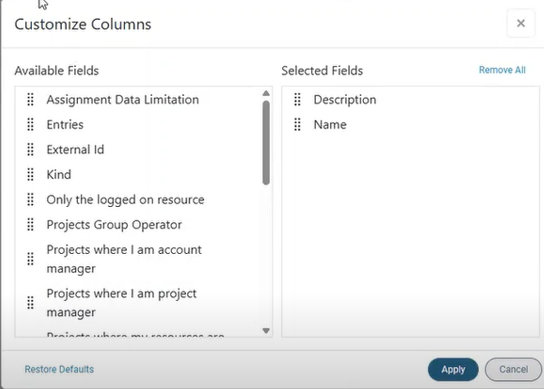
    To launch the Column Chooser, click the Launch Icon icon in the upper-right corner of the screen. The Customize Columns dialog box is displayed, as shown in the following example.
    CustCols

    • Drag fields from the Available Fields list to the Selected Fields list.
    • You can remove selected fields by clicking the X that appears when you hover next to a field name, or by clicking Remove All at the top right. When you remove field(s) from the Selected Fields list, they return to the Available Fields list.
    • Click Apply to add the selected fields.
    • Click Restore Defaults in the lower left to return the list of fields as it previously existed.

Software Issues Resolved
  • Dela Updates
    System Error When User Lacks Smart Summary Access
    When users without access to Smart Summary setup dialogs attempted to generate Smart Summaries from Accounts Receivable » Customer workspace, the system displayed a system error instead of the expected access-related message. This occurred even when the user had read/create access to Customer/Jobs and the relevant Smart Summary actions were enabled. This error is now corrected.
    Defect: 2534016
  • General Application
    Table Action Used Outdated Data
    In the Approval Center workspace, changing the selection criteria then running an action in the table (such as approving a line) could result in the following error: "The originating object does not represent the latest container instance state." This issue is now corrected.
    Defect: 1239190
    Desired Billing Price Field Missing from Blanket Invoice Selection Table
    It was possible to transfer the desired billing price from the card part of the Invoice Selection window to the invoice selection lines in the table. However, the same field was missing from the table part of the Blanket Invoice Selection window, where one line per job is shown. This is now fixed.
    Defect: 2519695
    Report Data Export Dialog Was Released Before It Was Ready
    When you opened the Report Data Export dialog in version 3.0, you accessed a dialog that had been released by mistake while it was still in development. The workspace is now removed, and an error is displayed if you try to open the dialog.
    Defect: 2533595
    Restore Defaults Action Did Not Reset Column Order
    When you dragged a column to a new position in the filter list, other columns would shift unexpectedly. Clicking Revert to Default did not restore the original column arrangement—you had to refresh the browser or switch workspaces to reset the order. This issue is now fixed, and the Revert to Default action now correctly restores columns to their default positions.
    Defect: 2512381
    Job Selection Dropdown Issue in Reallocate Entries To Wizard
    In the Reallocate Entries tab of the WIP Invoice workspace, the Reallocate Entries To wizard's job selection dropdown incorrectly selected values due to a problem with the auto-submit functionality. This issue is now corrected. 
    Defect: 2511043
    Loss of Unsaved Data Due to Missing "Save Changes" Alert
    If you open the My Settings dialog box while in a workspace with unsaved changes, you will now receive the following warning: "You have unsaved changes." You can then decide whether to cancel opening My Settings, or to proceed and lose your unsaved changes. 

    Defect: 1654702
    Session Expired Dialog Box Slightly Covered by Search Dropdown
    When the Session Expired dialog box appeared while the dropdown of the Search field was expanded, the dialog box was displayed behind the dropdown. This is now fixed. The Session Expired dialog box is always displayed with no obstruction.
    Defect: 2501337
    First Keystroke Not Registered When Tabbing Through Time Sheet Daily Description Fields
    When navigating between fields in a card using the TAB key, the first keystroke after focusing a field did not input text—it only activated the field. This behavior is now fixed so that the first keystroke is now correctly entered into the field.
    Defect: 2492871
    Client-Side Popup Fields Showed "More Search Results" Link in Dropdown
    Enum and popup types are displayed as dropdown components. Since these components already contain all required values, the advanced search panel (that is, the footer section with the “More search results” link) was considered unnecessary and is now removed for all enum and popup types.
    Defect: 2069071
    Error Encountered When Exporting Huge Tables to Excel
    To prevent out-of-memory errors, compression is now applied to exported files.
    Defect: 2102665
    Date Field Stayed Red When Populated
    When you entered a date manually in the wrong format, Maconomy highlighted the field in red and continued to do so even after you corrected the date manually or selected one from the calendar widget. The red highlight only disappeared after you clicked outside the field. This is now corrected. Maconomy immediately removes the red highlight as soon as you enter a valid date.

    Defect: 2163374
    Tab Navigation Arrows Disappeared
    Arrows for tab navigation disappeared after you navigated to another workspace, then went back to the original workspace. This is now fixed.
    Defect: 2532129
    Selection Criteria Based Solely on a Supplement Field Could Not Be Cleared
    Filters added through the Selection Criteria assistant display as removable chips at the top of the list. Previously, chips linked to fields with foreign key bindings could not be deleted after creation. This issue is now resolved, and all chips created via the Selection Criteria assistant can now be removed as intended.
    Defect: 2321901
    Could Not Clear Mandatory Fields Based on Foreign Keys
    Maconomy did not allow users to clear mandatory fields linked to foreign keys. This is now corrected. Users can now clear these fields and, if needed, revert the change.
    Defect: 2496662
    Save Option Failed After Analyzer Report Title Change With No Selected Columns
    If the you edited the title of your Analyzer report but did not select any columns, the Save action stayed disabled. If you then attempted to navigate to a different workspace, Maconomy displayed a dialog box with Save, Don't Save, and Cancel options. Clicking Save did nothing; you remained on the Analyzer report workspace, and Maconomy did not save your changes. This issue is now fixed.
    Defect: 2390885
    Attention Field Missing a Dropdown
    In the Customer tab of the Job Home workspace, the Attention field under the customer address did not have a search dropdown. This issue is now fixed. 
    Defect: 2496362
    Previous/Next Arrows in List View Ignored Record Selection
    When in List view mode, the Previous/Next arrows did not respect the selected record shown in the List view. Instead, it navigated based on the record selected in the Detail view. This is now fixed. That is:
    • When in Detail view, the Previous/Next arrows navigate based on the record shown in the workspace.
    • When in List view, the Previous/Next arrows navigate based on the record selected in the List view. 
    Defect: 2514243
    Cancelling Task Export in Management Workspace Failed to Display User Aborted Notification
    When you cancelled the export of selected tasks in the Selection & Clean-up tab of the Management workspace (under Setup >> Background Tasks), no notification appeared to confirm the cancellation was successful. This is now fixed.
    Defect: 2414185
    Removed Decimals for Progress Column Values
    By default, progress columns now display zero decimal places.
    Defect: 2491771
    Assistant Not Loading Properly
    When the user switched between tabs containing assistants, the assistant did not always display properly. This is now fixed. 
    Defect: 2481946
    Random Columns Appeared on Visible Columns List
    In the Customize Columns dialog box, adding columns to or removing columns from the Visible columns list resulted in random columns appearing on the list. This is now fixed.
    Defect: 2494219
    Internal Error Encountered in Workspace List View
    While working in workspaces in list view, if you used the Search or Sort field at the top of the workspace, clicked the browser's back button, and then clicked the browser's forward button, Maconomy displayed the following internal error message: "Cannot read properties of undefined (reading operator)." This is now fixed.

    Defect: 2482083
    Traffic Lighting in Embedded Calendar Did Not Look Like Dropdown Calendar
    Embedded calendars did not display date highlights in the same way as a regular calendar element. This is now corrected; both calendar types now render date highlights in the same style.
    Defect: 2505175
    File Upload Dialog Box Not Rendered Correctly
    When you opened the File Upload dialog box while in dark mode, it did not render correctly. This is now fixed.
    Defect: 2475948
    Rendering of Assistant Segment Button Needed Improvement
    The visual appearance of the assistant segment button is now improved.
    Defect: 2475952
    Text in Status Field Difficult to Read
    When you viewed the text in the open status field, it appeared difficult to read. This is now corrected.
    Defect: 2475953
    Smart Summary Panel Stuck in Loading After Request Cancellation
    When you cancelled the Create Smart Summary request, the Smart Summary panel remained stuck in loading. This is now fixed.
    Defect: 2475954
    Misaligned Description in the Revert and Invoice to Credit Memo Wizards
    When you viewed the text and link elements only containing a title, they were misaligned. This is now fixed.
    Defect: 2491875
    Go To Link Not Displayed in Blue
    All Go To links are now displayed in blue.
    Defect: 2481868
    In-App Help Documents: Access Levels Were Not Respected
    When you accessed in-app help documents, Maconomy did not respect the access levels specified on the documents when determining which help content was available to you. This is now fixed.
    Defect: 2493177
    2FA Dialog Boxes Had Broken Layout
    When you accessed the 2FA dialog boxes, the layout appeared broken and did not render correctly. This is now fixed.
    Defect: 2497749
    Vendor Invoice Table Data Carried Over to Newly Created Journal 
    When users created a card record in a workspace which does not use a creation wizard, the table related to the new card would occasionally show data from the previously selected record. This is now corrected.
    Defect: 2501106
    Error Dialog Titles Needed Updates
    The titles of some error dialogs have been changed to provide a more accurate description of the type of error experienced.
    Defect: 2504541
    CRM Integration Error Due to Language
    Prior to this fix, if a Vantagepoint system did not have the English US (en-US) language enabled, an error would appear every time an integration action from Maconomy was run. This has been corrected.

    The "url.deltekcrmlanguage" extensions.ini parameter should be added with the value of the language to use (en-GB, fr-FR, and so on).
    Defect: 2508803
    Some Field Changes Not Saved During Autosubmit
    Changing two navigation parameters did not prompt a warning about unsaved changes. This issue is now resolved.
    Defect: 2510011
    Could Not Change Tree Table Column Width
    Users could not increase or decrease column width in tree tables. This issue is now corrected. 
    Defect: 2512370
    Installation Error After First Login 
    Occasionally, users logging in for the first time were shown an installation error message regarding unavailable workspace menu items related to notifications. This is now fixed. 
    Defect: 2519476
    Missing Text Lines in Peppol XML
    When you generated order invoices or credit notes, text lines were not included in the Peppol XML file. This error is corrected by enabling ZEROTEXT functionality for order mappings.
    Defect: 2531112
    Employee Overhead Maintenance Search Returned an Error
    When you searched for Employee Overhead Specifications in the Employee Overhead Maintenance workspace, an error could occur. This is now fixed.
    Defect: 2533144
    Desired Billing Price Field Missing from Blanket Invoice Selection Table
    It was possible to transfer the desired billing price from the card part of the Invoice Selection window to the invoice selection lines in the table. However, the same field was missing from the table part of the Blanket Invoice Selection window, where one line per job is shown. This is now fixed.
    Defect: 2534047
    Access Token Too Long to Store
    When you tried to send or receive an invoice using a Pagero access token longer than 255 characters, the system saved only a part of the token. This caused a 401 Unauthorized error. This error is corrected.
    After installing, you must authenticate every Pagero Company again.
    Defect: 2535285
    Unsent Pagero Invoice Field Value Error
    If an invoice was not sent to Pagero due to an error, the Sent to Pagero Date and Send to Pagero Time fields would be have values, instead of remaining blank. This has been corrected.
    Defect: 2537542
    Missing Print Actions in Web Client Workspaces
    When you opened these workspaces Access Control » UsersSetup » Access Control » Window GroupsSetup » Access Control » Access Levels in the web client, the Print User, Print Groups, and Print Access Levels actions were missing. This error is corrected.
    Defect: 2544711
    Long Filter Restriction Titles Were Truncated
    When a filter option in the dropdown had an overly long title, the Maconomy web client truncated the text such that it was not fully visible. This issue is now resolved; the width of the dropdown panel is increased and long titles now wrap onto multiple lines, ensuring the full text is displayed properly.
    Defect: 2544771
  • Web Client Framework
    Document Viewer Did Not Support Allowed/Disallowed File Types
    Uploading a document as an attachment and viewing it in the Kendo document viewer did not allow control over which file types could be previewed. For security reasons, the functionality now supports configuration of allowed and disallowed file types for preview. Disallowed file types remain available for download but are no longer shown in the preview window.
    Defect: 2446291
    Configurable Menu Item Names in the Web Client
    Menu items in the web client can now include an optional name property, allowing consultants to control the URL used when opening a workspace. This is especially useful when the same workspace appears multiple times in menus—each instance can have a unique name so the correct item is highlighted. Additionally, multiple workspaces can share the same name if they have mutually exclusive visibility conditions, enabling flexible proxy workspace setups. The previous proxyFor property is deprecated in favor of this approach.

    Defect: 2484335
    Misarranged Fields in My Plan Dialog Boxes
    Enabling compact mode in the web client resulted in misarranged fields in the Create Booking and Edit Booking dialog boxes. This is now resolved. 
    Defect: 2494118
  • Time and Expense
    Inconsistent Information in Time Sheet Notifications
    Time sheet-related notifications in the web client used different formats, making related notifications inconsistent. The formats for these notifications have now been aligned.

    The updated formats are as follows:
    • Time sheets for submission or approval:
      "[date] (Week [week number]), [employee name]. [hours registered] Hours"

    • Rejected time sheets:
      "[date] (Week [week number]), [employee name]. [hours registered] Hours"

    • Daily time sheets for submission or approval:
      "[date] ([week day]), [employee name]. [hours registered] Hours"

    • Time sheet not created:
      "[date] (Week [week number]), [employee name]"

    • Daily time sheet not created:
      "[date] ([week day]), [employee name]"

    • Time sheet lines for approval:
      "[description] ([date]), [job name] ([job number]), [employee name]"

    • Rejected time sheet lines:
      "[description] ([date]), [job name] ([job number]), [employee name]"

    Synchronous notifications were also updated:

    • Time sheets approved:
      "[date], [employee name]. [external hours registered] + [internal hours registered] Hours"

    • Time sheets for submission:
      "[date], [employee name]. [external hours registered] + [internal hours registered] Hours"

    • Time sheet lines for approval (synchronous):
      "[description] ([date]), [job name] ([job number]), [employee name]"

    Defect: 2472791
    “Submitted and Not Approved” Status Missing from Approval Status Dropdown
    In the Time Sheet Status workspace, it was not possible to restrict the view to show only time sheets that were submitted but not yet fully approved. A new restriction option, Submitted and Not Approved, has now been added to the Approval Status selection criteria.
    Defect: 2525106
    New Option to Prioritize Mileage Rule Activity Over Task Activity
    It is now possible to prioritize mileage rule activity over task activity when creating a new mileage line. This behavior is controlled by a new system parameter: Mileage Rule Dimensions Take Priority On New Expense Lines. When this parameter is enabled, the default mileage task in job task lists no longer overwrites the activity derived from the mileage rule.
    Defect: 2101814
    Task Search Performance Improved for From/To Selection Criteria
    Task search performance for the From/To task selection criteria in Approve Time Sheet Lines and Approve Expense Sheet Lines is now improved.
    Defect: 2429927
    Time Sheet Cannot Be Created When Employee Started Midweek
    When you tried to create a time sheet for an employee whose Time Sheet Start Date was in the middle of the week and whose employee revision from the beginning of the week up to before that date was blocked, the time sheet could not be created. This is now fixed.
    Defect: 2197379
  • BPM and Statutory Reporting
    Denmark - SAFT: Missing or Incorrect Mappings
    Previously, the DSAFT data export used generic fields for mapping the Email Address and Tax Verification Date on the <Header> section. This error is corrected, and the data export has been updated to use the following supplement fields:
    • Email Address: Mapping changed from Generic Text 1 to Supplement Text 1
    • IBAN: Mapping changed from Giro to Supplement Text 2
    • Bank Account No.: Mapping changed from Bank to Supplement Text 3
    • Tax Entity: Mapping changed from Generic Text 9 to Supplement Text 4
    • Tax Verification Date: Changed from Generic Date 1 to Supplement Date 1
    Defect: 2348783
    India Backup: Local Account No. and Description Missing From Export File
    When you ran the India Data Backup report, the exported file did not include the Local Account No. and Local Account Description fields, and you were prompted to select a Chart of Accounts Type. The report now includes both Global and Local account details, and the Local Account No. and Local Account Description fields are positioned after the Item No. field in the exported file.
    Defect: 2265252
    Sweden - SIE: Multinode NullPointerException Fix
    Previously, running the Standard Import/Export report (in particular, the SIE4 format) in a multinode environment resulted in a NullPointerException during final file creation. This error is corrected by removing the static variables for file name assignment.

    Defect: 2512961
    France - AEF: DateLet Blank on Vendor Invoices
    Due to changes in how general ledger entries are linked to sub-ledger entries, DateLet was affected and did not show values on reconciled entries. This error is corrected and DateLet now displays the reconciliation date or entry reconciliation date (whichever is the latest). This applies to entries directly linked to the sub-ledger; entries such as Cash Discounts or Tax Entries are not included.
    Defect: 2508774
    France - AEF: EcritureLet and DateLet Blank on Reconciled Entries
    Due to changes in how general ledger entries are linked to sub-ledger entries, EcritureLet was affected and did not show values on reconciled entries. This error is corrected and EcritureLet now displays the Transaction No. of the entry to which it was reconciled. This applies only to entries directly linked to the sub-ledger; entries such as Cash Discounts or Tax Entries are not included.
    Defect: 2508791
    Wrong CRN Used During Report Generation
    When multiple companies shared the same Tax Number, generated reports occasionally used the wrong Company Registration Number (CRN). This is fixed. Reports now correctly identify and use the CRN of the reporting company. 
    Defect: 2272121
    Norway - SAFT: Currency Code Missing for NA Balances
    Previously, the customer or supplier <CurrencyCode> under the <BankAccount> section displayed the value "NA" when there was no opening or closing balance. This error is corrected and now also applies to <PartyInfo> for the customer or supplier.
    Defect: 2350870
    Web Client AEF: Single-Company Report Failed After Multi-Company Report
    This fix improves the stability of report generation. The Include companies with the same tax number option is now correctly reset when you change the primary company, preventing validation errors.
    Defect: 2398123
    Web Client: Background Task Card Missing
    Previously, the Background Task card was not available in the Web Client. This error is corrected.
    Defect: 2260929
    Missing Data in Background Tasks Columns for India Backup
    In the Data Backup report workspace for India, the Company No., Period, and Filename fields in the Background Tasks tab are now populated as expected. 
    Defect: 2277248
    India - Data Backup: Background Task Failed Due to Invalid Document Reference
    During generation of Data Backup reports, the background task failed and displayed the following error:
    .../biprws/sl/v1/queries/8122079887793092498/parameters request returned an error 400: Bad Request.
    Error body: {"error":{"error_code":"WSR 00080","message":"Document (0) does not exist or your security profile does not allow you to access it."}}
    This report is based solely on a universe and does not involve any Web Intelligence (WebI) reports. This issue is now fixed.
    Defect: 2513001
    Sweden - SIE: Background Task Failed Due to Invalid Document Reference
    During generation of Standard Import/Export reports, the background task failed and displayed the following error:
    .../biprws/sl/v1/queries/8122079887793092498/parameters request returned an error 400: Bad Request.
    Error body: {"error":{"error_code":"WSR 00080","message":"Document (0) does not exist or your security profile does not allow you to access it."}}
    This report is based solely on a universe and does not involve any Web Intelligence (WebI) reports. This issue is now fixed.
    Defect: 2512991
    Profit and Loss: Incorrect Variance Signs
    Previously, the Profit and Loss report displayed incorrect signs for variance total lines when the Use Natural Sign option was set to Yes. This occurred in reporting structures where Invert Sign was enabled. This error is corrected.

    Defect: 2491559
    Extra Semicolon on Each Record Created Extra Blank Column in the CSV File
    Report generation added a semicolon at the end of each item line; this resulted in an extra empty column in the spreadsheet. This is now corrected. The trailing semicolon is no longer added to lines.
    Defect: 2264599
  • Project Management
    Subjob Copy Did Not Use Subjob Number Series
    When you copied a subjob using the Copy Job action in Jobs with the Subjob Numbering Based On Main Job system parameter enabled, the copied subjob received a job number from the normal job number series instead of the subjob numbering series (for example, -01, -02).
    Defect: 2340435
    Revenue Recognition Amount Was Incorrect After Adding New Budget Line
    When you reopened a fixed price job budget, added a second budget line, and approved the budget with detailed revenue recognition, the calculation added the billing price to the wrong revenue recognition detail level, which caused an incorrect amount on the first line in the Amount, New Revenue Recognition field.
    Defect: 2496501
    Overrun Handling Cancels Previous Revenue Recognition
    When you used overrun handling together with revenue recognition based on completion percentage, the overrun adjustment could cancel previous revenue recognition.
    Defect: 2523784
    Overflow Error During Invoice Printing After Job Entry Reallocation
    Previously, when reallocating job entries with quantities containing small decimal values, an overflow error could occur during invoice printing if the remainder after reallocation was expected to be zero. This error is now corrected.
    Defect: 2515755
    Standard Billing Price Not Recalculated on Job Journal Line Change
    When you changed the price setup for Standard billing price after a Job Journal line was created, Maconomy did not recalculate the Standard billing price when you changed the Job Journal line, even though the system parameter UpdatePricesUponDimensionChange was enabled. This is now fixed.
    Defect: 2454172
    Revert Job Reallocation Incorrectly Closes New Job Entries
    When you reverted a reallocation of an invoiceable job entry without a billing price, the new job entries created were sometimes created as closed. This is now fixed.
    Defect: 2535132
  • Finance
    Added By Payment Selection Layout to Print Payment Selection
    You can now use a new layout called, "By Payment Selection" when printing payment selections in the web client and workspace client. This layout groups payments by their respective selections and is available in the following scenarios:
    • From the Create Payment Selection workspace, you can print the current payment selection.
    • From the Create Batch single dialog workspace:
      • The layout includes all newly created payment selections when Create Selection is marked.
      • It includes payment selections created by the current user during reprint when Create Selection is not marked.
    Defect: 2537712
    Job Entries Did Not Retain Asset Number After Reallocation
    Previously, job entries did not keep an assigned asset number after job reallocation. This error is now corrected. In addition, the Asset Number field has been added to the job reallocation journal.
    Defect: 2276040
    Duplicate Dimension Combination Creation
    Previously, attempting to create a duplicate Dimension Combination resulted in a SQL UNIQUE KEY violation error. The system now correctly displays the validation message, “You cannot create dimension combination <ID> as this combination already exists in the system.” This error is now corrected.
    Defect: 2537138
    Incorrect Line Count Display in Approval Center Warning Message
    Previously, when using the Approve All action in the Approval Center workspace, the warning message displayed an incorrect number of lines pending approval. This error is now corrected, and the message accurately reflects the total number of lines to be approved.
    Defect: 2513549
    System Error When Printing Payments Containing Zero-Balance Transactions
    Previously, printing payment batches that included zero-balance transactions caused a system error. This occurred when vendor invoices and credit memos with identical due dates and payment modes were combined with other invoices in a single batch. This error is now corrected.
    Defect: 2537442
    Approval Overview History Display
    Previously, when approving a previously rejected or approved expense sheet, the Approval Overview tab displayed only the most recent approval entries, and earlier records were overwritten. This error is now corrected by adding a switch labeled Only Show Effective Lines, which is enabled by default. To view the full approval change history, disable this switch
    Defect: 2469401
    Vendor Invoice Submission Blocked Due to Incorrect Job Budget Line Values
    Previously, vendor invoices could not be submitted when the fields Number of Purchase Orders and Last Purchase Order Number on the Job Budget Line contained incorrect values. This occurred when reposting a reopened vendor invoice with changes to a previously posted allocation, specifically when the allocation was linked to a purchase order on a job with the Limit Purchase Amount to Budget parameter enabled. This error is now corrected.
    Defect: 2490776
    System Error When Approving General Journal Lines with Multiple Approvers
    Previously, users could encounter a system error in the Approval Center when attempting to approve general journal lines that required multiple approvers. This error is now corrected.
    Defect: 2480178
    Invoice Document Action and Assistant Layout
    Previously, when an invoice already had an attached document, using the Add Additional Document action did not append another document to the invoice. This error is now corrected. 

    In addition, the Assistant layout has been updated. Previously, the Conversation and Documents tabs were represented only by icons in the header. All four tabs (Asset Draft, Subcontractor, Conversation, and Documents) now display their titles and are located under the Details section.
    Defect: 2482165
    Cash Discount Option Unavailable in New Payment Selection Dialog
    Previously, it was not possible to create a payment selection that includes cash discounts when using the new Payment Selection dialog. This error is now corrected.
    Defect: 2537494
    Correction of Field Placement for Local Chart of Accounts
    Previously, the Local Chart of Accounts field in General Ledger » G/L Setup » Companies » Company Home was displayed under the Dimensions island instead of the General Ledger island. This error is now corrected, and the field is properly located within the General Ledger island.
    Defect: 2491450
    Incorrect Message When Calculating New Payment Selection
    Previously, when calculating a new payment selection, Maconomy attempted to add new payments to existing payment selections. In some cases, users received the message, “There were no new invoices to pay” even though vendor entries were ready for payment. This error is now corrected.
    Defect: 2537496
    Field "New WIP" for Detailed WIP Evaluation Is Closed
    When you set up a job with detailed WIP evaluation, the field New WIP in the table part of Job Revenue Recognition Details was closed for editing. Because New WIP was closed, you could not handle WIP evaluation differently for time and various categories of amount registrations depending on the chosen details. This has been corrected so that the New WIP field is now editable when detailed WIP evaluation is used.
    Defect: 2494463
    Supplier Number and Latest Due Date Handling in Payment Selection
    Previously, when selecting a single vendor entry for payment, Maconomy could assign the supplier number from the vendor entry as the supplier target group on the payment selection and set the latest due date to the payment date of the vendor entry if it could not be assigned to an existing payment selection. These behaviors could result in payments with identical criteria being split across multiple payment selections, requiring multiple payment files. This error is now corrected, and the latest due date is now based on the user’s selection, and the supplier number is no longer used as a target group when the Add Vendor Entry for Payment action is applied.

    Note: This correction is only relevant if you do not use approval hierarchies for approval of payments.
    Defect: 2537499
    Missing Action in Payment Selection Extend Tab
    Previously, the Add Vendor Entry for Payment action was missing from the Extend tab under Payment Selection in the web client. This error is now corrected.

    Defect: 2537714
  • System Admin
    Automated Dialog Group Data Loading
    On initialization,  the Dialog Group Imports Tool now dynamically loads dialog group data. This replaces the previous hardcoded file approach.
    Defect: 2513063
    Masking Functionality Did Not Mask Personal Telephone Numbers
    When you masked employees, the Private Phone field was not masked on employees or employee revisions. This is now fixed.
    Defect: 2358453
    System Number Providers Not Assigned When Creating Company from Template
    When you created a new company from a template with system number providers, no providers were assigned to the new company even though Number of Providers was greater than 0.
    Defect: 2128190
    Deprecated Columns in the Dialog Group Imports Tool Export File 
    Deprecated columns are now removed from the file produced by the Dialog Group Imports tool. This allows you to successfully re-import the file via the Import Groups workspace.
    Defect: 2542727
    Missing System Parameter Setup for SAP BusinessObjects in System Admin Guide
    The System Admin Guide did not include steps for setting the system parameters required for Maconomy to connect to SAP BusinessObjects. This is now fixed.
    Defect: 2500409
    Uniqueness Constraint Error Upon Upgrade
    When using MConfig 11.3.1 or older: Upgrading any 2.6.4* or older system to 2.6.5 or newer APU, MConfig would report an error:
    ERROR: Constraints are missing in shortname ...
    This was caused by a uniqueness constraint changing status from "deferred" to "immediate", which is not handled properly by MConfig. This has been corrected.

    Defect: 2446329
    Update to MConfig UI for Valkey Support
    The MConfig UI has been updated to align with Maconomy’s support for Valkey. The following field has been renamed:
    • From: Redis URI
    • To: Valkey URI
    In scripting, you can still set the field using either RedisURI or ValkeyURI.
    Defect: 2495408
  • Touch
    Users Unable to Log In After Cancelling Biometrics
    In systems supporting both Maconomy and OAuth login, if a user logs in with Maconomy credentials and enables biometrics, then cancels biometric login to switch to OAuth via the main login screen, Touch displayed an error message (“This user does not exist or the password is incorrect”) when the user attempted to log back in using biometrics. This is now fixed.

    Defect: 2273587
    Missed Meal Could Not Be Used in Weekly Timesheet Check In
    In the Check In tab of Weekly Timesheets, adding Missed Meal and then toggling it on triggered an error. This issue is now resolved.

    Defect: 2430713
    OAuth Window Not Loading When Touch Was Accessed Via Browser
    When using Touch in Chrome or Edge with OIDC login (Azure or Okta) configured via SafariViewController, users’ login attempts caused the browser to hang and display a “SafariViewController is not defined” error message in the console. This is now fixed.

    Defect: 2430717

    Privacy Link Fix
    The privacy policy link on the "Terms and Use of Service" page was pointing to the wrong link. This is now fixed.

    Defect: 2437655
    2FA App Failed to Launch via Picker on iOS26
    Users of iPhones running iOS 26 with Maconomy 2FA enabled were unable to launch their selected 2FA app (for example, Apple Passwords) from the picker. This is now fixed.

    Defect: 2472345
    Unable to Log In with OAuth When Using Browser
    When using Touch in the browser, users who signed in via the OAuth window were redirected to the main Touch login screen but remained stuck on the loading animation. This issue is now fixed.

    Defect: 2476163
    Mismatched GUID Error During Azure Login
    When users logged in with Azure credentials, Touch would sometimes display the “Mismatched GUID” error message. This issue is now resolved.

    Defect: 2481961

    REST_LOGGING_ENABLED="true" Caused Errors
    When REST_LOGGING_ENABLED was set to "true" in the configuration.ini file, Touch returned multiple errors ("Malformed request entity...", "REST Authentication Failed", "Container request failed") when a user logged in. This issue is now fixed.

    Defect: 2481962
  • People Planner
    Reassignment of Booking to Original Resource Fails
    When using the People Planner REST API, reassigning a booking to a different resource worked as expected. However, if you later attempted to reassign the booking to the original resource, an error would prevent the reassignment. This has been corrected.
    Defect: 2516016
Database Changes

Maconomy Changes

This section contains the database changes from Maconomy version 3.0 to 2026.1.

Summary: 
1 relations created 
0 relations removed 
5 were expanded 0 were moved 
0 were renamed 
22 new fields 
0 removed fields 
0 renamed fields

Details per relation:
Relation: THREADMESSAGE  
    Field: FUNCTIONNAME added  
    Field: FUNCTIONPARAMETERS1 added  
    Field: FUNCTIONPARAMETERS2 added  
    Field: FUNCTIONPARAMETERS3 added  
    Field: FUNCTIONPARAMETERS4 added  
    Field: FUNCTIONPARAMETERS5 added  
    Field: FUNCTIONPARAMETERS6 added  
    Field: FUNCTIONPARAMETERS7 added  
    Field: FUNCTIONPARAMETERS8 added  
    Field: FUNCTIONPARAMETERS9 added  
    Field: FUNCTIONPARAMETERS10 added  

Relation: JOBREALLOCATIONJOURNAL  
    Field: REVERTINGJOURNALNUMBER added  
    Field: REVERTINGJOURNALLINENUMBER added  
    Field: ASSETNUMBER added  

Relation: THREAD  
    Field: ACTIVE added  
    Field: LATESTMESSAGEREQUESTTEXT added  
    Field: LATESTMESSAGEREQUESTTIMESTAM added  

Relation: JOBHEADEREXTENSION  
    Field: CAPITALIZATIONLIMITTIME added  
    Field: CAPITALIZATIONLIMITAMOUNT added  

Relation: JOBREVENUEJOURNAL  
    Field: BILLINGPRICECURRENCY added  
    Field: BILLINGPRICEBASE added  
    Field: BILLINGPRICEENTERPRISE added  

Relation: REPORTDATAEXPORTLINE (new)  

People Planner Changes

This section contains the database changes from People Planner version 4.9 to 2026.1.

Tables Changed Between Release 4.9 and 2026.1

Table Name

Columns Removed

Columns Added

ImportMasterDataFromMaconomyTask


RestRoleFilter

RestUserFilter

RestUserRoleFilter

LogEntry


ActivityName


Tables Added Between Release 4.9 and 2026.1

Table Name

FileUploadAudit

RunningTask


API Changes
This section provides details on all API changes between 3.0 and 2026.1.

Setup » Job Cost » Parameters » Job Parameters / Jobs » Job Administration » Advanced Job Setup » Job Parameter Selection  

Dialog Name

Pane Type

Old Name

New Name

JobHeaderExtension

Table

-

CapitalizationLimitTime (new field; exposes the time-based capitalization limit selected on the job)

JobHeaderExtension

Table

-

CapitalizationLimitAmount (new field; exposes the amount-based capitalization limit selected on the job)


Known Issues
This section includes a summary of issues that are new in this release.

Maconomy

Unable to Add Lines and Attach Files to New Lines in Print Layouts
Deltek Tracking: 2567003
Users may be unable to add new lines in the Print Layouts workspace and Print Layout reference workspace. In some cases, you could add a line but attempting to attach a document to it triggers an error.
Workaround:
  • If you are unable to add lines to the print layout, add the Create action to Workspace\Setup\Layouts\PrintoutLayouts\PrintoutLayouts_Table.json.
  • If you can add lines but encounter an error, add the following to Platform\Containers\AccessControl\PrintoutLayouts.json to inform the web client that the action requires a file chooser:
"Create": {
  "attachments": {
    "required": true
  }
}

Touch

There are no known issues in this area for Touch 4.6.

People Planner

Indented Budget Lines Under a Sum/Text Budget Line Not Imported via REST v3
Deltek Tracking: 2569238
In Maconomy, budget lines that are underneath a budget line of the Sum/Text Line Type can either be indented by one level or left at the same level of indention as the Sum/Text budget line.
Budget lines that are indented are not imported via REST v3. Only the Sum/Text budget line is imported and becomes a Summary event in People Planner.

Last Send for Resourcing Timestamp Not Set when Importing Using REST v3
Deltek Tracking: 2570249
When importing a project from Maconomy and using the Maconomy REST v3 web service, the Last Send for Resourcing timestamp is not set in Maconomy.