Displaying Budget Figures
The budget entries created can be seen in the Show Budget Entries and Budget Specification workspaces.
Budget entries can be viewed as totals in the Budget Inspection workspace.
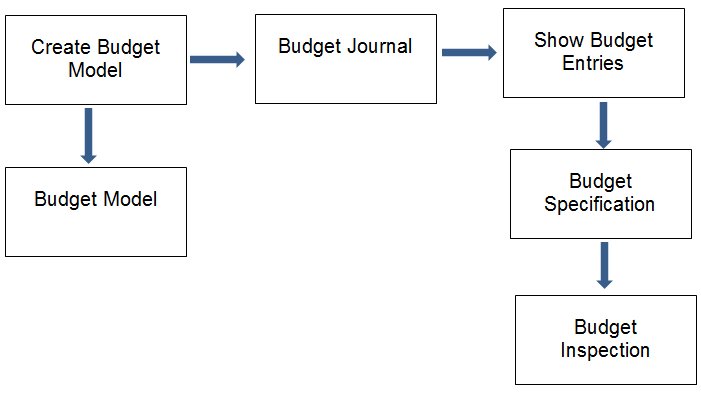
The Show Budget Entries workspace shows one budget entry at a time. You can see information about allocation combination, amount (quantity), allocation and information about the origin of the entries.
The Budget Specification workspace displays all budget entries in the budget model with identical allocation combinations. Furthermore, the sum of these budget entries is shown so that you can see which budget entries have formed the budget figure for the allocation combination.
The Budget Inspection workspace also shows the sum of budget entries with identical allocation combinations for a specific budget model. In addition, you can display ranges of sum values for budget figures so you can get an aggregate budget figure for a range of allocation combinations.
Example 1: The bank account budget can be displayed if you enter a range in the Account No. dimension.
Example 2: The sum of budgeted salary expense for a given project can be displayed if you enter a range in the Project and Purpose dimensions.
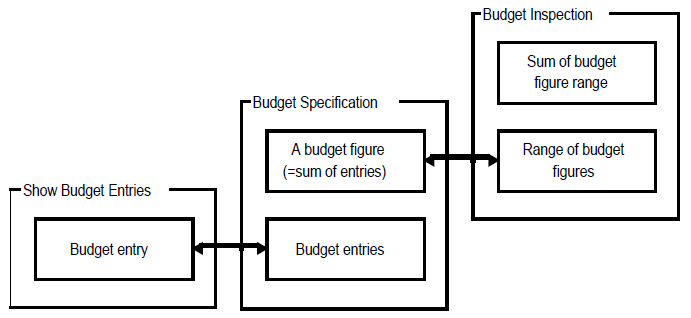
The figure above shows the connection between the three displays windows described above. The Show Budget Entries workspace displays one budget entry and its amount (quantity). Note that this is a card-only window.
The Budget Specification workspace displays a number of budget entries and the sum of these entries. These are called budget figures.
The Budget Inspection workspace shows a range of budget figures and the sum amount (quantity) of this range.