Set Up an ODBC Connection for SQL Server
This section discusses how to set up the ODBC connection.
To set up the ODBC connection, follow these steps:
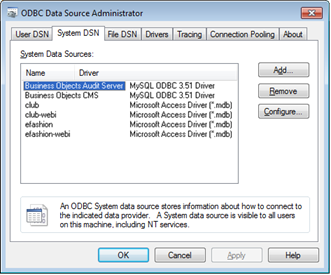
- Run Data Sources (ODBC) using the appropriate path:
- For 32-bit Windows - Click Control Panel » Administrative Tools » Data Sources (ODBC).
- For 64-bit Windows - Click All Programs » BusinessObjects XI 3.1 » BusinessObjects Enterprise » 32-bit Data Source (ODBC).
- Click
Add.
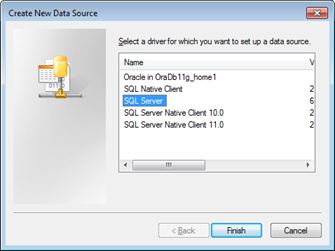
- Select
SQL Server and click
Finish.
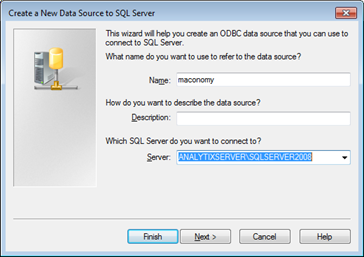
The Create a New Data Source to SQL Server dialog box is displayed.
- Enter the
Name,
Description and
Server information, then click
Next.
- Select the method to use for authentication and click
Next.
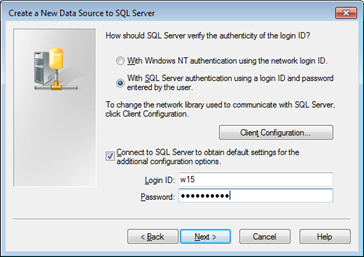
- Enter the default database and ANSI information, and click
Next.
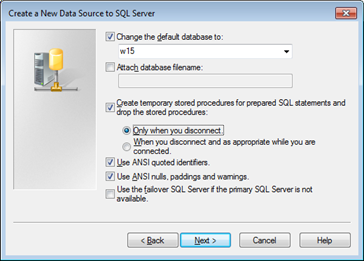
- Click
Finish to complete the process.