Activate PDI License
This section includes steps to activate the Pentaho Data Integration.
License Activation
A Pentaho license can be activated either via the cloud license server or via the local server.
Cloud License Server
If you can access Pentaho's cloud license server without any security restrictions, this is the quickest way to get up and running with Pentaho. To acquire a Cloud License URL, contact the license provider within your company to acquire the activation URL.
Local License Server
If you cannot access a cloud license server but need a license server behind your firewall, you can install a Windows version of the local license server. The local license server is a command line tool used to activate acquired licenses and perform various administrative tasks.
Prerequisites:
- Set JAVA_HOME as an environment variable
- Open port 7070 for communication with the local license server
- Windows administrator privileges
Procedure:
- Download the Local License Installer enterprise-local-license-server-10.2.0.0-222.zip.
- Unzip the
enterprise-local-license-server-10.2.0.0-222.zip file in the folder where you want to install the local license server. For example, you can unzip the file in the following folder:
<installation_path>\enterprise-local-license-server-10.2.0.0-<version>
- Navigate to the folder where you unzipped the enterprise-local-license-server-10.2.0.0-222.zip file.
- To install the license server as a service, navigate to the
<installation_path>\enterprise-local-license-server\server folder and run the following command:
flexnetls.bat -install
- Start the local license server by running the following command:
flexnetls.bat -start
- To change the username and password after deploying the server, navigate to the
<installation_path>\enterprise-local-license-server\enterprise folder and run the following command:
flexnetlsadmin -server http://<localhostName>:7070/api/1.0/instances/~ -authorize admin <old_password> -users -edit admin <new_password>
- Perform the following steps to verify the status of the system and server:
- Verify the status of the license server using the following command:
flexnetls.bat -status
If the server is running, it reports the status Service running.
- Open the Windows Services application by running the command services.msc at the Windows command line.
- Verify that the service FlexNet License Server - <admin_name> has started.
- Verify the status of the license server using the following command:
- Using the following command, activate and populate the pool of licenses on the server with the activation ID provided by your company:
flexnetlsadmin.bat -authorize <admin_name> <password> -server <http://<localhostName>:7070/api/1.0/instances/~> -activate -id <activation_id> -count <no_of_entitlements_you_want_to_activate>
Activate License using PUC
To activate your license, follow the steps below:
- Log into the Pentaho User Console.
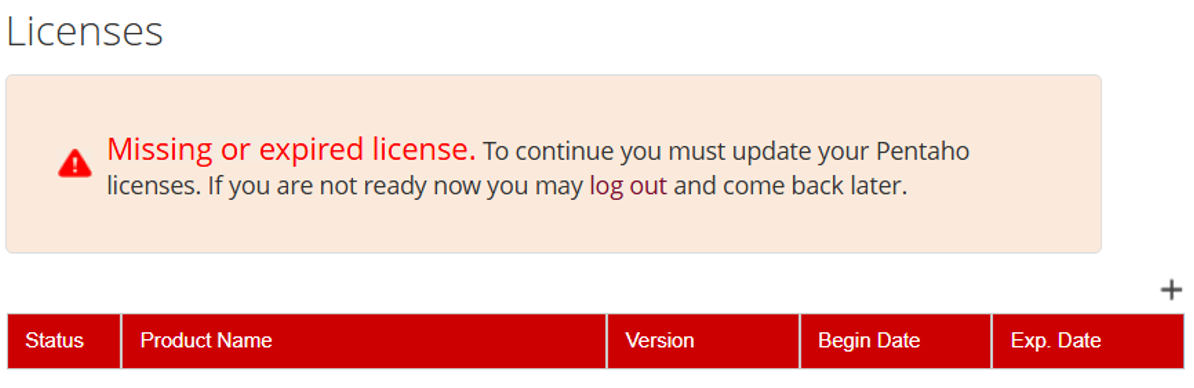
- If you do not have valid licenses the first time you log into the License page, it displays a message referencing a missing or expired license. For example:
- Click the
Add icon (+) to open the Add License dialog box.
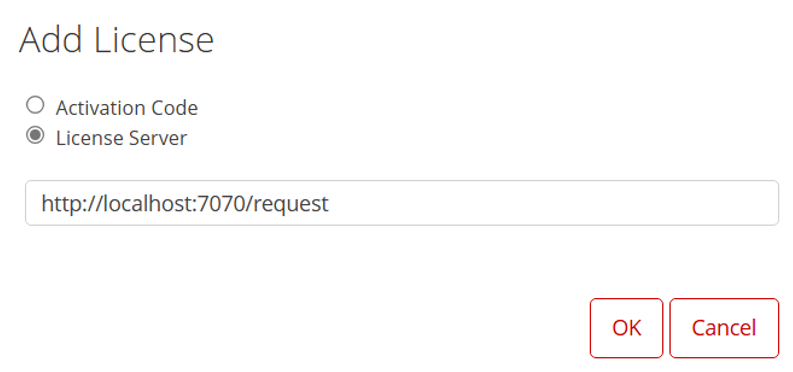
- Select License Server, enter either the cloud license server URL (provided by your company) or the local license server URL (http://<license_server_host>:7070/request), and click OK.
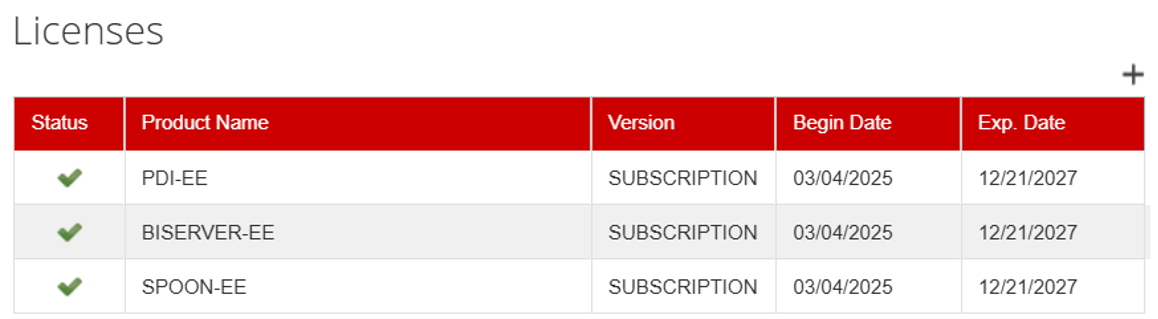
- A license summary informs you what components you are now entitled to use. Verify that you have the following licenses:
- PDI-EE
- BISERVER-EE
- SPOON-EE