Troubleshooting and FAQs
Use this section to troubleshoot common issues and find answers to frequently asked questions related to the Command Center.
Access and Visibility Issues
Why is the Command Center screen blank?
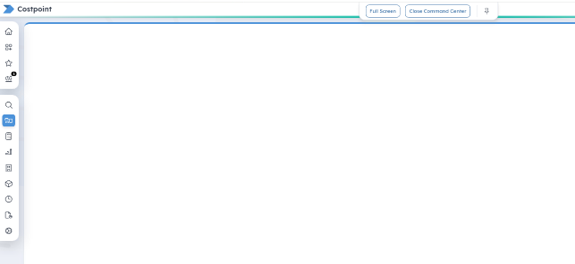
If you can open the Command Center but it displays a blank screen, it is typically a rights-related issue. Contact your system administrator to verify the following:
-
You are assigned to a Command Center user group. This was introduced in Costpoint 2025.4. Users with Command Center access in Costpoint 2025.3 were automatically added to the CC PROJ_ANALYST user group upon upgrade to Costpoint 2025.4, ensuring continued access to the Project Analyst dashboard tabs. For instructions on assigning user groups, see the Set Up and Access the Command Center topic.
-
If you are an on-premises user, the CAP files have been updated to include the Command Center user groups, and these groups are properly mapped to the Cognos user groups.
Why can't I see or open the Command Center in Costpoint?
There are a few common reasons why the Command Center might not be displayed:
- Access not granted: Contact your system administrator to request access. For administrators, verify that the user has been granted access to the Command Center module in the Manage Users application.
- BI installation not completed: The Command Center requires a successful BI installation. Ensure your BI version is up to date by checking the lower-right corner of the BI Welcome Screen.
- New UI not enabled: On the Configure User Preferences screen, set New User Interface to Yes. If you do not see this setting, contact your system administrator.
I have rights to the Command Center module, but I still don't see it on the menu. What should I do?
This is a known issue. As a workaround, administrators can assign the CC module rights to a user group and then assign the user to that group.
Can I view data for projects I'm not assigned to?
No. The Command Center restricts access to only the projects you're assigned to. This enhances performance and ensures a more customized user experience.
Can I view projects across multiple companies at the same time?
No. As with other Costpoint applications, you will only see data for the company you're currently logged into. Switch companies to view data for others.
Can users access Command Center without seeing Team Content or Company Content in BI?
Yes. If users are assigned only to Command Center user groups, Team Content and Company Content will be empty even though they can access BI.
Can I customize fields or other features in Command Center?
No, you currently cannot customize the Command Center.
Do I need to enable Project Role security for all BI reports to use the Command Center?
No. The Enable Project Role Security flag in Manage BI Settings does not affect the Command Center. Command Center adheres to the project setup, regardless of whether this flag is on or off. You can use the flag to control project role security for BI content, but it has no impact on Command Center access or behavior.
Tab-Specific Issues
Do the Project Analyst dashboard tabs only work for certain roles (e.g., Project Manager)?
No. Any role works as long as the BI checkbox on the Manage Functional Roles screen is selected for that role.
Why am I not seeing data in the Project Analyst dashboard tabs?
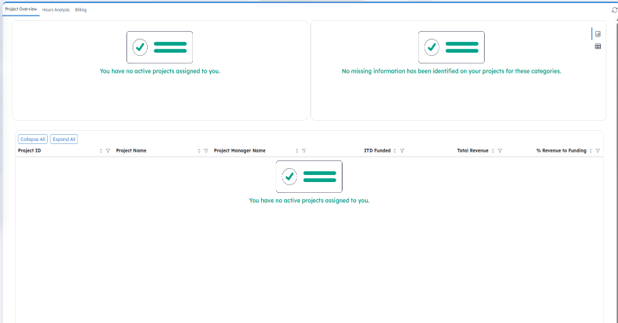
If the dashboard tabs display, "You have no active projects assigned to you," verify the following with your administrator:
- Your project roles are assigned using the Manage Project Roles screen.
- Your project role has the BI checkbox selected in Manage Functional Roles.
- Top-level projects are classified as Direct, Inter-Company, or Inter-Co Multi on the Manage Project User Flow screen.
- Top-level projects are marked Active on the Manage Project User Flow screen.
Why is only the top-right chart showing data on the Project Overview tab?
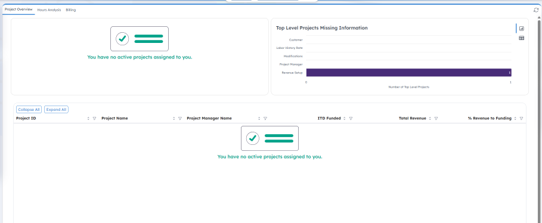
Data may be missing because the PSR Reporting Tables haven't been updated for the BI Current Reporting Period. This process should ideally be run before advancing the reporting period. Your organization may update these tables daily, weekly, monthly, or on demand, usually after calculating burdens and revenue.
To troubleshoot this issue:
- Confirm the BI reporting period is set to the correct fiscal year and period. On the Manage Current Reporting Period screen, it is recommended to set the Update Mode to MANUAL rather than AUTO.
- Check whether PSR tables are up to date for that fiscal year and period by running PSR in Costpoint for the same projects. If not, update the PSR.
- If PSR is current but data is still missing, the project may simply have no activity for that period.
What is "pending revenue" on the Project Overview tab, and why does it always show zero?
Why is my ITD funding inaccurate on my projects?
The ITD Funded Value and ITD Contract Value on the Project Overview tab are based on the effective date of the modification. These values are updated when revenue is calculated. These updates flow through the PROJ_MOD_ITD_SUM table, which then updates PSR_HSR. Meanwhile, Pending Funded Value and Pending Contract Value represent differences between the Total and ITD values (future-dated modifications).
Why is the Hours Analysis tab empty?
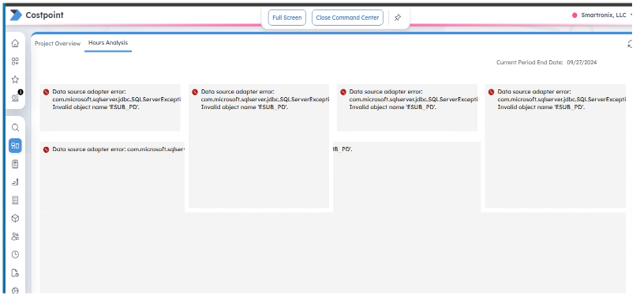
The Hours Analysis tab uses Project Planning data. It only populates data if your company is licensed for the Planning module. If your organization does not use Planning, the tab will appear but remain empty. Currently, there is no option to hide this tab for users without Planning license. In Costpoint 2026.2, a new CC__PROJ_PLAN_ANALYST group will be available, allowing administrators to restrict access to the Hours Analysis tab for users without Planning license.
Why is only the top-right chart showing data on the Billing tab?
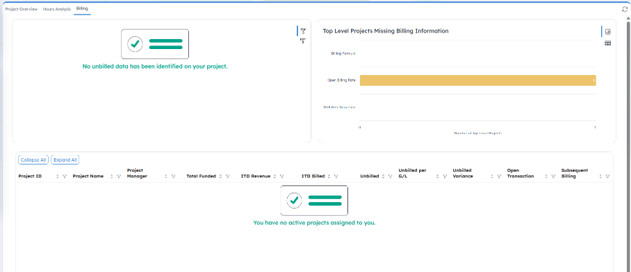
The Create Unbilled Analysis Report Tables process has likely not been run for the current BI reporting period.
Why don't I see entries on the General Ledger tab?
This usually happens when your organization security settings limit the data you can view. The General Ledger tab applies org security based on the Manage BI Settings configuration and your assigned user groups. Have your administrator confirm that your org access is set up correctly.