Zoom Commands in the Network View
In a network view, Open Plan provides Zoom In and Zoom Out commands for projects that cannot be displayed on a single screen. If the entire project can be displayed at once, the Zoom commands are not available.
There are three display mode types for the network view:
- Normal: This is the default display mode when you first open a network view.
- Intermediate: There will be one or multiple intermediate zoom modes, depending on the size of your project. The first (or sole) intermediate mode is displayed when you apply the Zoom Out command from the normal display mode.
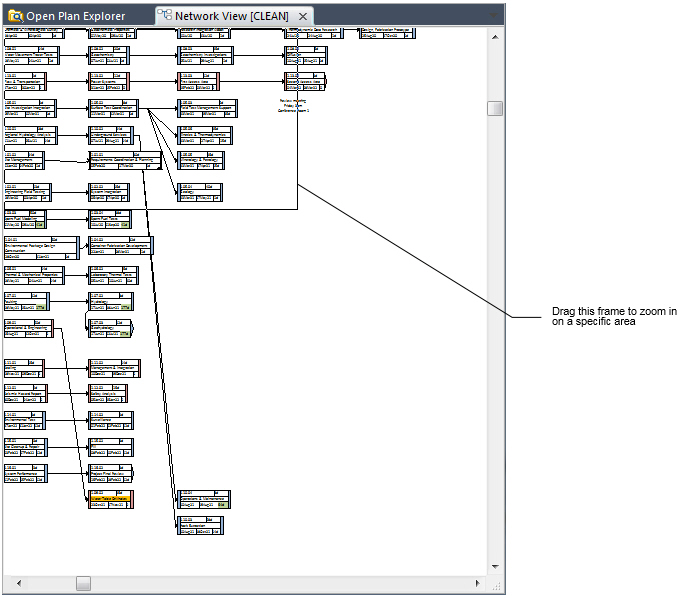
- Fully Reduced: This mode is displayed when you apply the Zoom Out command from the final intermediate display mode.
To assure that the text within activity boxes will be legible, at any zoom level where the network is shrunk to 75% or less, you may hover the cursor over the activity to see the activity drawn at normal size.
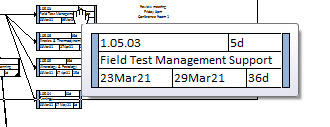
In one of the intermediate display modes, you can continue to work with the activities and relationships just as though you were in the normal display mode. To enlarge an area of the window, select an activity, and apply the Zoom In command.
If you go to the fully-reduced display mode, Open Plan reduces the activity boxes to whatever size is necessary to display the entire project.
You can use the fully-reduced display mode for navigating through very large projects. A rectangular frame appearing in this mode indicates the area of the view that will be displayed if you apply the Zoom In command to return to an intermediate display mode. If you move this frame, when you release the mouse, the view will return to normal display mode at approximately the position you selected.