Splitting the Network View
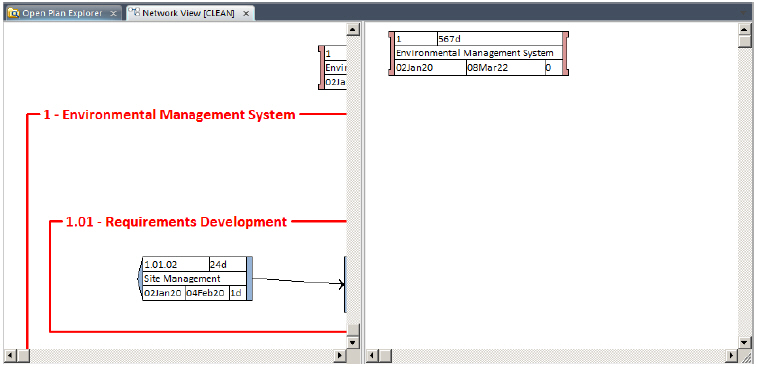
Open Plan allows you to “split” a network view in two. Both panes function normally, and each is independent of the other.
For example, scrolling one pane does not scroll the other.
There are three ways to split a network view:
- Click Split View on the View tab.
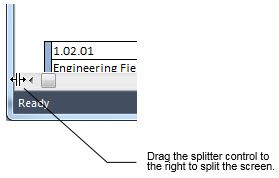
- Double-click the splitter control.
- Use the split view cursor to drag the splitter bar to the desired location.
The splitter control is located at the left edge of the horizontal scrollbar. Hover the cursor over the splitter control to display the split view cursor.
This feature is handy when you have to add a relationship between two activities that are not located next to each other in a large network. To do so, display the predecessor in one pane and the successor in the other. Then Alt+drag the cursor from the predecessor to the successor.
After the link is created, both panes will show the new relationship line.