Resource Curve Descriptions
In Open Plan, the amount of a resource requirement can be interpreted as either a total quantity or a level-per-time unit.
For example, if a 5-day activity has a resource requirement of 10 units, this information can be interpreted in two different ways: as a total requirement of 10 units or as a level of 10 units per day.
Resource Curve
If you leave the Resource Curve setting blank, Open Plan interprets the amount of the resource requirement as a level-per-time unit. Thus, if the activity duration changes, the amount of the resource requirement changes as well.
If you want Open Plan to interpret the amount of the requirement as a total rather than as a level, change the Curve setting to one of the following values:
| Resource Curve | Description |
|---|---|
| B: Back Load | 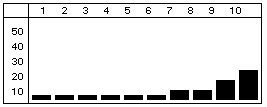
Most of the resource effort is allocated toward the end of the duration |
| D: Double Peak | 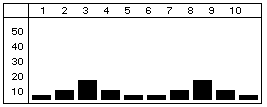
Most of the resource effort is allocated to two peaks — one near the beginning of the duration and one near the end. |
| E: Early Peak | 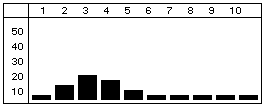
Most of the resource effort is allocated near the beginning of the duration. |
| F: Front Load | 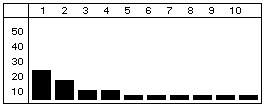
Most of the resource effort is allocated at the beginning of the duration. |
| L: Late Peak | 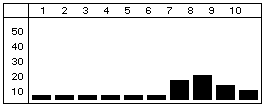
Most of the resource effort is allocated near the end of the duration. |
| N: Normal (Bell) | 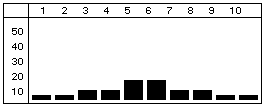
The resource effort starts with a minimal effort, gradually increases to the middle of the duration, and then tapers off. |
| T: Linear | 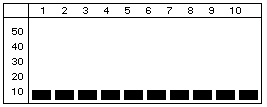
The requirement is interpreted as a total quantity allocated as evenly as possible throughout the duration. |
Using the Spread Curves dialog box, you can add custom spread curves to this list. In addition, you can edit or delete any spread curve.